Welcome to ConectDesk
This guide is for the people who set up and run a ConectDesk workspace: owners, admins and team leads. It walks through every screen you need, with real screenshots, and explains not just what each field does but why you would change it and what to put there.
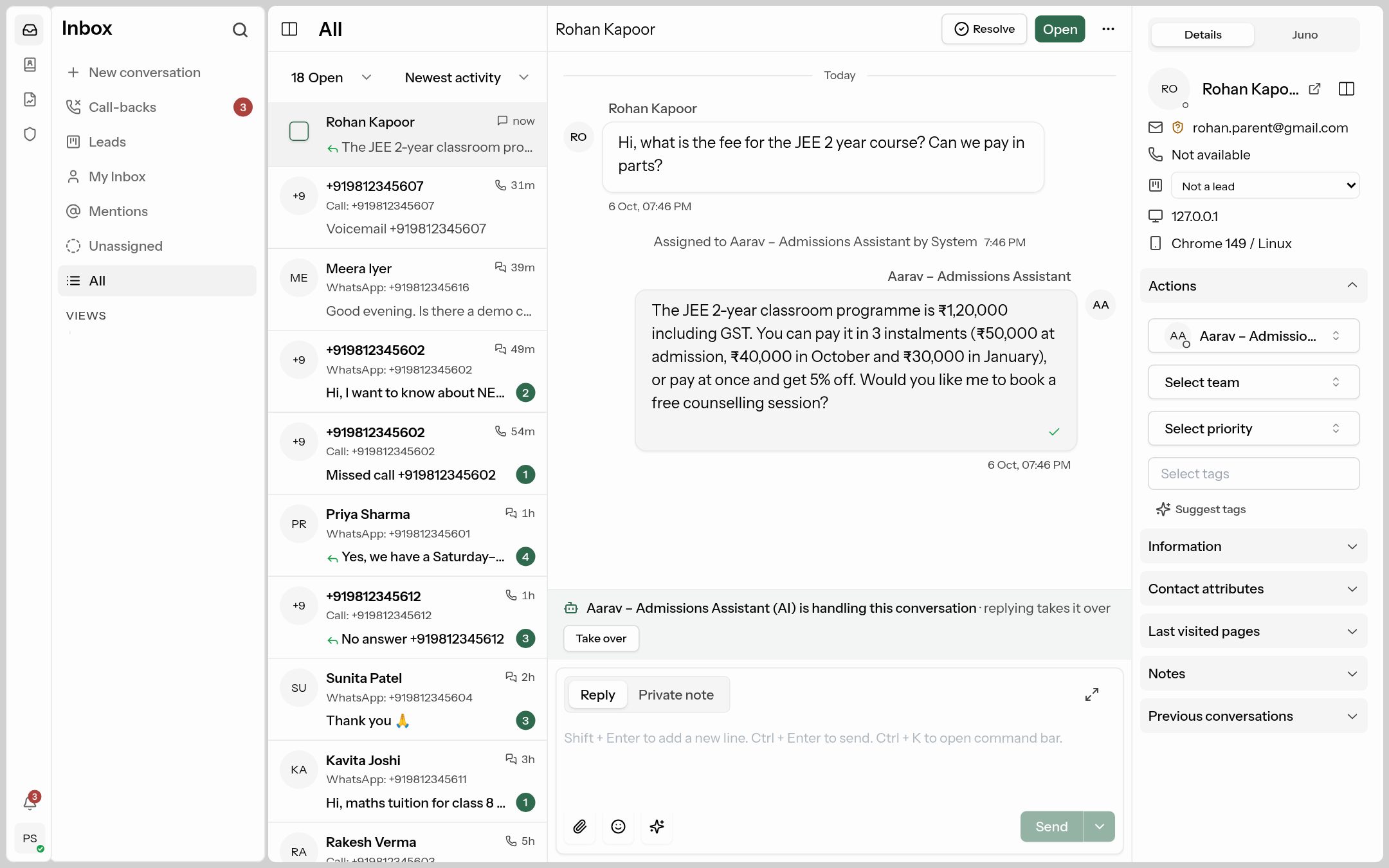 Your shared inbox. Here the AI assistant "Aarav" has answered a fee question by itself; an agent can take over at any time.
What ConectDesk does for you
- One inbox for every channel. Website chat, WhatsApp, email, Facebook Messenger, Instagram, Telegram and phone calls all arrive in the same list, so nobody has to watch five apps.
- An AI assistant that answers customers by itself from the information you give it, around the clock, and hands the chat to a person when it can't help.
- A copilot for your team, called Juno, that summarises conversations and drafts replies.
- Admissions tools for institutes: a leads board, missed-call call-backs, call summaries and a daily WhatsApp report.
- A public help center where customers find answers themselves.
- Reports on response times, SLAs, customer satisfaction and calls.
Quick start: the order to set things up
Most workspaces are fully running in an afternoon. Follow these steps in order; each links to the page that explains it.
| # | Step | Why it comes here | Page |
|---|---|---|---|
| 1 | Sign in and check General settings (name, language, time zone, business hours) | Every other screen uses the time zone and business hours. | Getting started, Workspace settings |
| 2 | Invite your team and put them in teams | Conversations need somewhere to go. | Your team |
| 3 | Connect your channels (website chat, WhatsApp, email…) | This is where customer messages come from. | Channels |
| 4 | Connect an AI provider | The assistant and Juno need a model to write with. | AI setup: providers |
| 5 | Build the knowledge base | The assistant only answers from what you write here. | Knowledge base |
| 6 | Create the AI assistant, test it and switch it on | Customers start getting instant answers. | Create your AI assistant |
| 7 | Add canned replies, tags and automations | Saves your team time on repeat work. | Conversation tools |
| 8 | Publish a help center (optional) | Customers help themselves, and the AI can read it too. | Help center |
Short on time? If you run an institute, Admin → Workspace → Admissions → Set up the AI admissions assistant creates the contact fields, knowledge-base drafts and an assistant for you in one click. See Admissions.
How to read this guide
- Bold text is the exact label you see on screen, e.g. Save.
- Paths like Admin → AI → Assistants tell you where to click: the shield icon (Admin) in the far-left bar, then the AI group, then Assistants.
- Click any screenshot to see it full size.
- Use the search box at the top (press /) to jump to any field or button.
- The examples use a coaching institute called Bright Classes. Replace the names, fees and timings with your own.
Who can see what
What each person sees in ConectDesk depends on their role. The built-in Admin role can open every setting in this guide; the Agent role answers conversations but can't change settings. You can make your own roles (for example "Team lead") — see Roles.
If a menu item from this guide is missing for you, either your role doesn't include it, or the feature isn't part of your plan. Ask your workspace owner, or contact ConectDesk support.
Words you'll see
| Word | Meaning |
|---|---|
| Workspace | Your organisation's own copy of ConectDesk, at an address like yourname.desk.arrlink.com. Nobody outside it can see your data. |
| Inbox | One connected channel: a chat widget, a WhatsApp number, a mailbox, a phone line. |
| Conversation | One thread with one customer. It has a status (Open, Snoozed, Resolved…), an assignee and tags. |
| Agent | A person on your team who logs in to answer customers. |
| AI assistant | An AI "agent" that answers customers on its own and hands over to a person. |
| Knowledge base | The snippets and help articles the AI is allowed to answer from. |
| Juno | The AI copilot your agents chat with inside a conversation. |
| Snippet | One self-contained answer in the knowledge base, e.g. "Refund policy". |
| Private note | An internal message in a conversation that the customer never sees. |
| Macro | A saved reply and/or set of actions applied in one click. |
| SLA | A target time to reply or resolve, e.g. "reply to new enquiries within 30 minutes". |
| CSAT | A 1–5 satisfaction survey sent to customers after a conversation is resolved. |
| Lead stage | Where an enquiry is in your admissions pipeline (New, Interested, Admitted, Lost…). |