Channels (inboxes)
An inbox is one connected channel: your website chat widget, a WhatsApp number, a mailbox, a Facebook Page, an Instagram account, a Telegram bot or a phone line. Every message that arrives on any of them lands in the same shared inbox for your team.
Where: Admin → Channel → Inboxes.
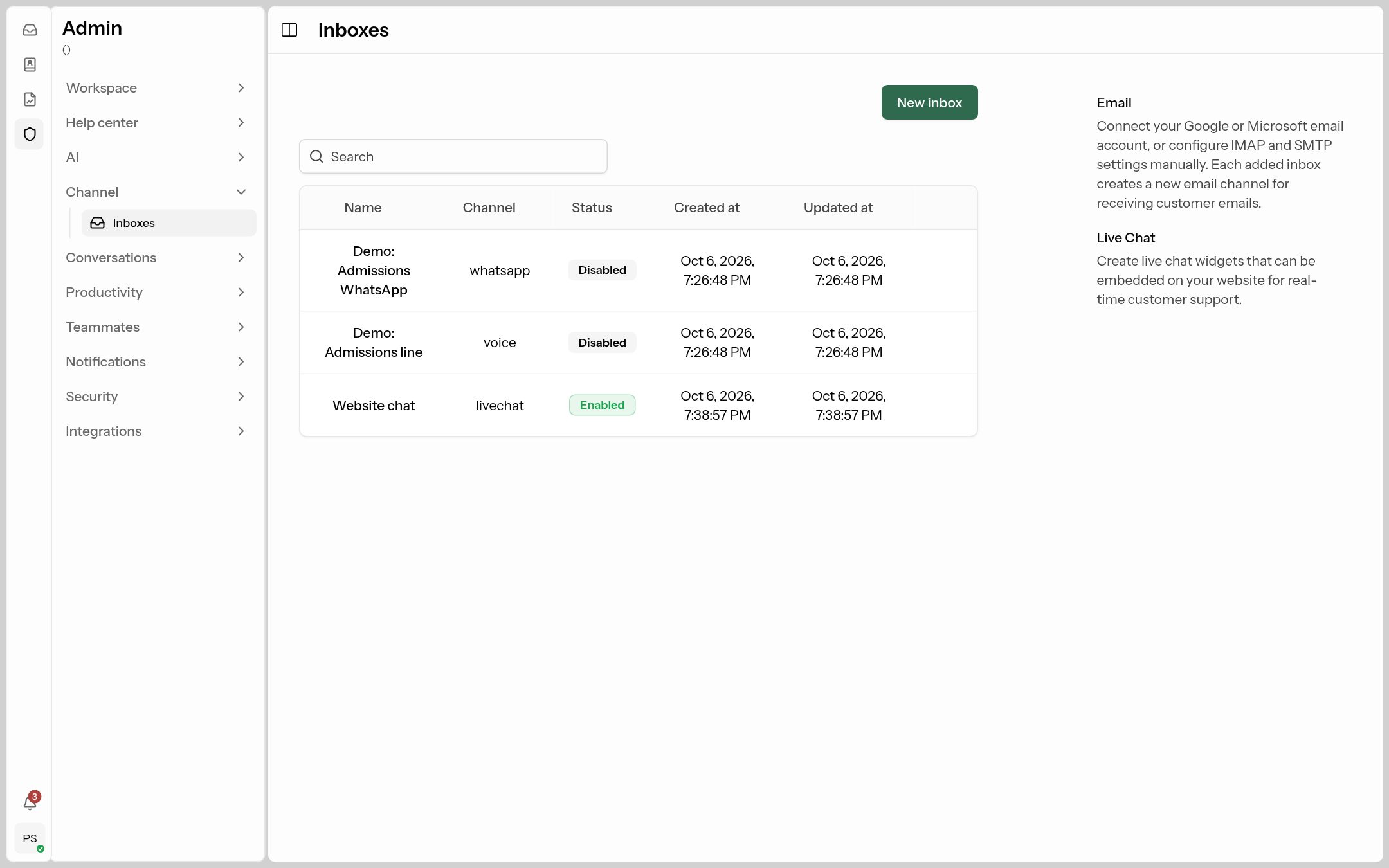 Each row is one connected channel. Click a name to change its settings.
- New inbox adds a channel.
- The row menu (⋮) lets you Edit, Disable (stop receiving and sending without deleting anything) or Delete an inbox.
- How many inboxes you can have depends on your plan, and which channels you can add depends on what's enabled for your workspace.
Adding a channel
Click New inbox and choose the channel:
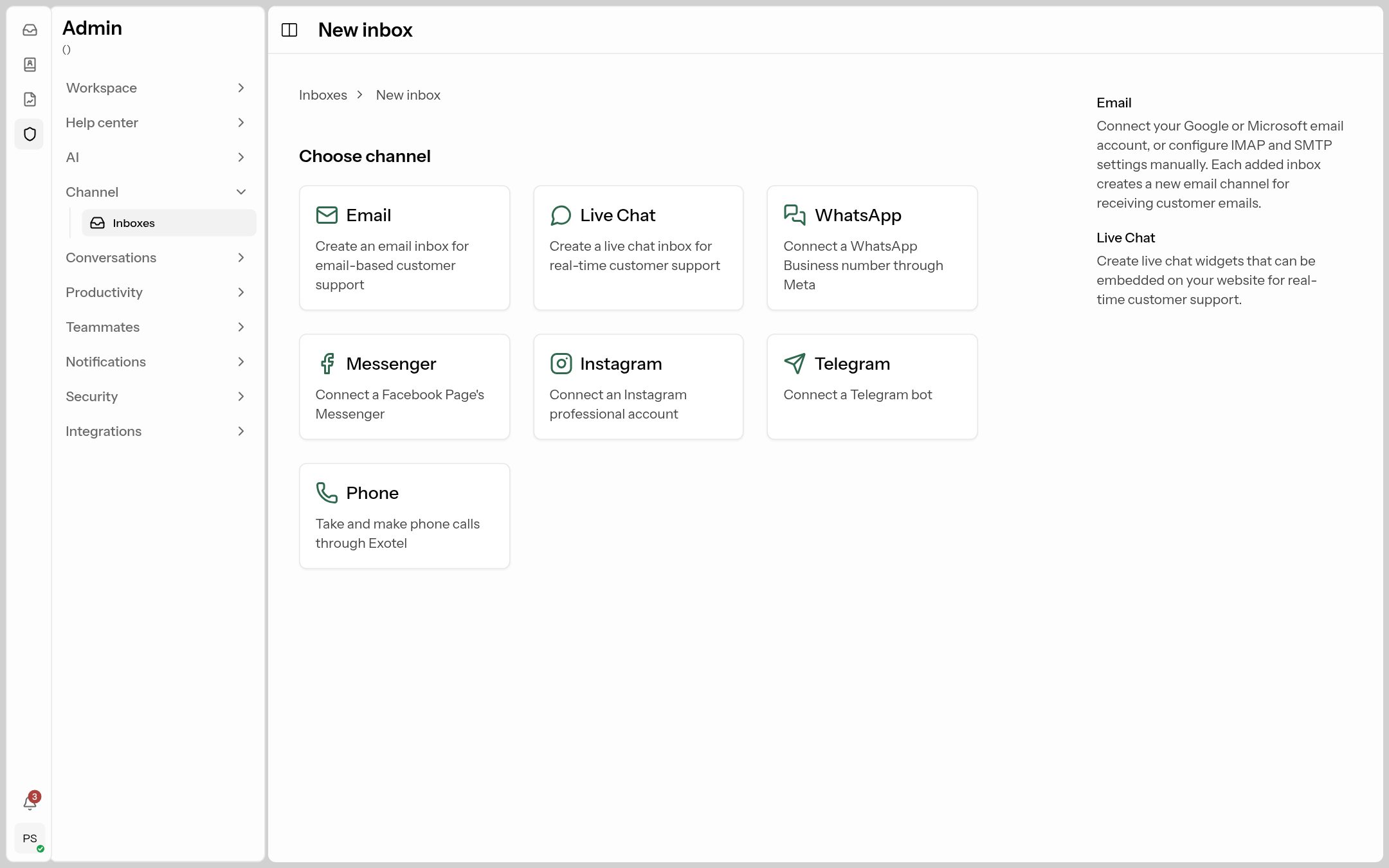 Only the channels enabled for your workspace are shown.
| Channel | Use it for |
|---|---|
| Live Chat | A chat bubble on your website. The quickest to set up. |
| Your WhatsApp Business number, connected through Meta. | |
| A support mailbox (Gmail / Google Workspace, Microsoft 365, or any IMAP/SMTP mailbox). | |
| Messenger | Messages to your Facebook Page. |
| DMs to your Instagram professional account. | |
| Telegram | A Telegram bot. |
| Phone | Calls to your Exotel number, with recordings and missed-call call-backs. |
AI assistant on chat channels. Live Chat, WhatsApp, Messenger, Instagram and Telegram inboxes have an AI assistant setting. By default (Automatic) every new conversation on them goes to your workspace's AI assistant first. See Connect the assistant to your channels.
Live chat (website widget)
The live chat inbox gives you a chat bubble for your website. The settings are split into tabs, and a Preview on the right shows what visitors will see as you change things. One Create / Save button at the bottom saves every tab.
General tab
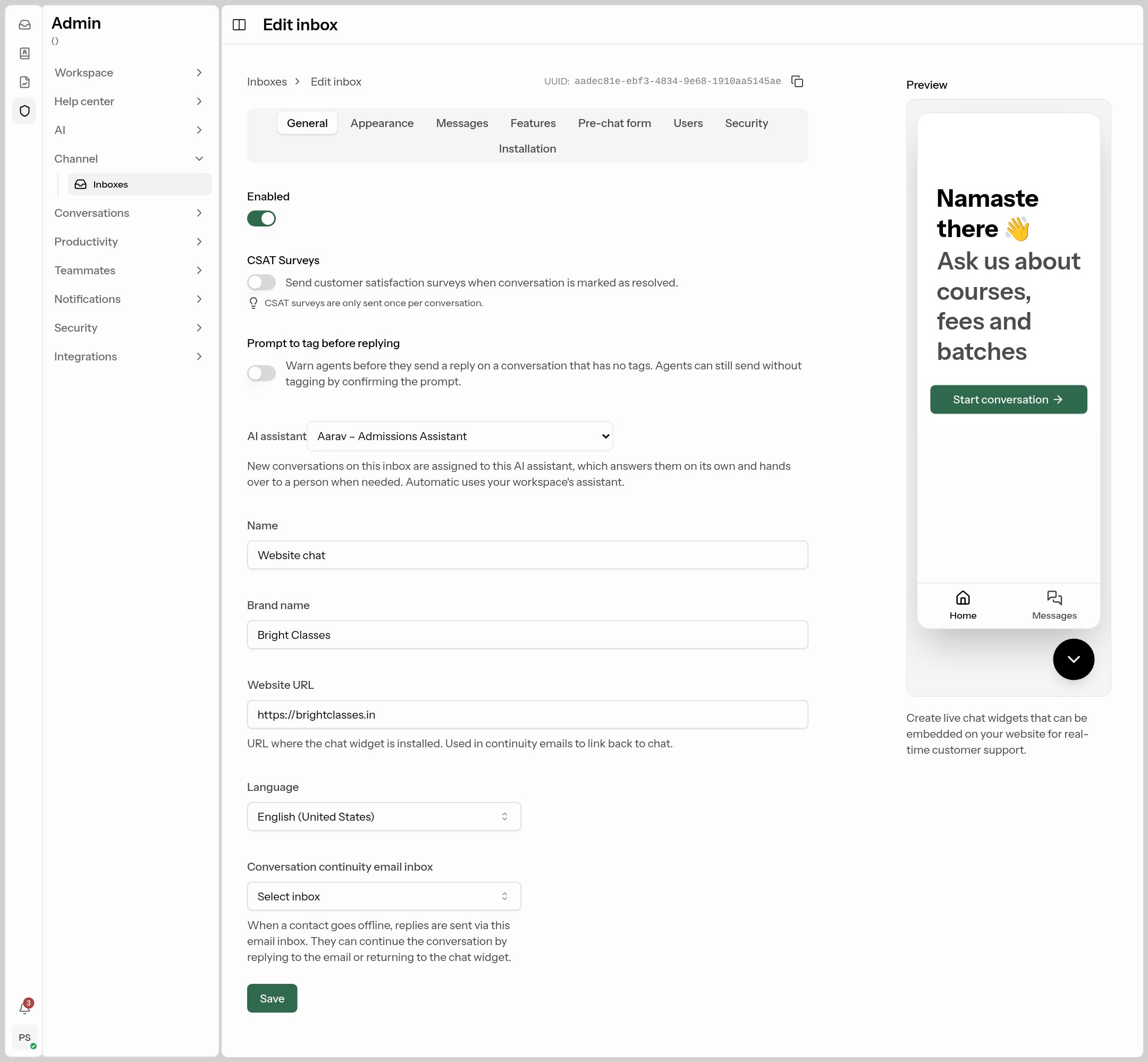 The AI assistant dropdown (outlined) decides who answers new chats first.
| Field | What it does | What to put |
|---|---|---|
| Enabled | Turns the widget on or off. | On. |
| CSAT Surveys | Sends a 1–5 satisfaction survey when a conversation is resolved (once per conversation). | On if you want satisfaction scores in Reports. |
| Prompt to tag before replying | Reminds agents to tag a conversation before replying. | On if you rely on tags for reports. |
| AI assistant | Automatic sends new chats to your workspace's assistant; Off lets your automations decide; or pick a specific assistant. | Automatic, or a specific assistant if you have several. |
| Name | The inbox name your team sees. | Website chat |
| Brand name | The name visitors see in the widget header. | Bright Classes |
| Website URL | Where the widget is installed; used in follow-up emails to link back to the chat. | https://brightclasses.in |
| Language | The widget's language, or Auto-detect from the visitor's browser (with a Fallback language). | Auto-detect. |
| Conversation continuity email inbox | If a visitor leaves before you reply, your reply is emailed to them through this email inbox, and they can answer by email. | Pick your support email inbox if you have one. |
Appearance tab
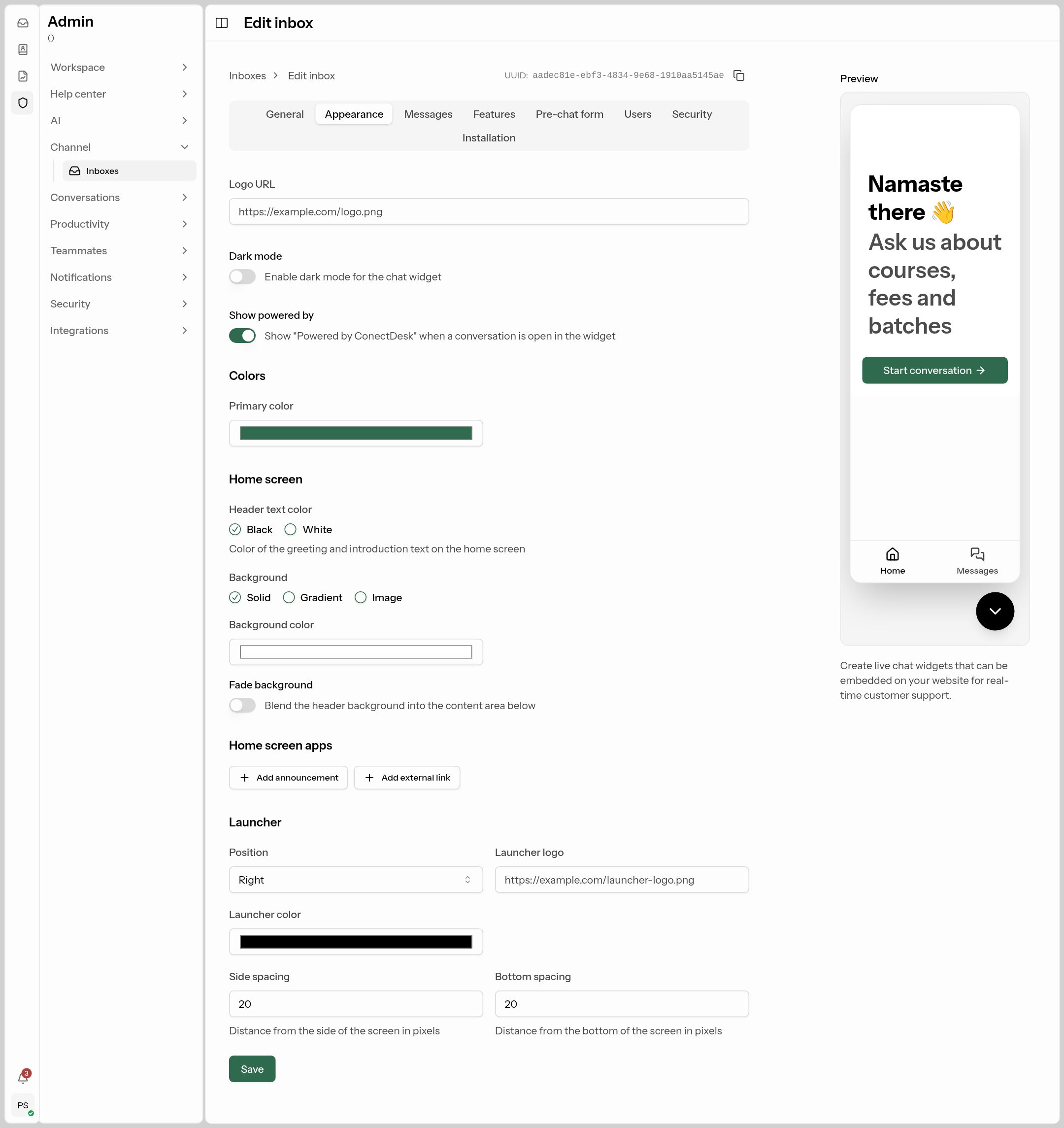
- Logo URL, Dark mode, Show powered by.
- Primary color: buttons and your messages. Use your brand colour.
- Home screen: header text colour and background (solid, gradient or image).
- Home screen apps: add announcements (e.g. "Admissions open for 2027 batch") or external links (e.g. "Download brochure").
- Launcher: bubble position (left/right), logo, colour and distance from the screen edge.
Messages tab
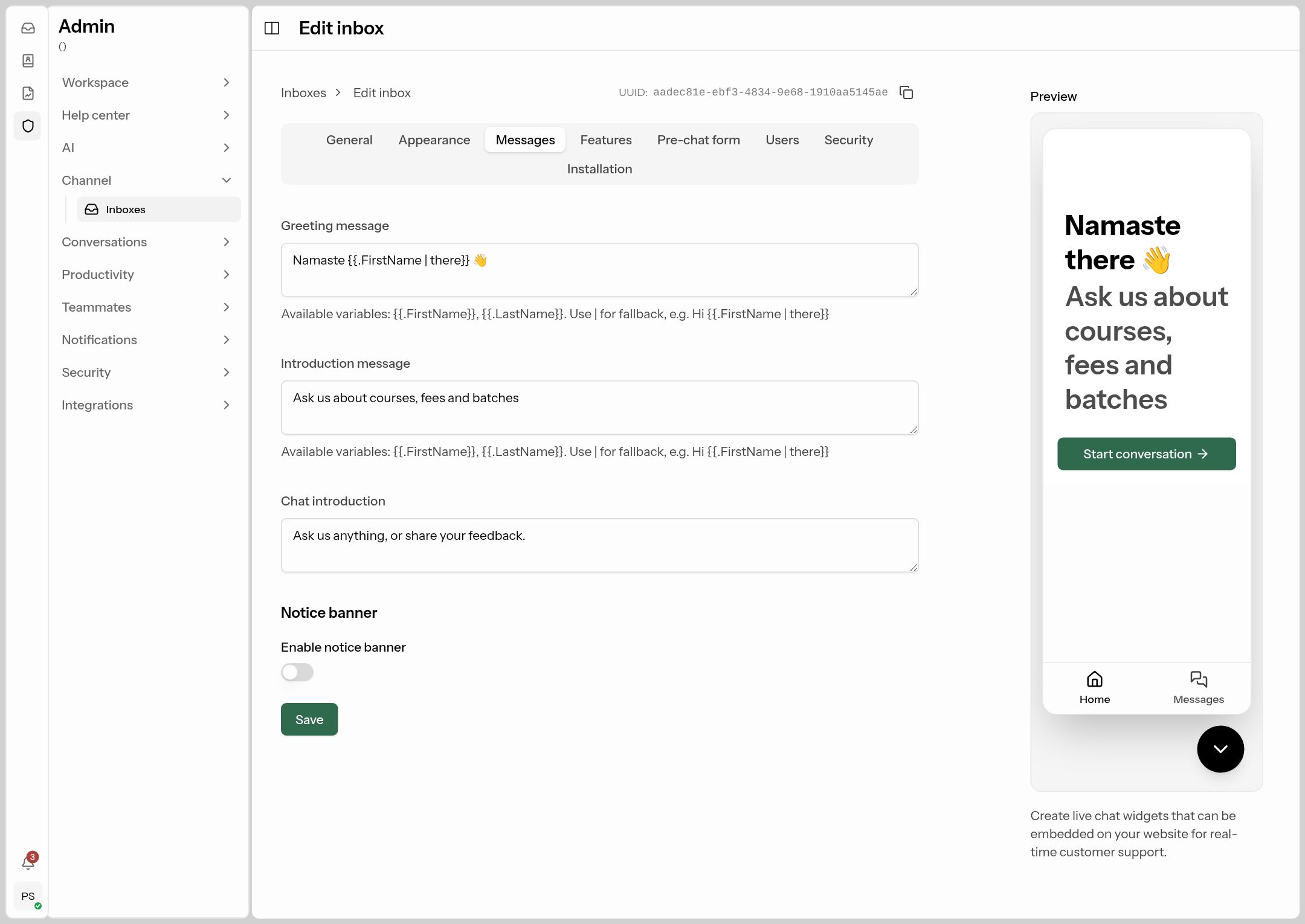
- Greeting message: the big heading, e.g.
Namaste {{.FirstName | there}} 👋(shows the visitor's first name if known, otherwise "there"). - Introduction message: the line under it, e.g. "Ask us about courses, fees and batches".
- Chat introduction: shown at the top of a new chat.
- Notice banner: a temporary notice such as "Replies are slower during exam week".
Features tab
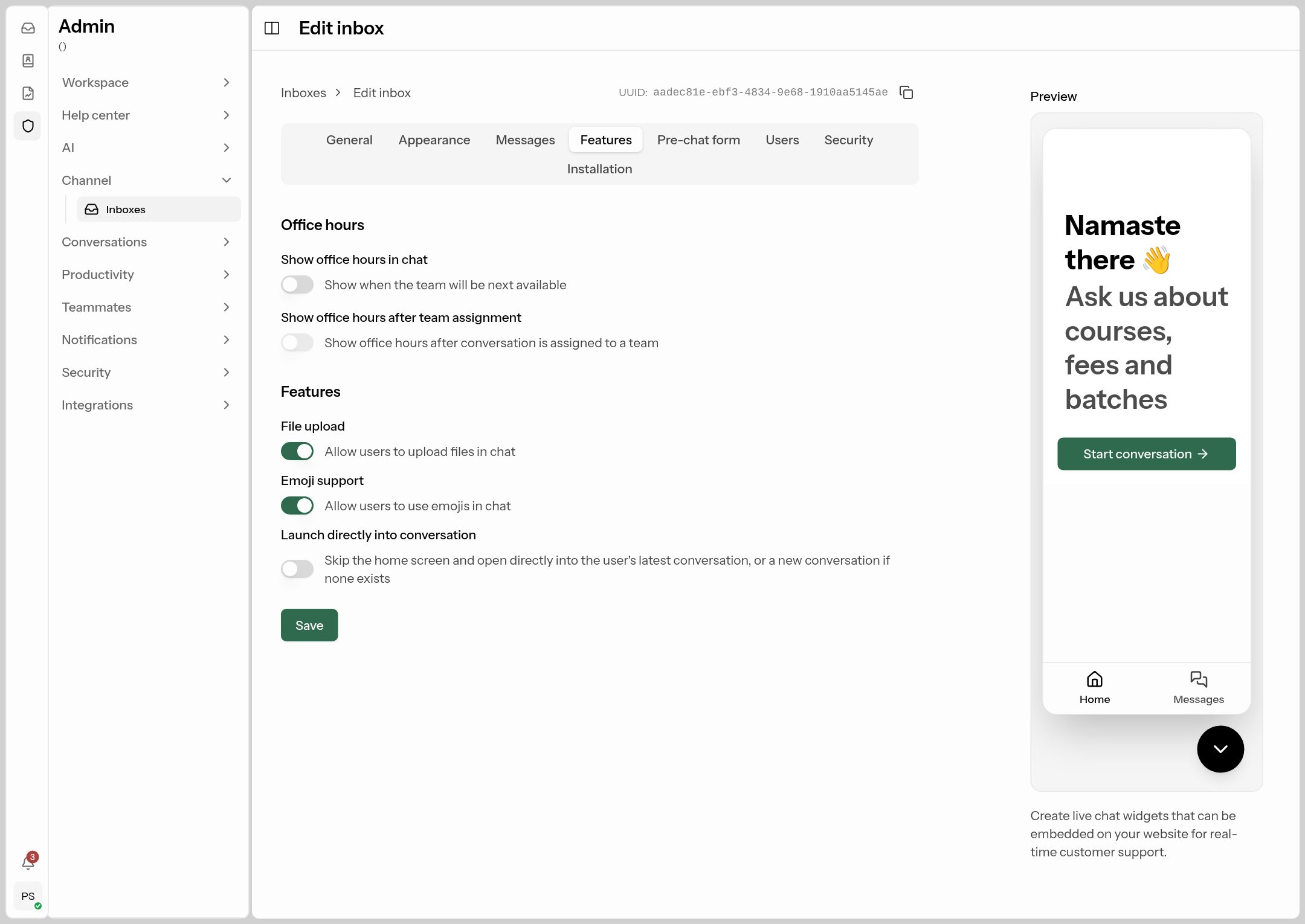
- Show office hours in chat: tells visitors when your team is next available (uses your business hours), with a Chat reply expectation message like "We typically reply in 5 minutes".
- File upload, Emoji support.
- Launch directly into conversation: skip the home screen.
Pre-chat form tab
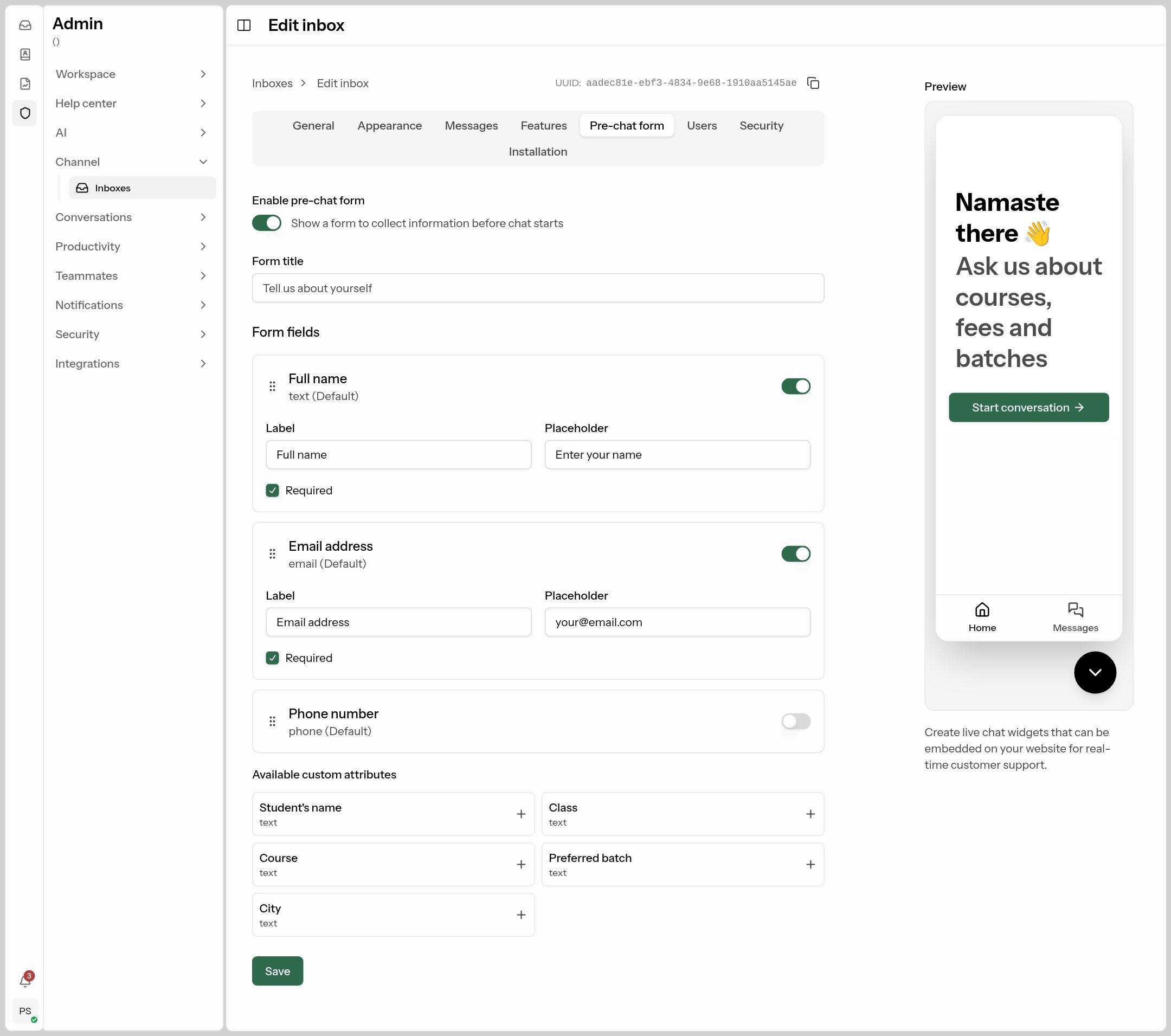
Turn on Enable pre-chat form to ask for details before a chat starts. Name and email are on by default; phone is optional. You can add your own custom attributes (e.g. "Class", "Course interested in") as fields. This means every enquiry arrives with contact details, even if the visitor leaves.
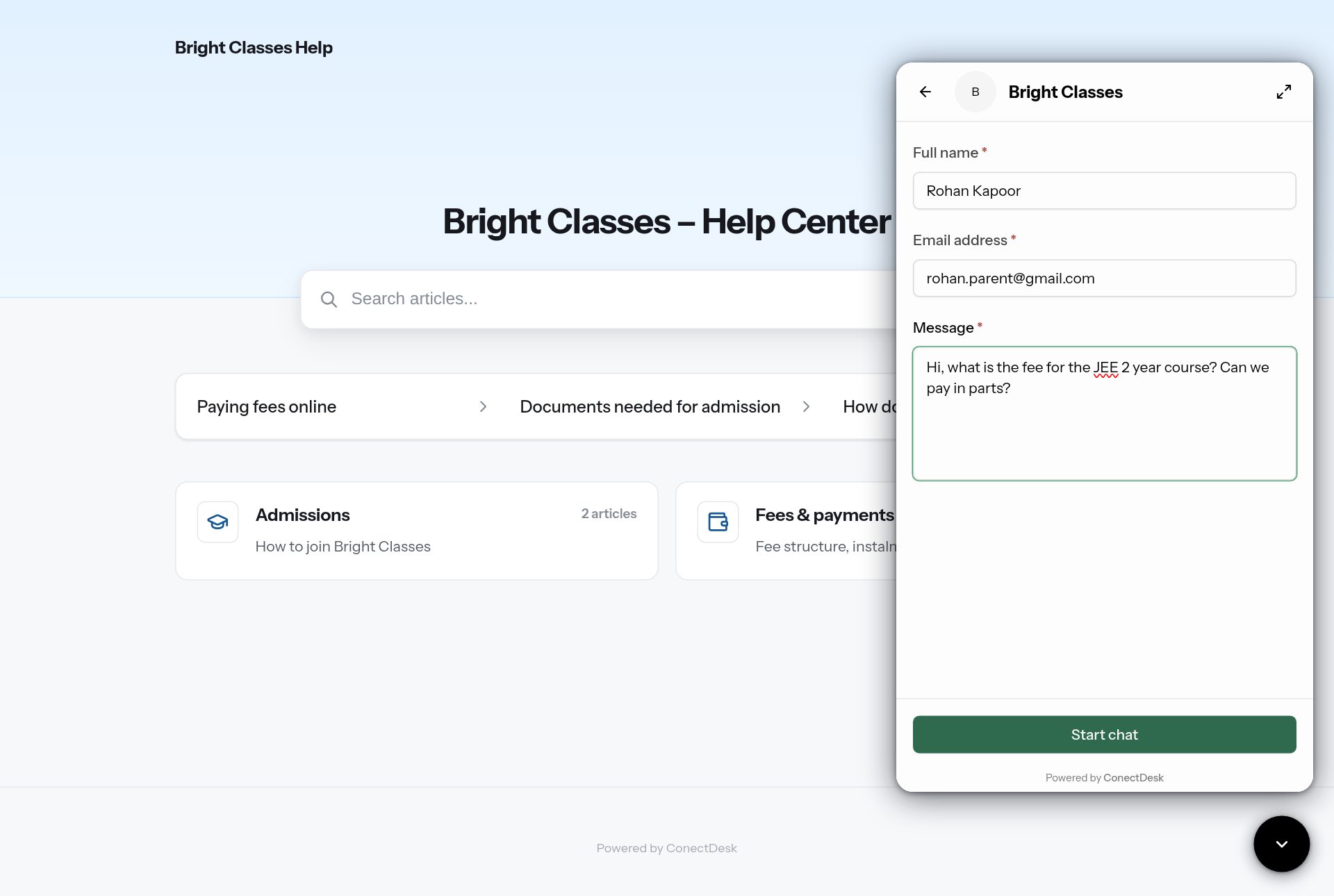 The pre-chat form inside the widget.
Users tab
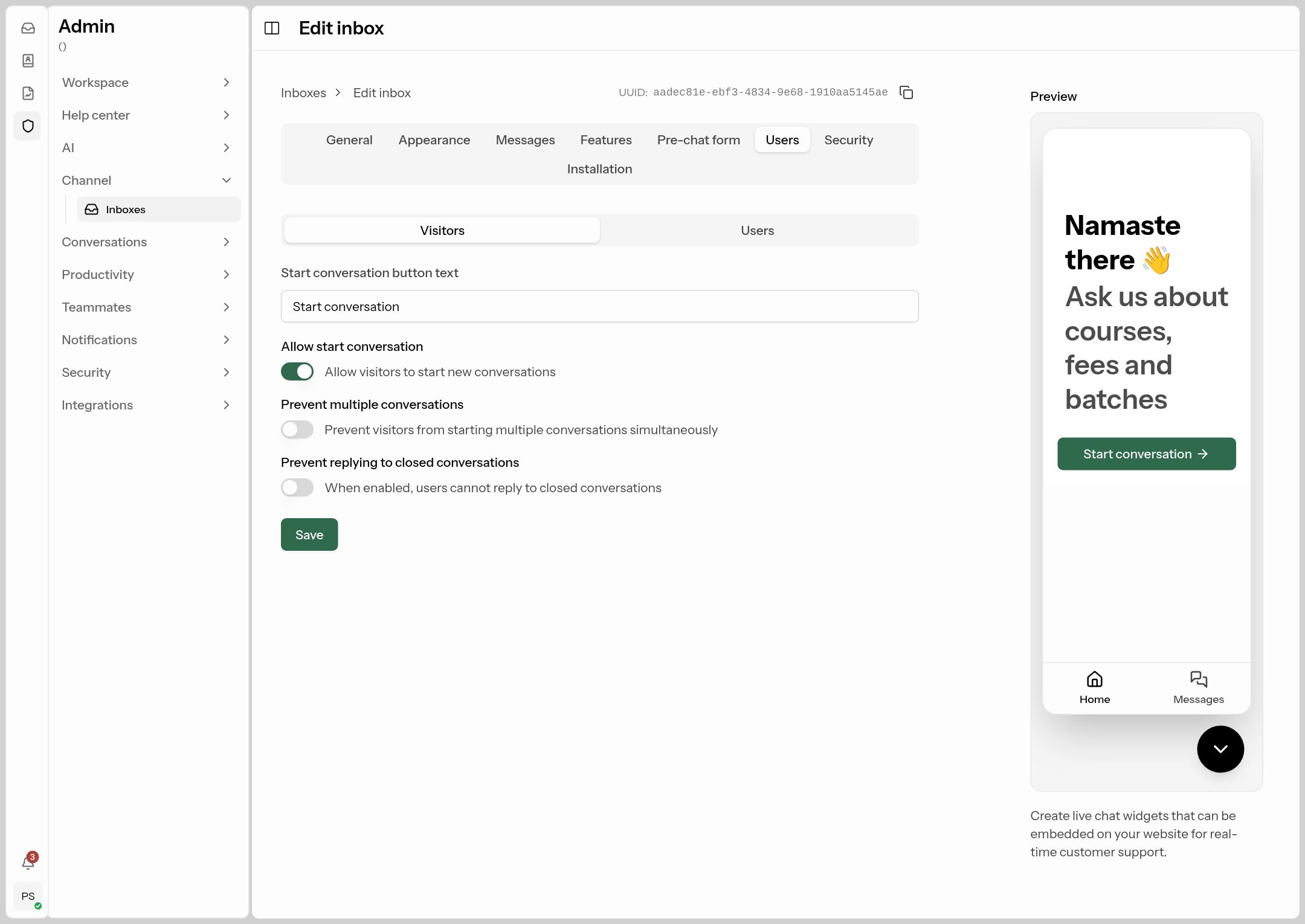
Separate settings for anonymous Visitors and logged-in Users of your site: the start-button text, whether they may start conversations, whether they may have more than one open at a time, and whether they may reply to closed ones.
Security tab
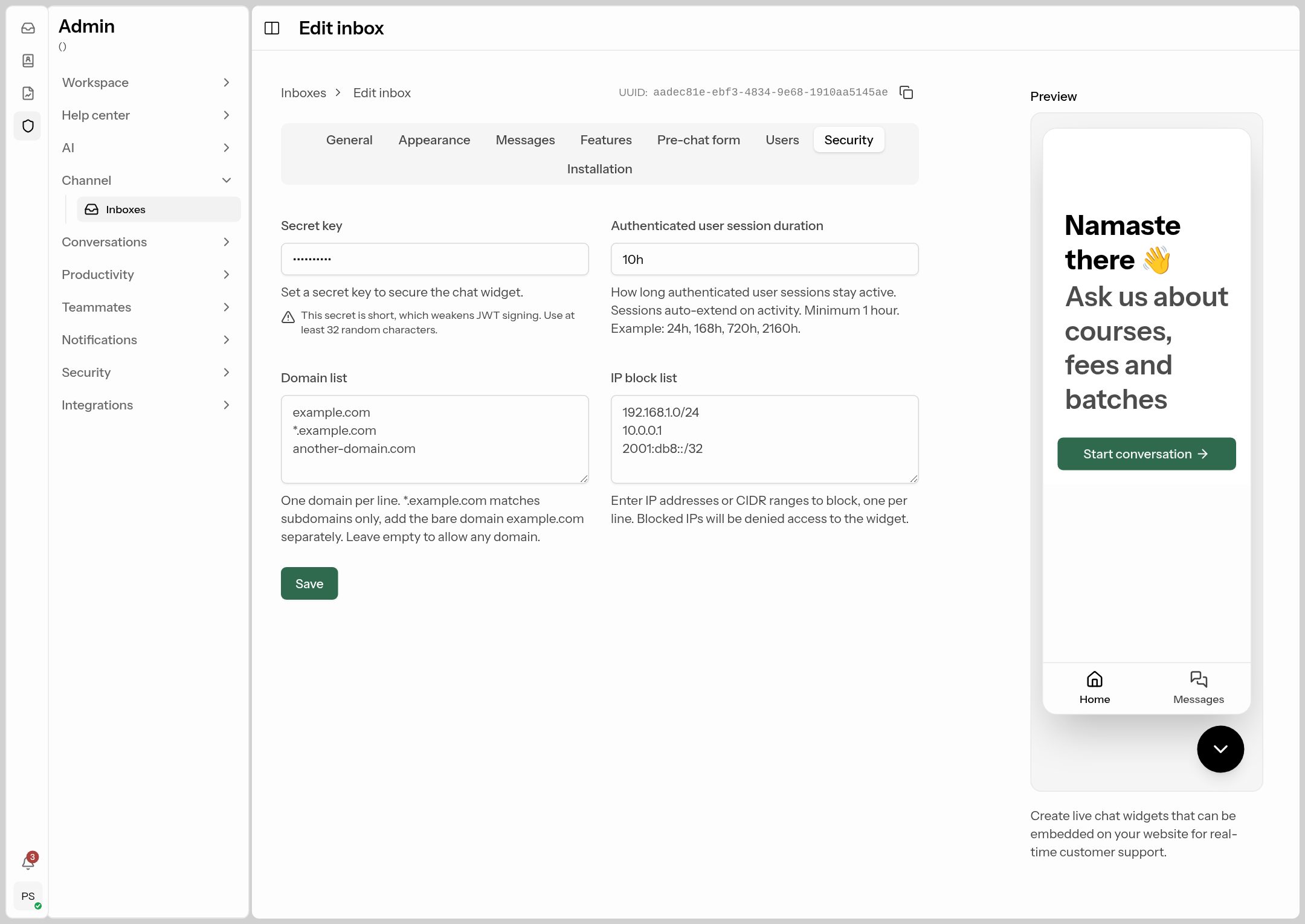
- Secret key: used only if you identify logged-in users (see Installation). Keep it on your server.
- Domain list: the websites allowed to show the widget, one per line (e.g.
brightclasses.inand*.brightclasses.in). Empty means any site. - IP block list: IPs that may not use the widget (e.g. a spammer).
Installation tab — putting the widget on your website
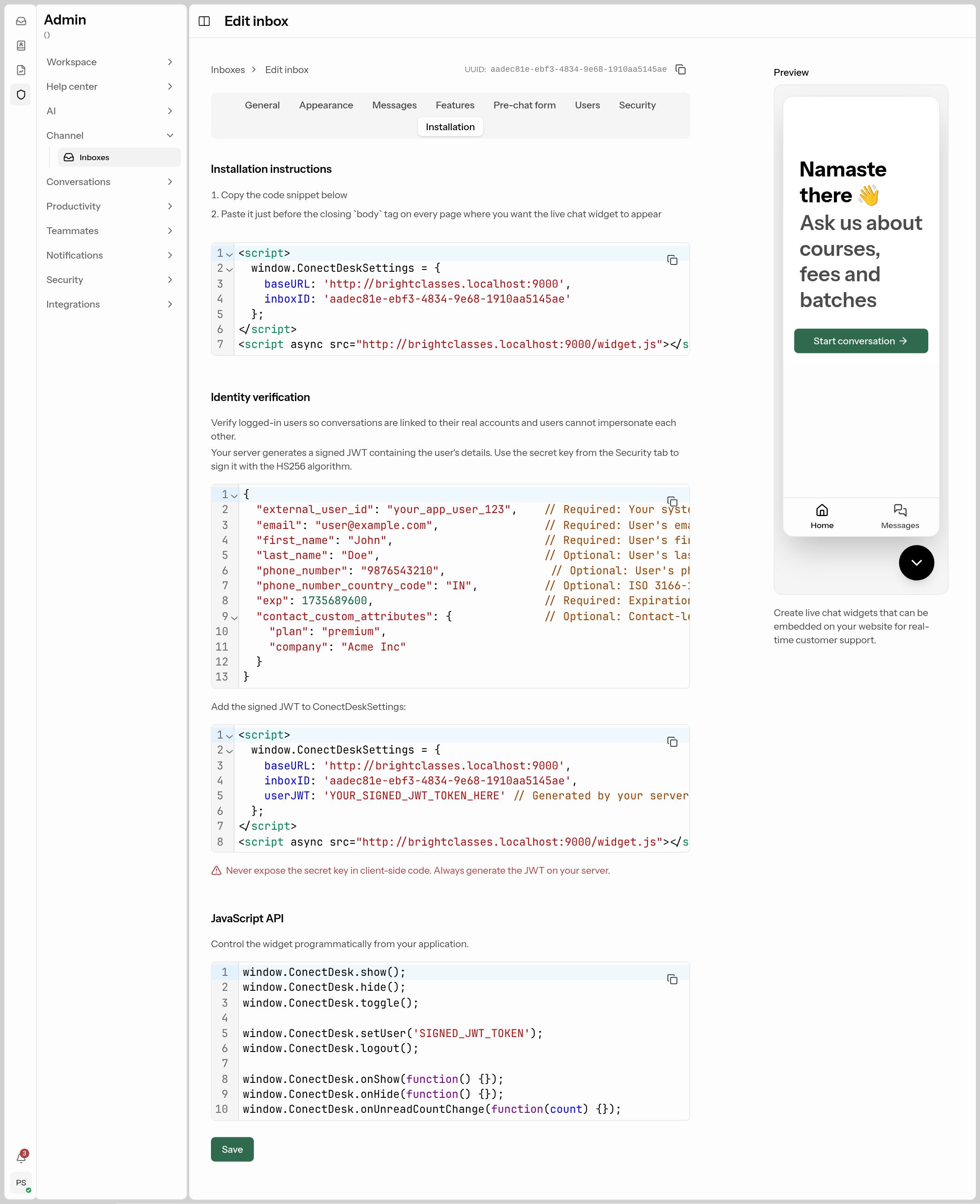 Copy the first snippet into your website.
- Click Create (or Save) first.
- Open the Installation tab and click the copy icon on the first code box.
- Paste it just before the closing
</body>tag on every page where the chat should appear. On WordPress, use a plugin like "Insert Headers and Footers"; on Wix/Shopify, use "custom code". - Open your website — the chat bubble appears in the corner.
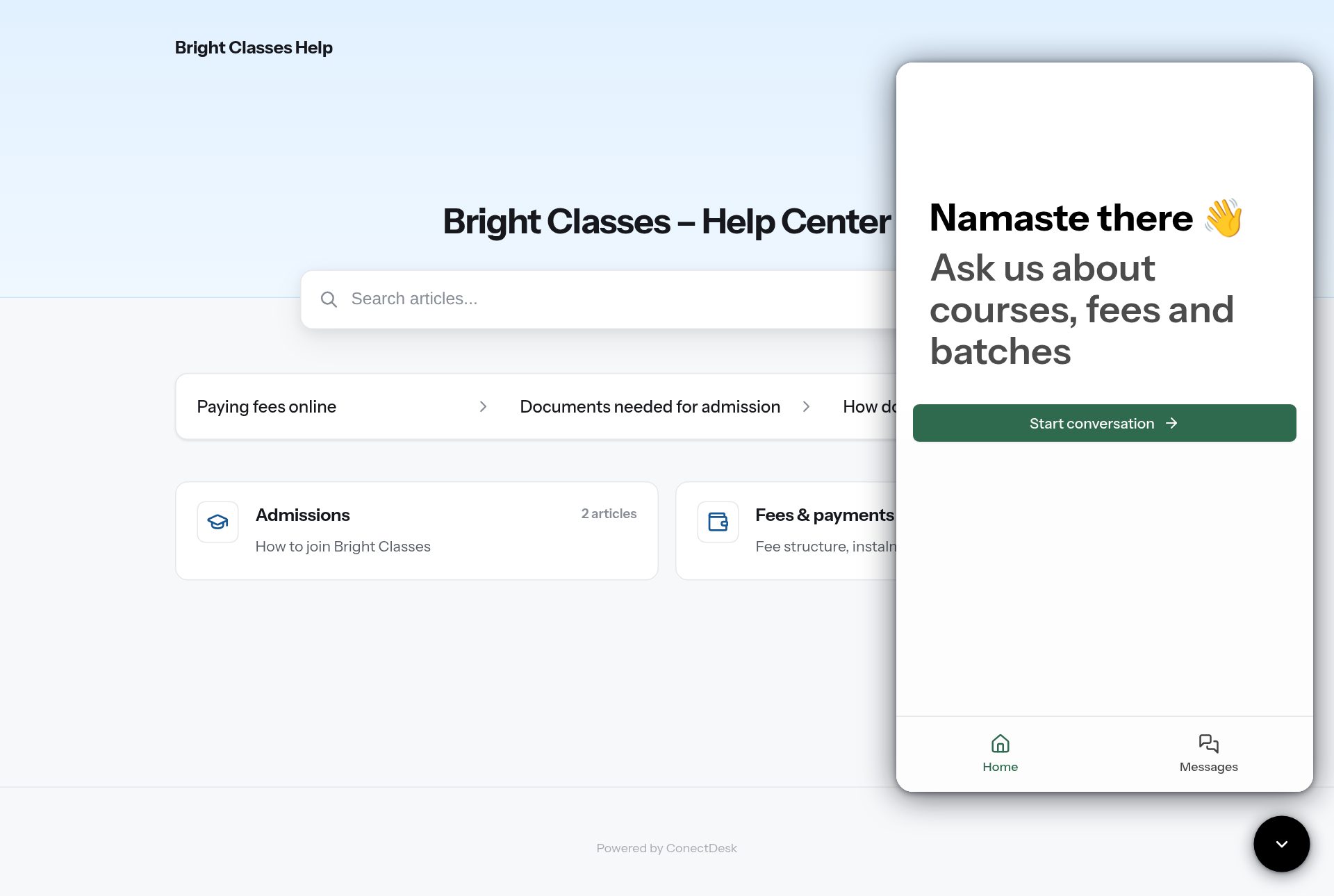 What your visitors see when they click the bubble.
Identity verification (optional, for developers): if your visitors log in to your website, your server can sign a token with the Secret key so their chats are linked to their real account. The tab shows example code. The JavaScript API lets your site open, close or hide the widget from its own buttons.
- New inbox → WhatsApp → Continue with Facebook.
- Sign in to Facebook, choose or create your WhatsApp Business Account and verify your number.
- You return to Inboxes with the new WhatsApp inbox.
Already using the WhatsApp Cloud API with your own Meta app? Choose or connect manually and enter your WhatsApp Business Account ID, Phone number ID, App ID, App secret and a permanent access token.
After connecting, open the inbox to see:
- Number health: quality rating and messaging limit from Meta.
- Message templates: WhatsApp only lets you message a customer more than 24 hours after their last message with a Meta-approved template. Click New template, fill in the message (with variables like
{{1}}and sample values) and Submit for review. - AI assistant, Send read receipts (blue ticks), Max media size, CSAT Surveys.
The 24-hour rule. WhatsApp, Messenger and Instagram only allow normal replies within 24 hours of the customer's last message. After that, send an approved template.
New inbox → Email, then pick how to connect:
- Google (Gmail / Google Workspace) or Microsoft (Microsoft 365 / Outlook): click Continue and sign in. Nothing else to set up.
- Other provider: enter your mailbox's IMAP (receiving) and SMTP (sending) settings from your email provider.
Useful fields:
| Field | What to put |
|---|---|
| Name | Admissions email |
| From email address | Bright Classes <admissions@brightclasses.in> |
| From display name template | {{ .Agent.FirstName }} at Bright Classes to show who replied. |
| CSAT Surveys | On to collect satisfaction scores. |
| Enable plus addressing | Keep on for Gmail/Microsoft; it improves threading. |
Email isn't a chat channel, so to have the AI assistant answer emails, use an automation rule.
Messenger and Instagram
New inbox → Messenger (or Instagram) → Continue with Facebook, then choose the Pages (or the Pages your Instagram accounts are linked to). Each becomes an inbox. Import past conversations brings in recent history without sending anything.
Telegram
- In Telegram, message @BotFather, send
/newbotand follow the steps. - Copy the bot token it gives you.
- New inbox → Telegram, paste the Bot token and click Connect bot.
Phone (Exotel)
New inbox → Phone. Enter your Exotel Account SID, API key, API token and ExoPhone (found in Exotel under Settings → API Settings). Then:
| Setting | What it does |
|---|---|
| Record calls | Attaches recordings to calls (tell callers they're recorded). |
| Ring online agents | Rings every online agent who has a phone number set. |
| Fallback numbers | Rung when no agent is online. |
| Phone menu | "Press 1 for admissions, 2 for fees" — each key routes to a team. |
| Create call-backs | Every missed call becomes a task on the Call-backs page. |
| Minutes to call back | After this, the call-back is marked overdue. |
| Send the caller a WhatsApp message | Automatically WhatsApp missed callers with an approved template. |
After saving, the page shows the exact steps and links to paste into your Exotel call flow. Agents set their own number under Account → Phone for calls.