Getting started
How to sign in, find your way around and use the setup checklist.
Signing in
Your workspace has its own address, for example https://brightclasses.desk.arrlink.com. Open it, enter the email and password you were given, and click Sign in.
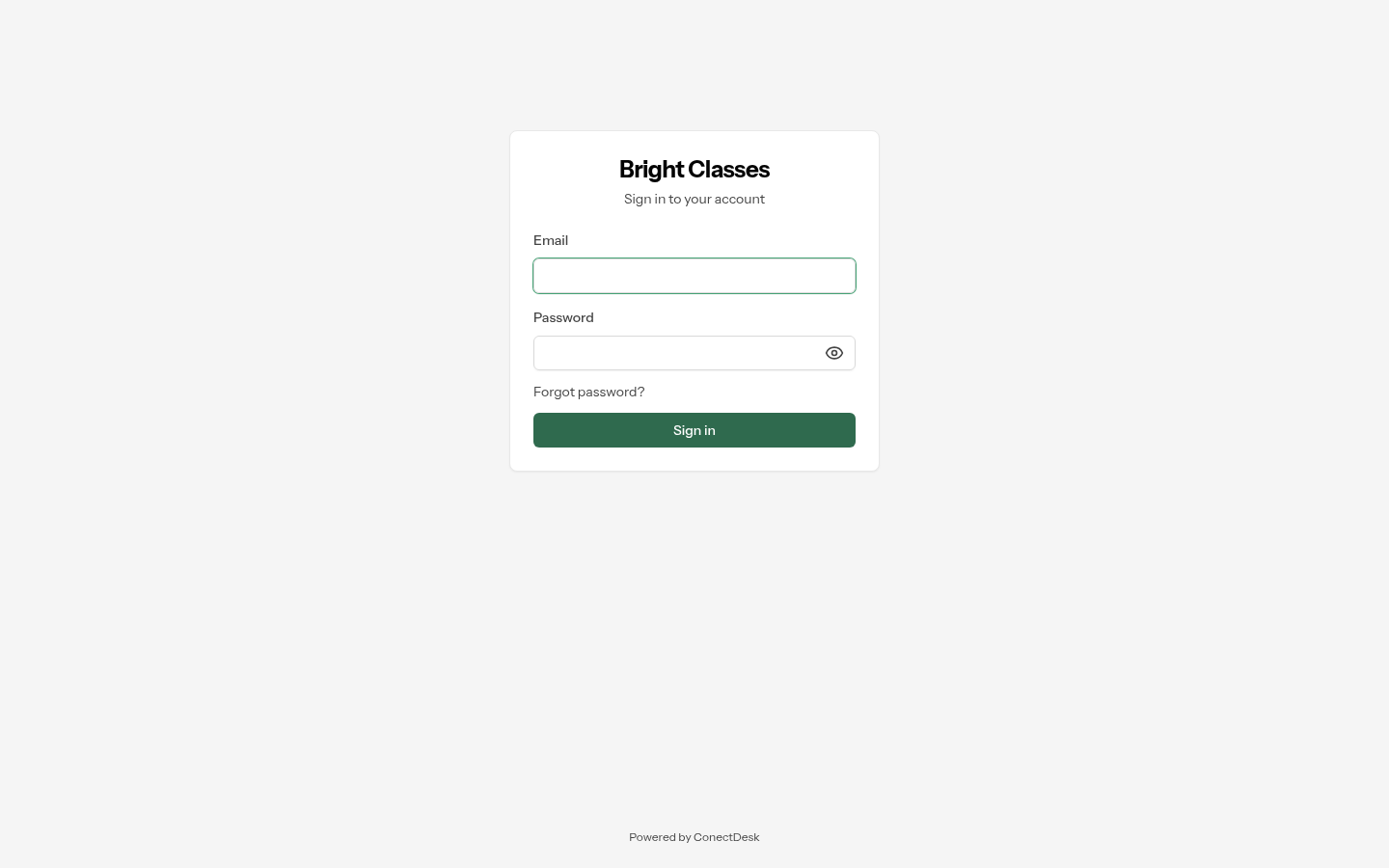 The login page shows your workspace's name at the top.
- Forgot password? emails you a link to set a new one.
- If your workspace uses single sign-on, you'll also see a button such as "Login with Google".
- If two-factor login is on, you'll be asked for the 6-digit code from your authenticator app after your password.
Don't know your workspace address? Go to
https://desk.arrlink.com, type your workspace name and you'll be sent to the right login page.
Finding your way around
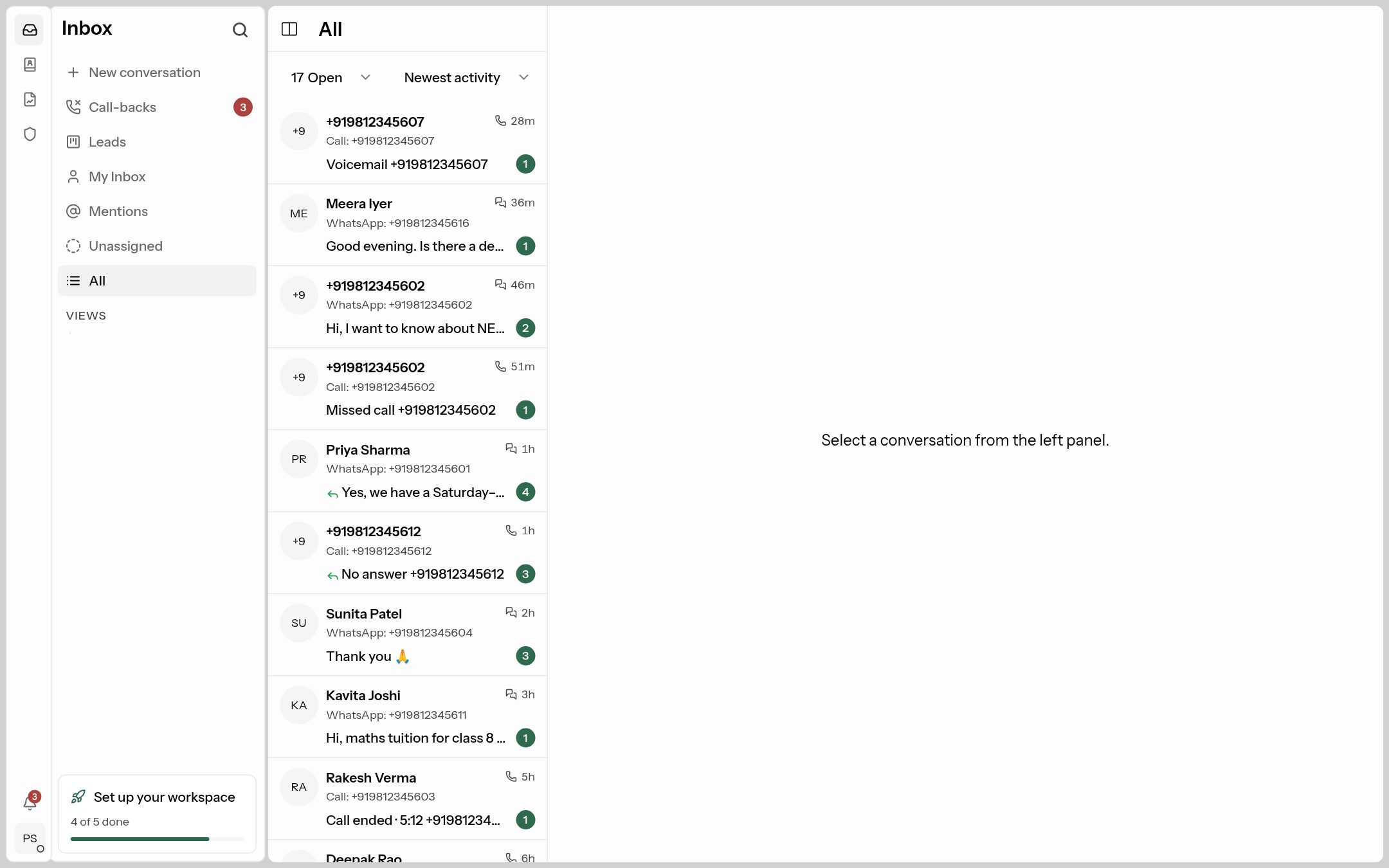 The main screen: the icon bar on the far left, the inbox menu, the conversation list and the open conversation.
The thin bar on the far left switches between the main areas:
| Icon | Opens | Used for |
|---|---|---|
| Inbox tray | Inbox | Answering conversations (everyone uses this). |
| Contact card | Contacts | The list of customers and their details. |
| Chart | Reports | Response times, SLA, CSAT, call numbers. |
| Shield | Admin | Every setting in this guide. Only shown if your role allows at least one setting. |
| Bell (bottom) | Notifications | Mentions, assignments and SLA alerts. |
| Your initials (bottom) | Your account | Profile, password, two-factor login, availability (Online / Away), log out. |
Inside Admin, settings are grouped in a menu. Click a group to open it:
| Group | What's inside |
|---|---|
| Workspace | General, Domains, Usage, Admissions, Privacy, Data export, Business hours, SLA policies |
| Help center | Your public help-center websites and their articles |
| AI | Providers, Snippets, Suggestions, Tools, Assistants |
| Channel | Inboxes (chat widget, WhatsApp, email…) |
| Conversations | Statuses, Tags, Custom attributes, Shared views |
| Productivity | Macros, Automations |
| Teammates | Agents, Teams, Roles, Activity logs |
| Notifications | Email server for team notifications, email Templates |
| Security | SSO (single sign-on) |
| Integrations | Webhooks, Slack, Microsoft Teams, Context links |
On the right of most admin pages there's a grey help text that sums up what the page is for.
The setup checklist
New workspaces show a Set up your workspace card at the bottom of the inbox menu ("2 of 5 done"). Click it, or go to Admin → Workspace → General and open /admin/setup.
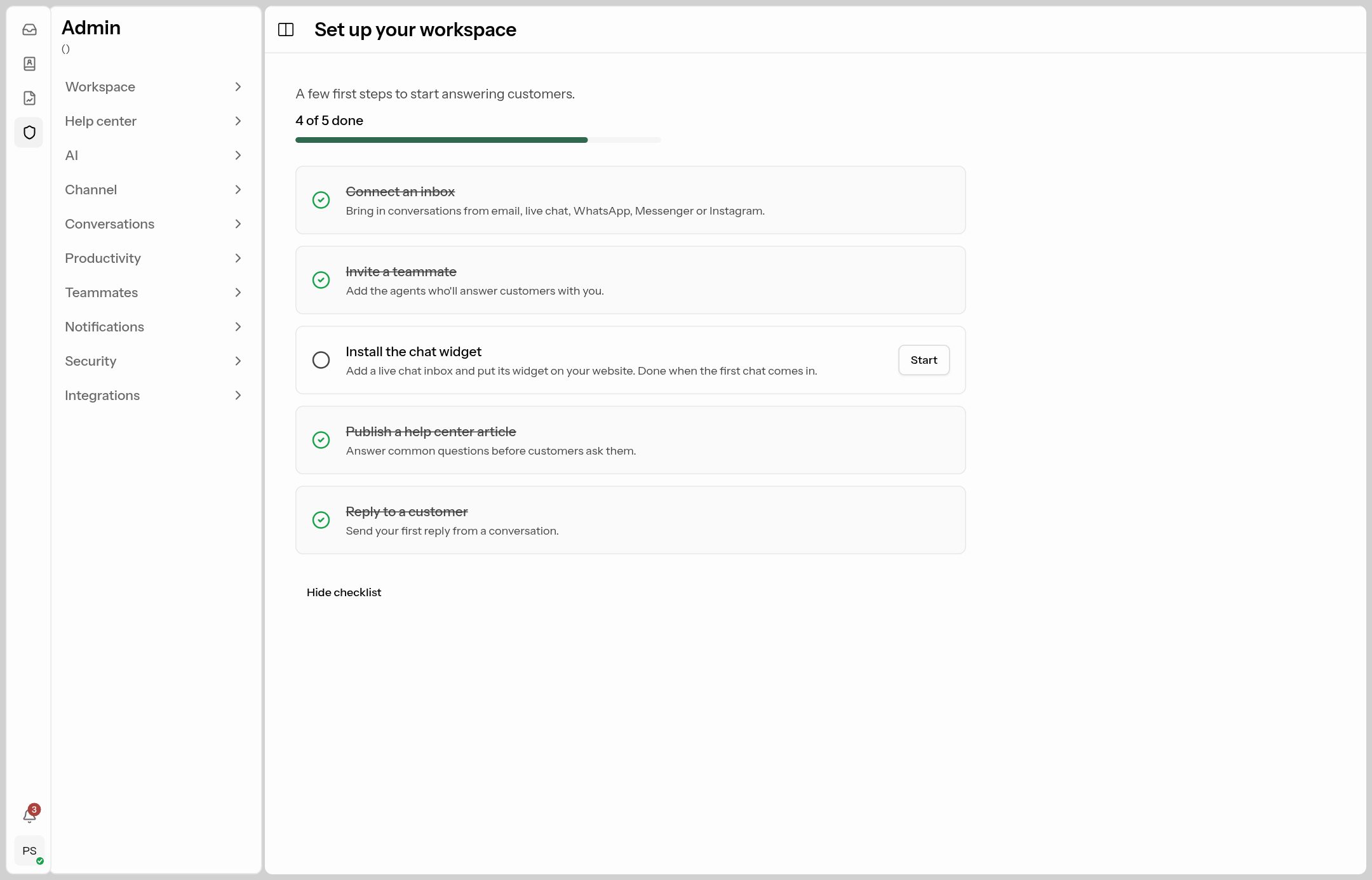 Five first steps. Each Start button takes you straight to the right screen, and finished steps are ticked off automatically.
| Step | What it asks you to do |
|---|---|
| Connect an inbox | Bring in conversations from email, live chat, WhatsApp, Messenger or Instagram. |
| Invite a teammate | Add the agents who'll answer customers with you. |
| Install the chat widget | Add a live chat inbox and put its code on your website. Done when the first chat arrives. |
| Publish a help center article | Write and publish one article. |
| Reply to a customer | Send your first reply. |
When everything is done, or if you don't need the card, click Hide checklist.
Your own account
Click your initials at the bottom-left, then Account.
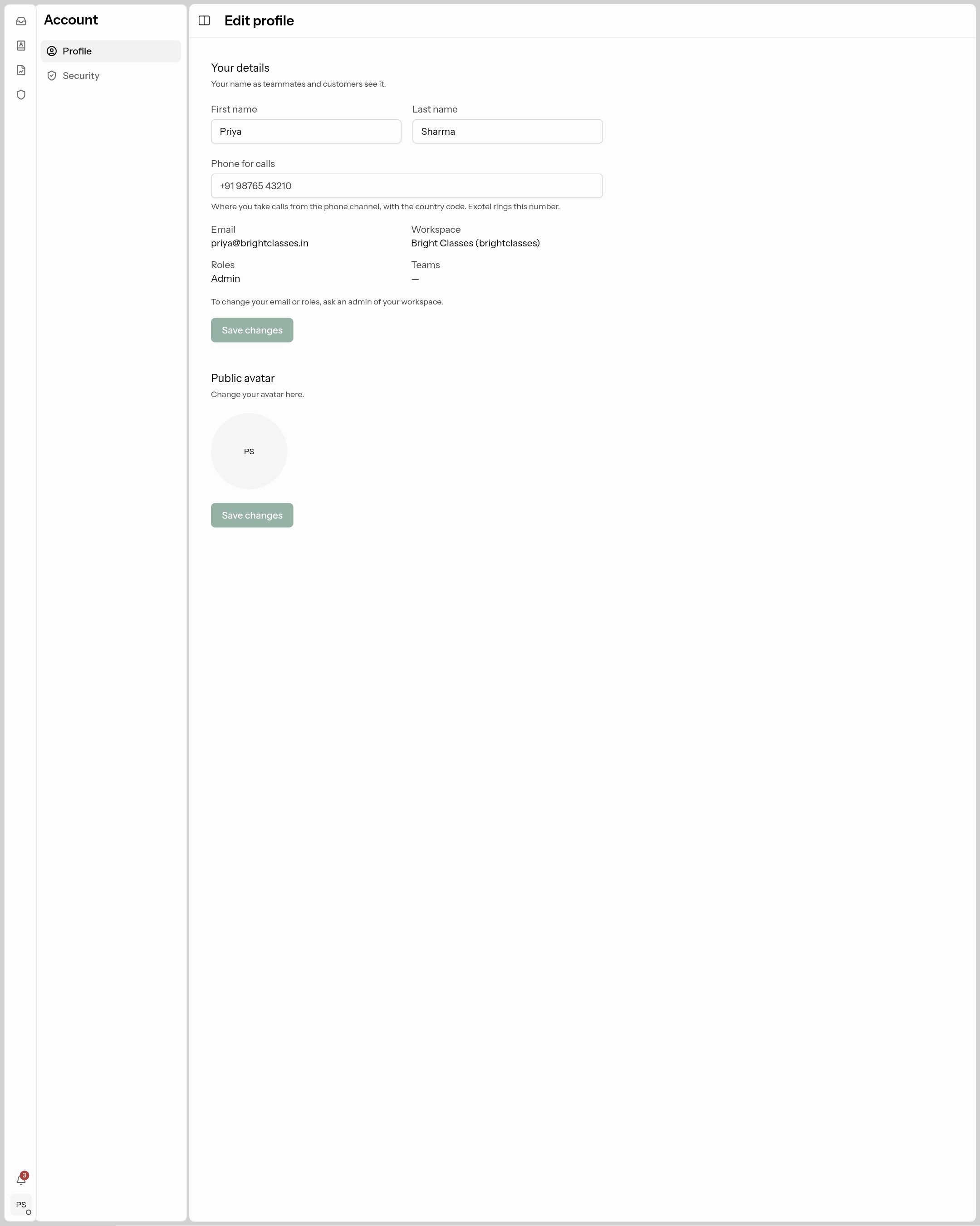 Change your name, phone and photo here.
- Profile: your first and last name and your Public avatar (what customers see when you reply on chat), and Phone for calls (with country code, e.g. +91…) if your workspace uses phone calls. To change your email or roles, ask an admin.
- Security: turn on two-factor login with an authenticator app such as Google Authenticator. Save the recovery codes it shows you somewhere safe — they're the only way in if you lose your phone. (An admin can reset it for you under Admin → Teammates → Agents if you lose both.)
The same menu also has:
- Away switch: while it's on, team round robin skips you, so you can take a break. (After 5 minutes without activity your status also shows Away, and returns to Online when you're back.)
- Reassign replies switch: for leave or long absences — customer replies on your conversations go to someone else.
- Dark Mode, Keyboard shortcuts and Logout.