Workspace settings
The settings under Admin → Workspace apply to the whole workspace: your name and branding, language, time zone, working hours, response targets, file limits, login security and your data. Set these first — most other screens rely on them.
General
Where: Admin → Workspace → General (this is also the first page that opens when you click the Admin shield).
What it's for: your workspace-wide defaults. Teams can override some of them (time zone, business hours) for their own conversations.
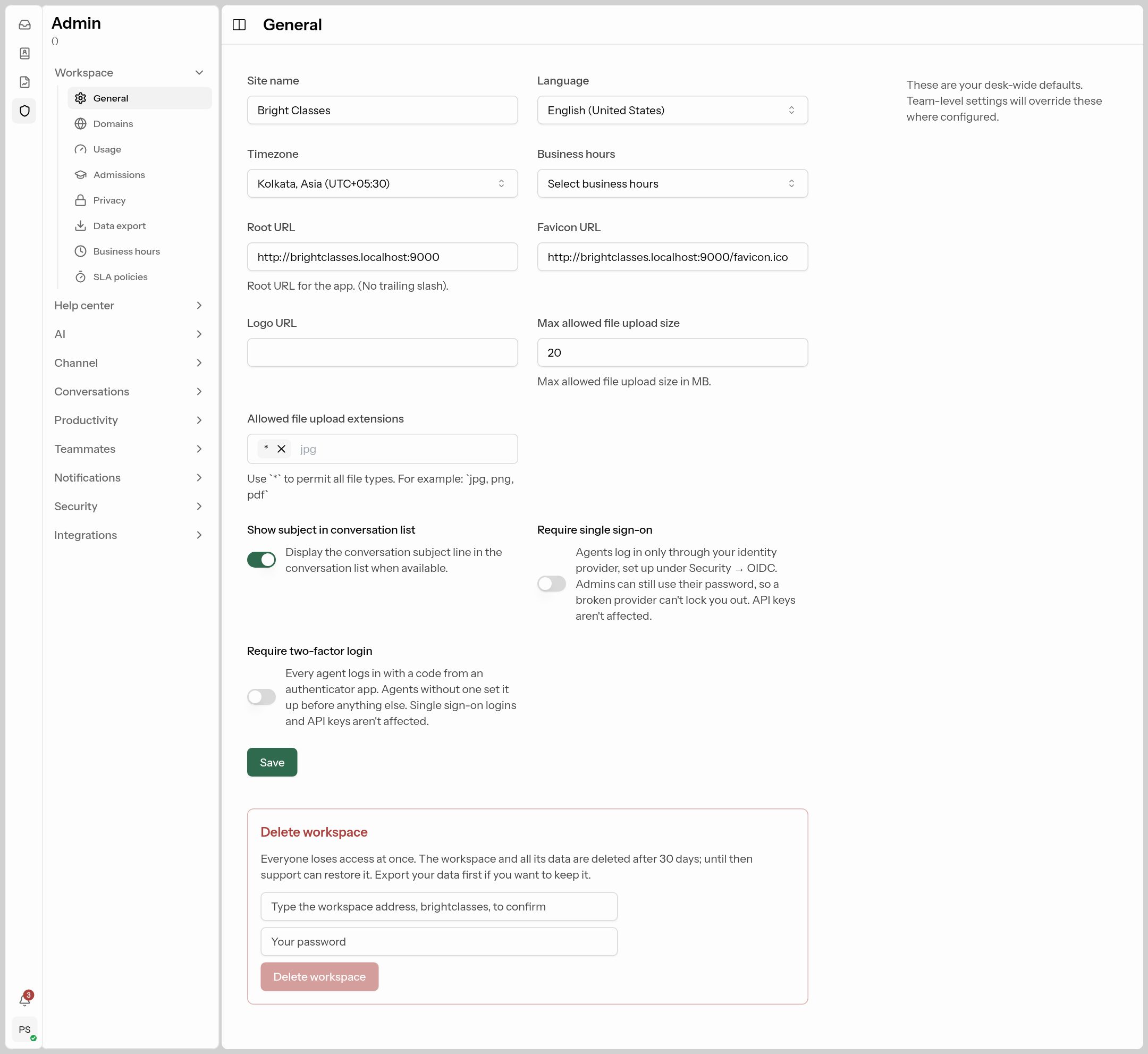 Admin → Workspace → General. Change a field, then click Save at the bottom.
Every field explained
| Field | What it does | Why you'd change it | What to put |
|---|---|---|---|
| Site name (required) | Your workspace's name. It shows on the login page, in the browser tab ("Inbox – Bright Classes") and in emails. | So your team and customers recognise it as yours. | Your company or brand name, e.g. Bright Classes. |
| Language | The default language of the ConectDesk screens for your team. | If your team prefers another language. | Usually English (United States). |
| Timezone | The workspace's clock. Used for business hours, SLA timers, report dates and the time of the daily WhatsApp report. | Get this right first — if it's wrong, "open/closed" hours and SLA deadlines are wrong too. | Where your team works, e.g. Kolkata, Asia (UTC+05:30). |
| Business hours | Which working-hours schedule applies by default. SLA clocks only run during these hours, and the chat widget uses them to say when you're next available. | So customers writing at midnight don't count as a "late reply" and see an honest reply time. | Create a schedule first under Business hours, then pick it here. Leave empty to treat every hour as working time. |
| Root URL (required) | The address of your workspace, e.g. https://brightclasses.desk.arrlink.com. Used to build links in emails, chat continuity emails and sign-in callbacks. No slash at the end. |
Only after you move to your own domain (see Domains). | Leave as it is unless support tells you otherwise. A wrong value breaks links in emails. |
| Favicon URL (required) | The small icon in the browser tab. | Branding. | A link to a square .ico or .png, e.g. https://brightclasses.in/favicon.ico. |
| Logo URL | Your logo, shown in the app and on the login page. | Branding. | A link to a PNG/SVG of your logo. Leave blank for none. |
| Max allowed file upload size | The largest file (in MB) anyone can upload in a conversation, 1–500. Your plan may cap it lower. | Raise it if agents need to send big PDFs or brochures; lower it to save storage. | 10–25 suits most teams. |
| Allowed file upload extensions | Which file types can be uploaded. Type an extension and press Enter; click × to remove one. * allows everything. |
To block risky files (e.g. .exe) from customers. |
* for anything, or a list like jpg, png, pdf, docx. |
| Show subject in conversation list | Shows each conversation's subject line under the contact name in the list. | Useful for email-heavy teams where the subject says what it's about; turn off for chat-only teams to keep the list compact. | On for email, off for WhatsApp/chat-only. |
| Require single sign-on | Agents can only log in through your company login (Google, Microsoft…) set up under Security → SSO. Admins can still use their password, so a broken SSO setup can't lock you out. API keys aren't affected. | Company policy: one login, and leavers lose access when their company account is closed. | Turn on only after you've set up and tested an SSO provider — it refuses to save otherwise. |
| Require two-factor login | Every agent must enter a 6-digit code from an authenticator app when logging in. Anyone without it set up is made to do so at their next login. SSO logins and API keys aren't affected. | Strongly recommended — protects customer data if a password leaks. | On for most businesses. |
Click Save when you're done. You'll see "Saved successfully".
Delete workspace
At the very bottom of General is the Delete workspace area.
- Everyone loses access immediately. The workspace and all its data are permanently deleted after 30 days; until then support can restore it.
- Export your data first (see Data export) if you want to keep it.
- To confirm, type your workspace address exactly as shown and your own password, then click the red Delete workspace button.
Business hours
Where: Admin → Workspace → Business hours.
What it's for: telling ConectDesk when your team is working. SLA timers pause outside these hours, the chat widget can show "We'll be back at 9 AM", and AI follow-ups are only sent within them.
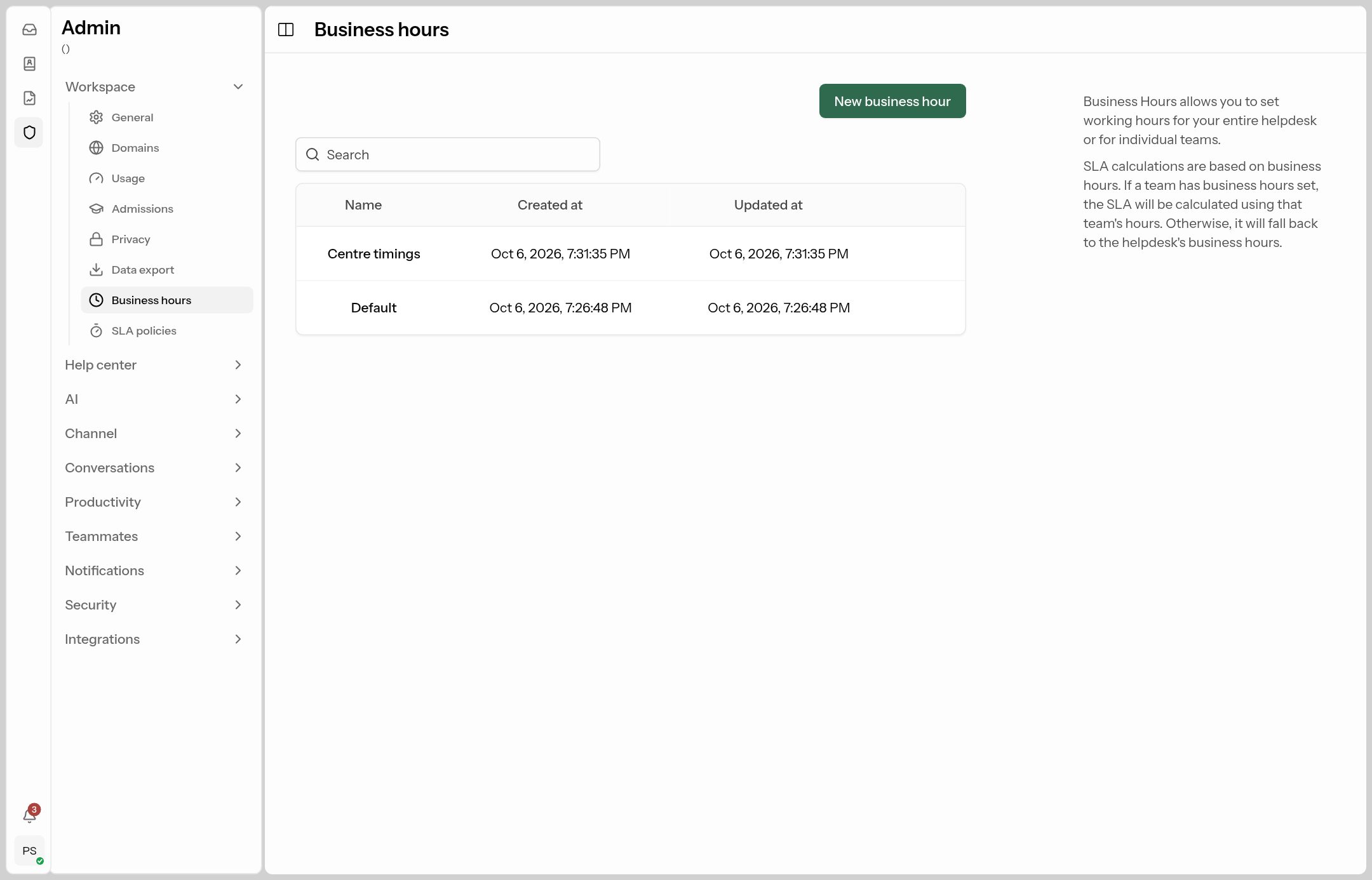
Click New business hour:
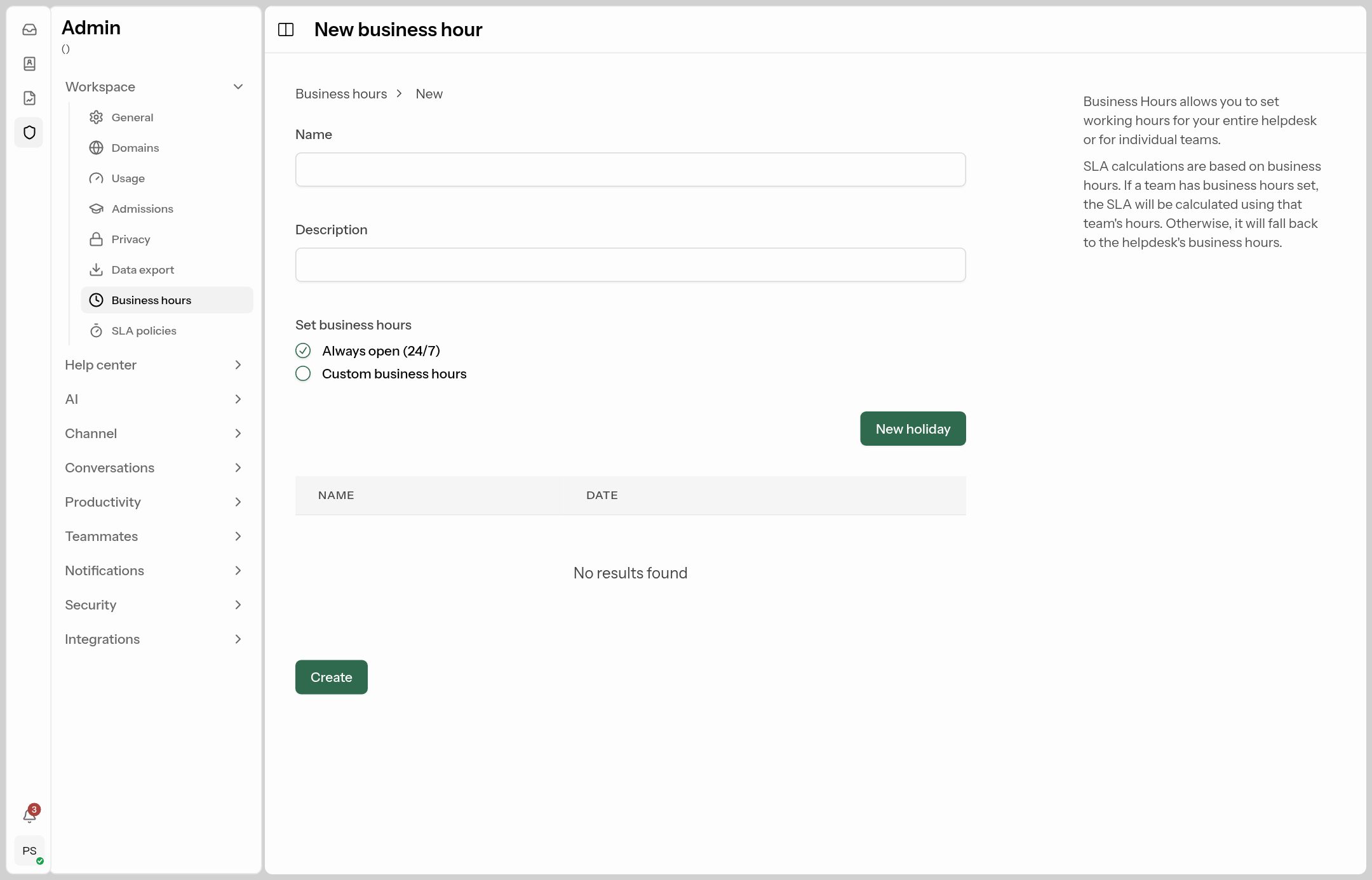 Tick each working day and set its opening and closing time.
| Field | What to put |
|---|---|
| Name / Description | E.g. Centre timings / Mon–Sat, 9 AM to 7 PM. |
| Set business hours | Always open (24/7), or Custom business hours to pick days and times. |
| Weekday rows | Tick a day and set its hours. Unticked days count as closed. |
| New holiday | Add a name and date (e.g. Diwali). Holidays count as closed all day. |
Then pick this schedule in General → Business hours. A team can use a different schedule (Teammates → Teams).
SLA policies
Where: Admin → Workspace → SLA policies.
What it's for: setting response targets, so your team can see what's about to be late and managers get alerted when something is.
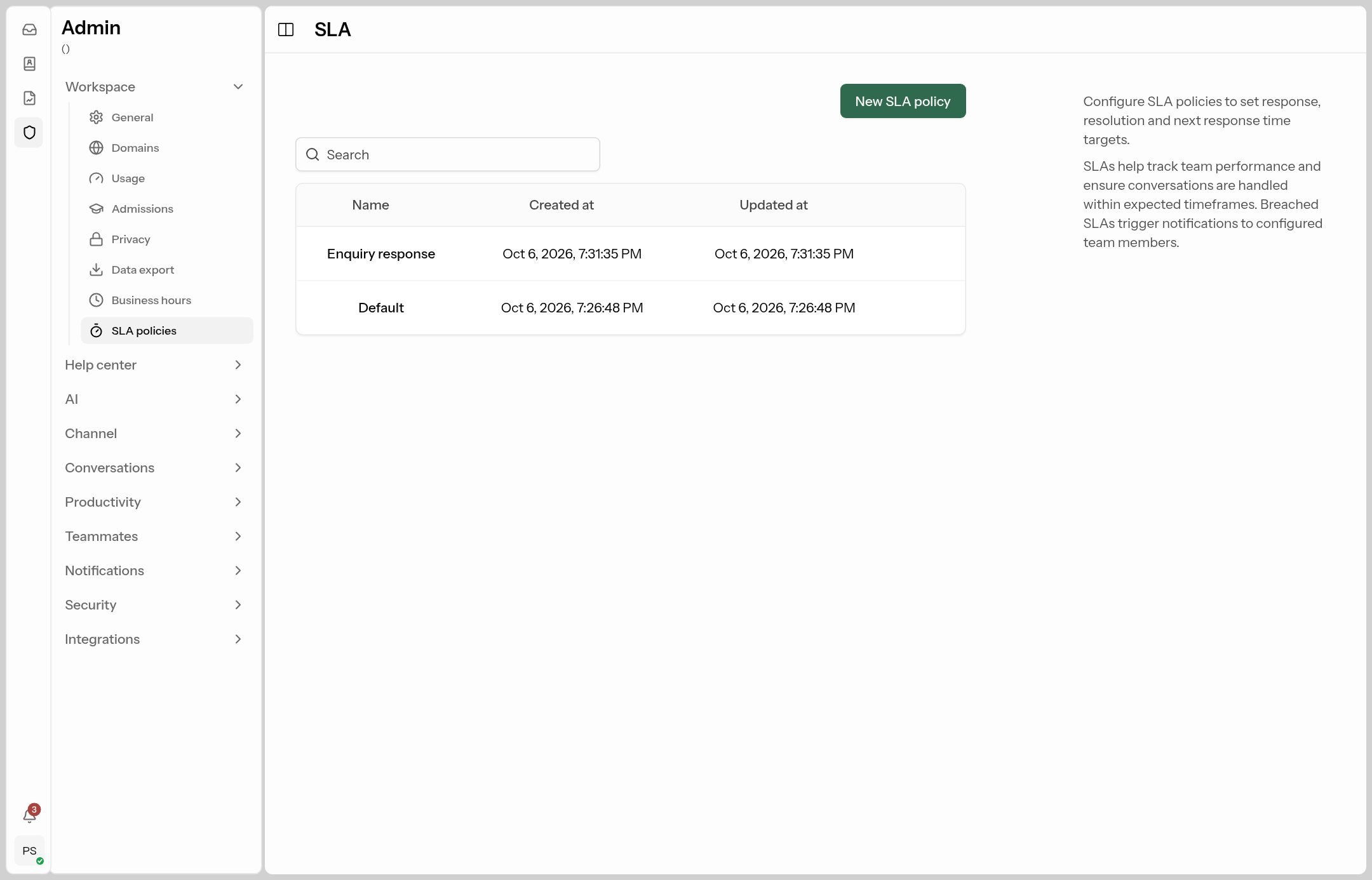
Click New SLA policy:
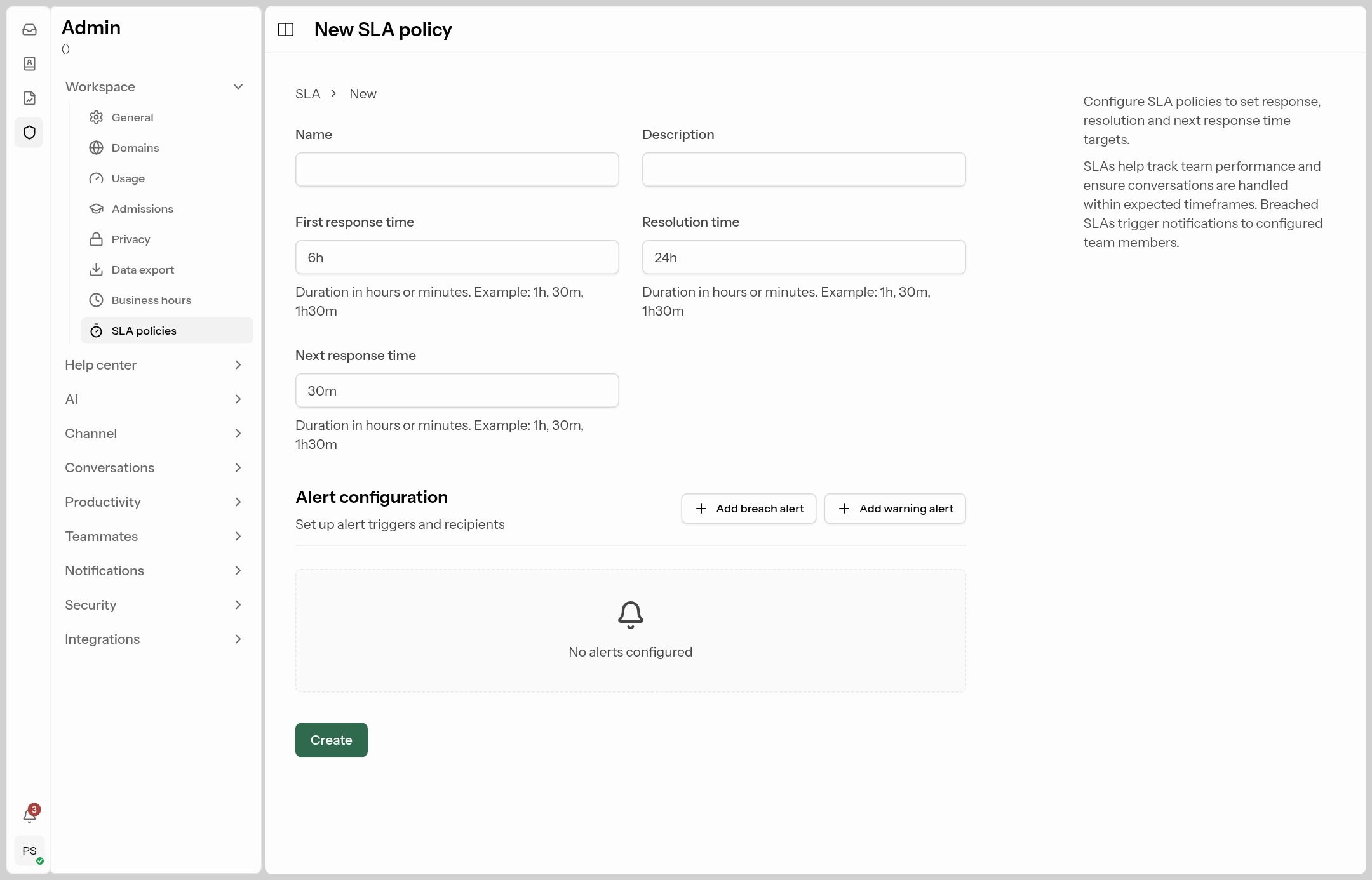
| Field | Meaning | Example |
|---|---|---|
| Name, Description | Your own labels. | Enquiry response |
| First response time | How soon the first reply should go out after a customer writes. | 30m |
| Resolution time | How soon the conversation should be resolved. | 24h |
| Next response time | How soon each later reply should go out after the customer writes again. | 2h |
| Add warning alert | Notify people before a target is missed, e.g. 10 minutes before. | Warn the assigned agent. |
| Add breach alert | Notify people when (or some time after) a target is missed. | Alert the team lead. |
Durations are written like 30m, 2h or 1h30m. At least one target is needed. Times only count during business hours.
How a policy gets applied: set it as a team's SLA policy (every conversation assigned to that team gets it), or apply it with an automation or macro action Set SLA.
Usage
Where: Admin → Workspace → Usage.
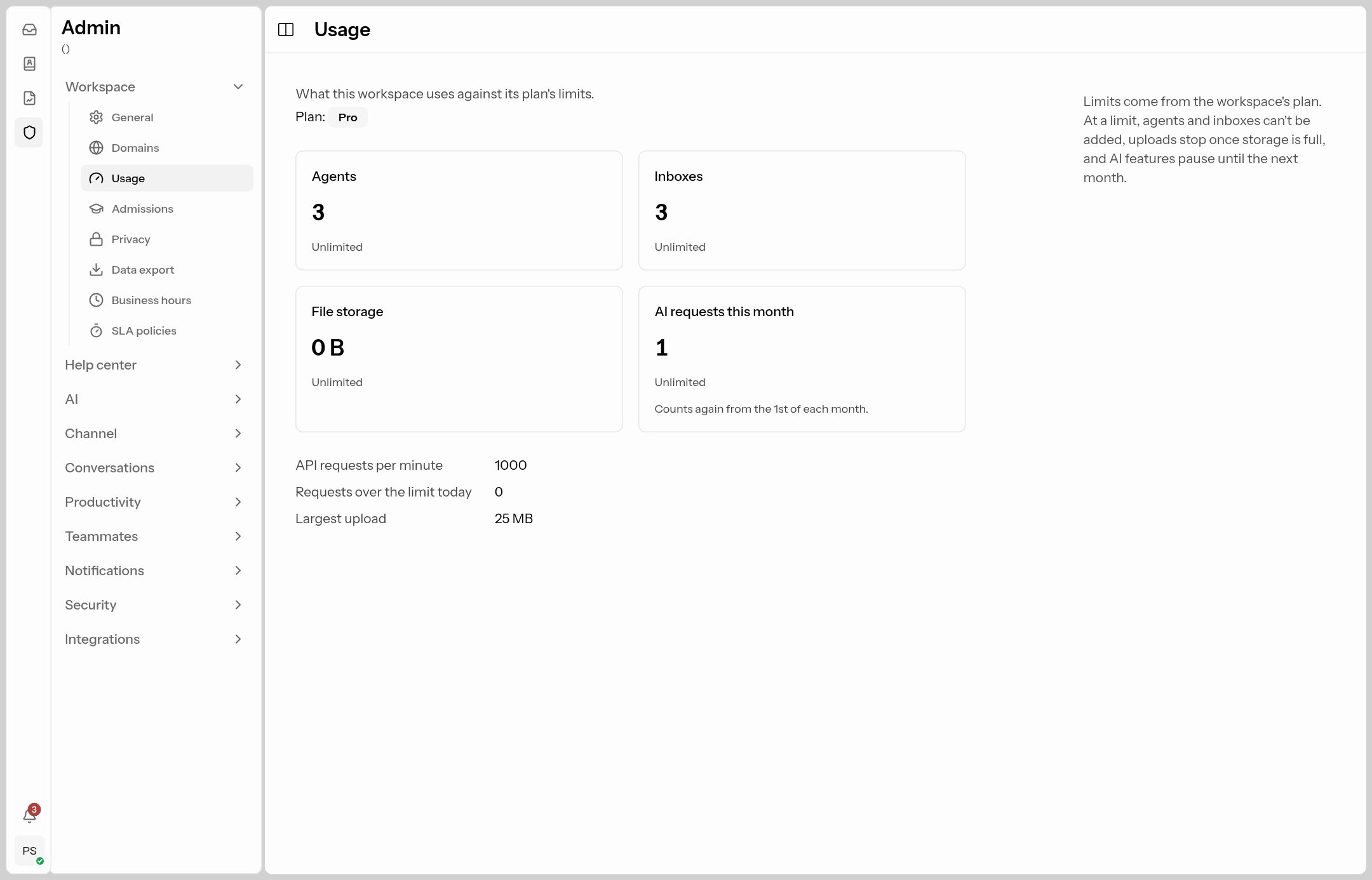 How much of your plan you're using.
Shows your plan and meters for Agents, Inboxes, File storage and AI requests this month. "Near the limit" appears at 80%, "Limit reached" at 100%. At a limit you can't add more agents or inboxes, uploads stop when storage is full, and AI features (assistant, Juno, summaries) pause until the 1st of next month. Unlimited means your plan has no cap. To raise a limit, use Upgrade plan (if shown) or contact support.
Domains
Where: Admin → Workspace → Domains.
What it's for: using your own address, such as support.brightclasses.in, for your workspace or help center instead of the ConectDesk one.
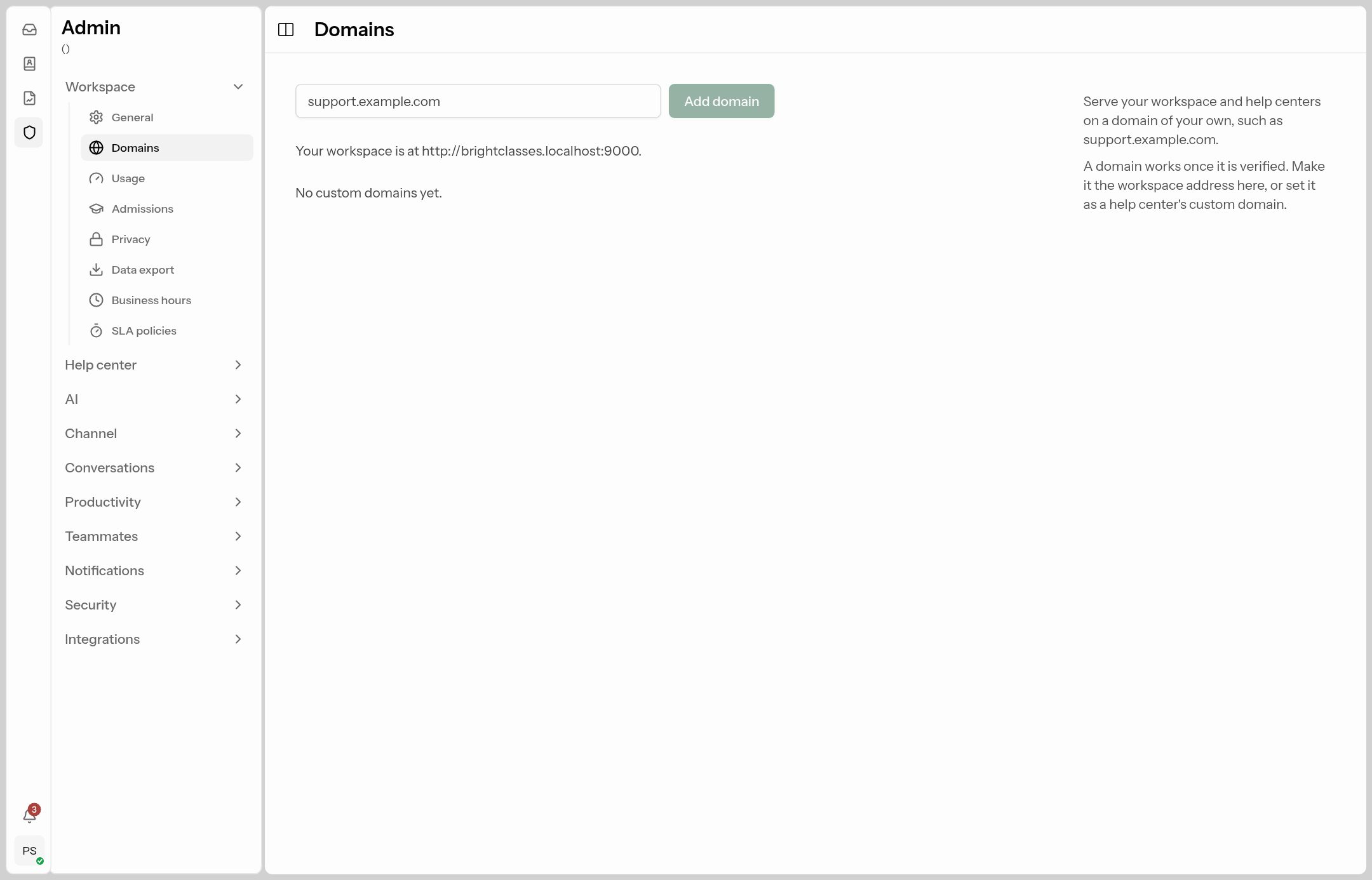
- Type the domain (e.g.
help.brightclasses.in) and click Add domain. - At your domain provider (GoDaddy, Cloudflare…), add the TXT record shown, to prove you own the domain, and the CNAME record, to point it at ConectDesk. Click any value to copy it.
- Click Verify. DNS changes can take a few minutes to an hour.
- Once Verified, either click Use as workspace address, or pick the domain as a help center's custom domain.
Keep the TXT record in place — ConectDesk re-checks it daily and warns you if it disappears.
Privacy
Where: Admin → Workspace → Privacy.
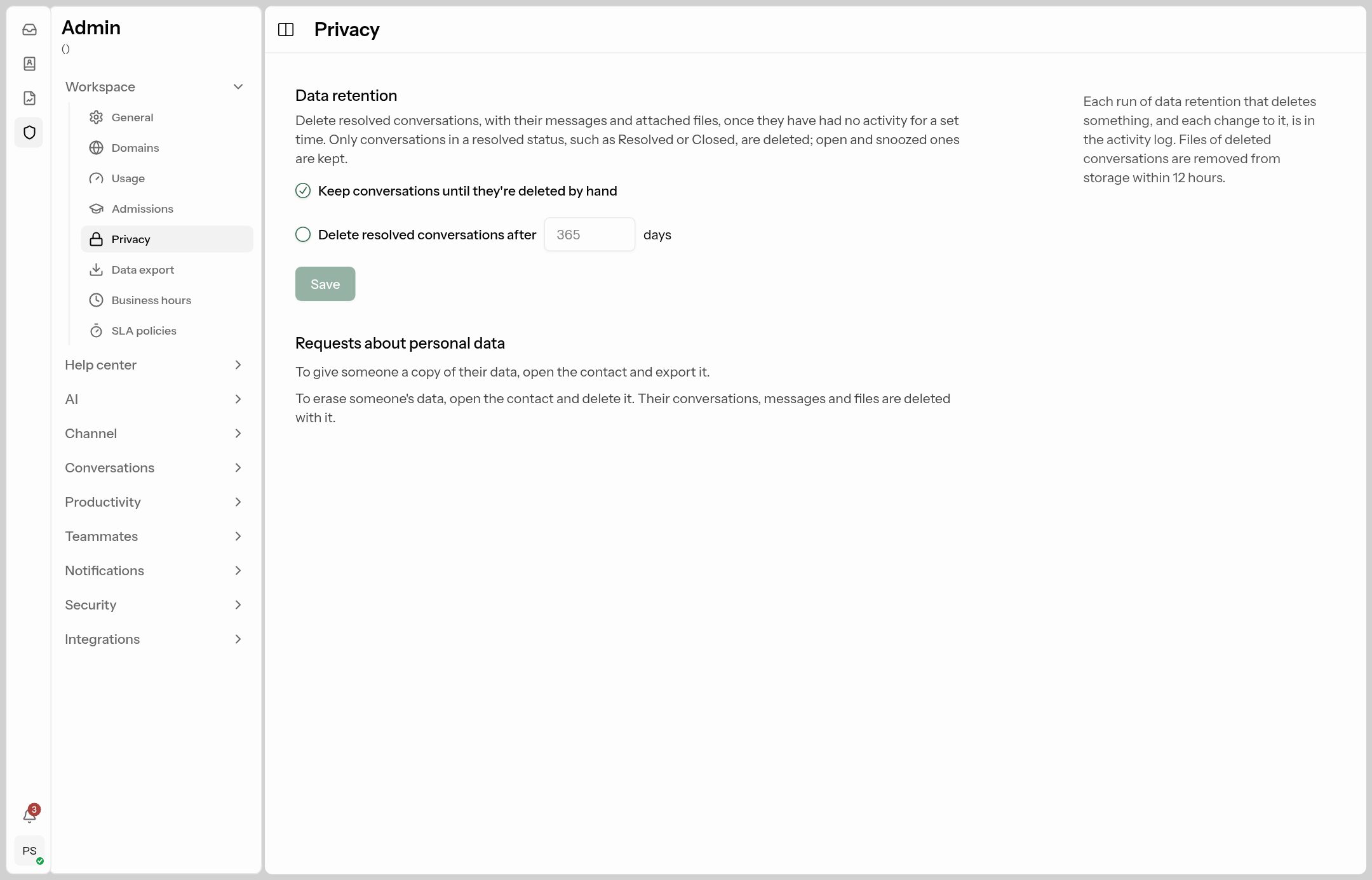
- Data retention: choose Keep conversations until they're deleted by hand, or Delete resolved conversations after N days (default 365). Open and snoozed conversations are never deleted. Optionally also delete contacts with no conversations left.
- Deleted data can't be recovered, and the first clean-up runs within an hour of saving, so double-check the number of days.
- Requests about personal data: to export or erase one person's data (e.g. a GDPR/DPDP request), open the contact under Contacts and use the export or delete actions there.
Data export
Where: Admin → Workspace → Data export.
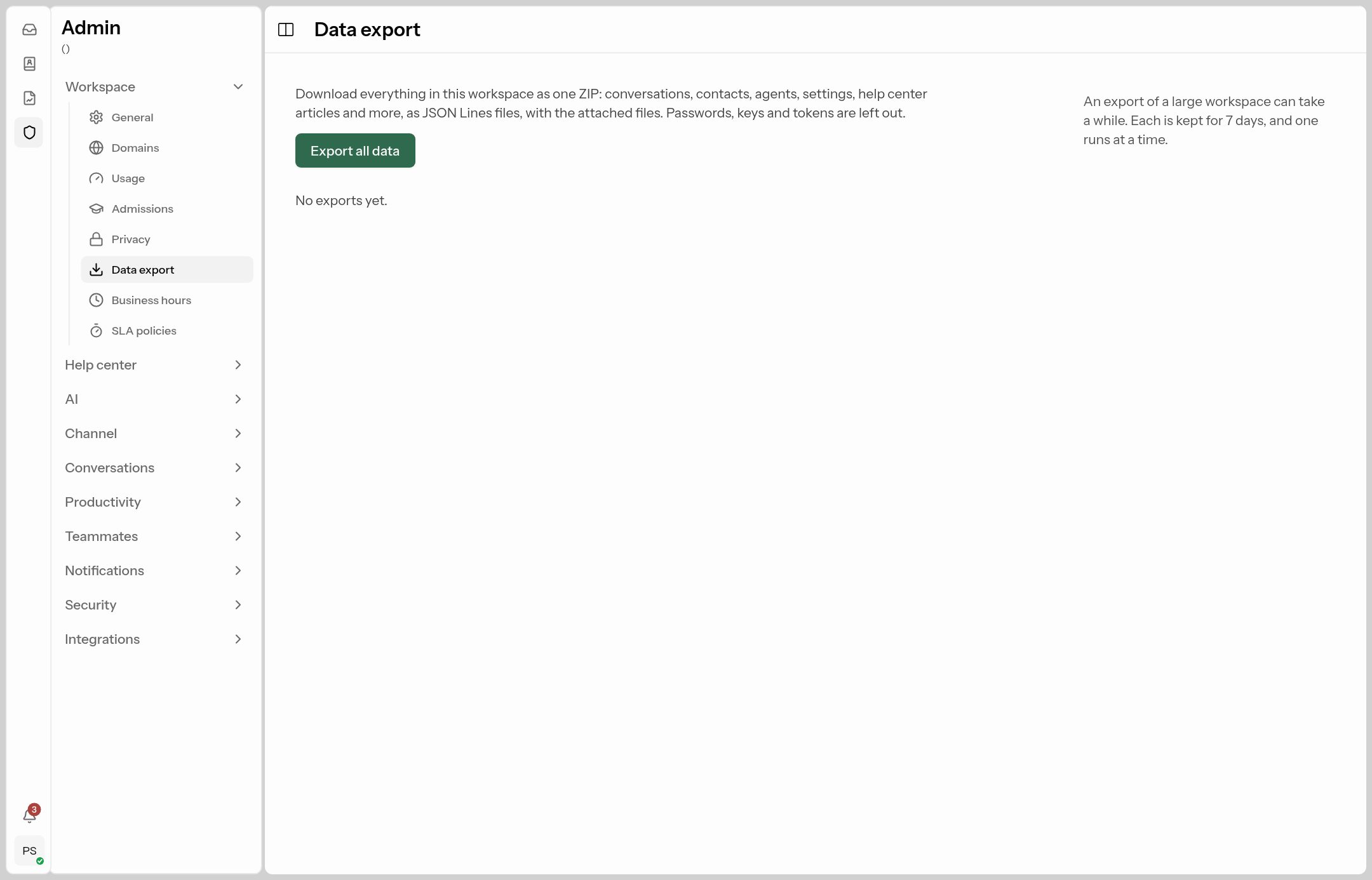
Click Export all data to get one ZIP of your conversations, contacts, agents, settings, help-center articles and files. Large workspaces can take a while; the export appears in the list with Download when it's Ready, and stays available for 7 days. Passwords and API keys are never included.