Help center
A help center is a public website of articles your customers can browse and search — fees, admission steps, how to pay online. Published articles can also feed your AI assistant, so you write each answer once.
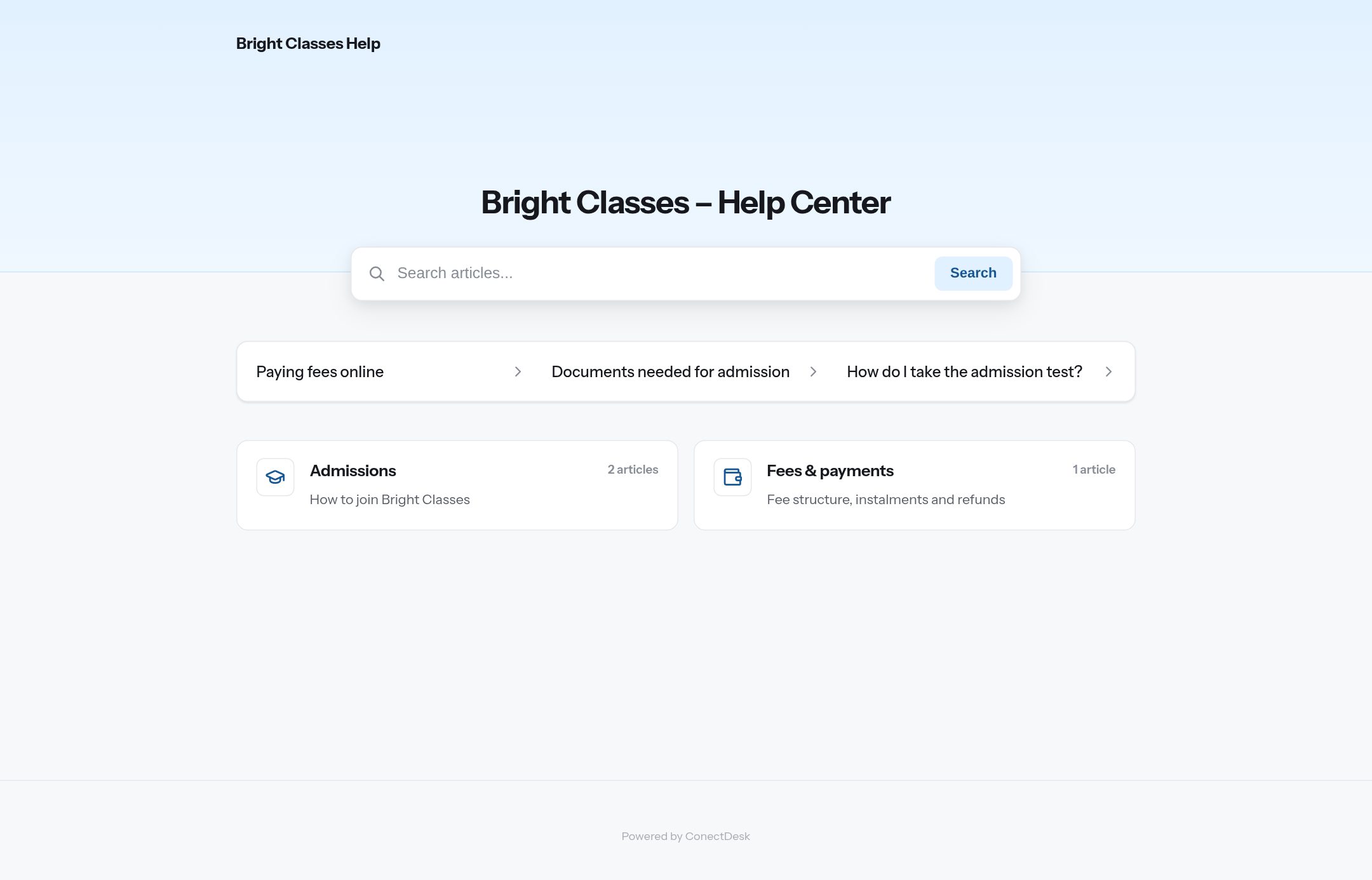 What customers see at
 https://<your-workspace>/hc/<slug>, or on your own domain.
Create a help center
Where: Admin → Help center → Help center.
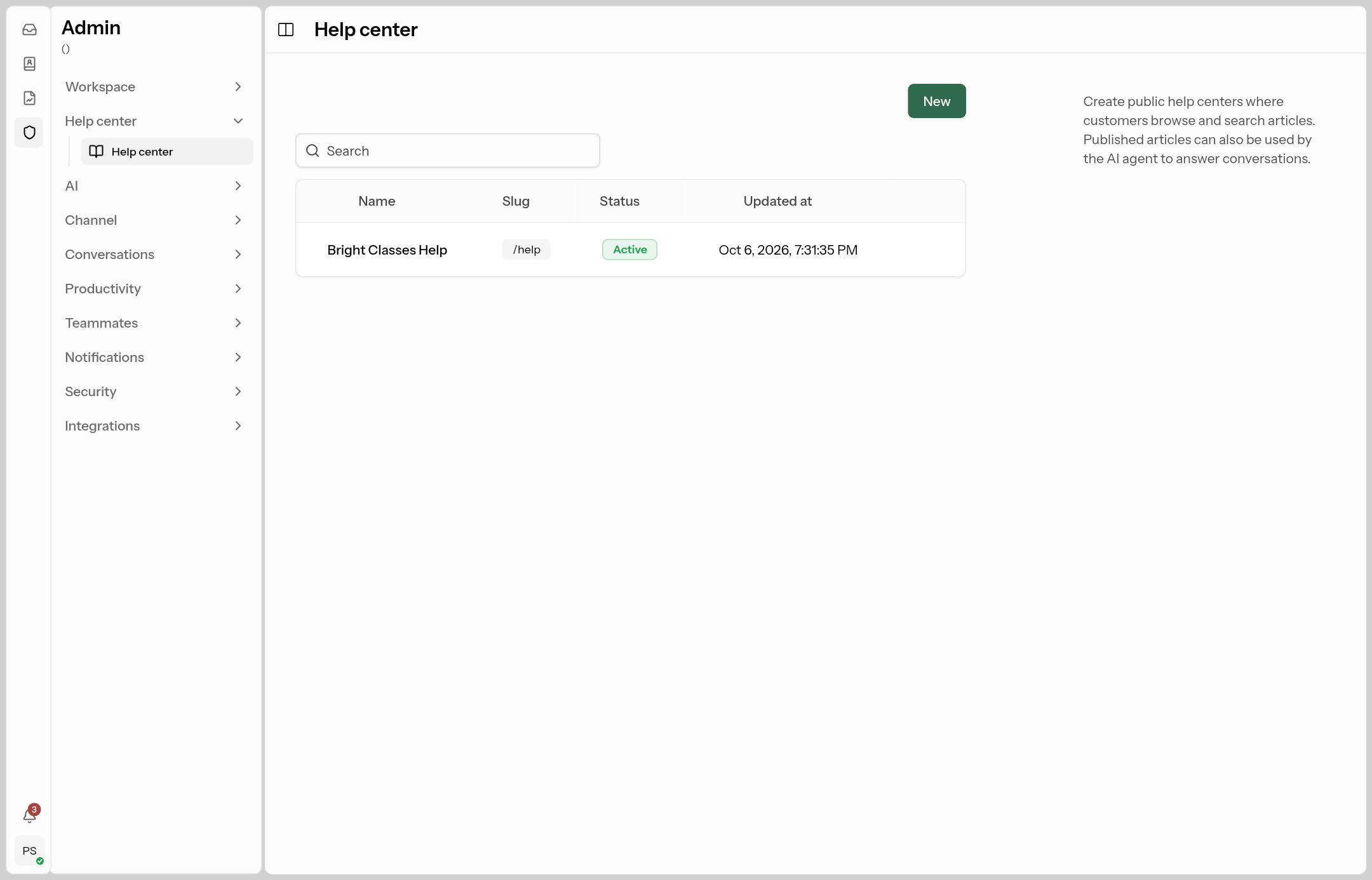
Click New and fill in:
| Field | What to put |
|---|---|
| Name | Bright Classes Help |
| Slug | The web address part, e.g. help → …/hc/help. Filled from the name. |
| Page title | The browser-tab title, e.g. Bright Classes – Help Center. |
| Template | Classic (big search bar and collection cards — best for customers) or Docs (sidebar navigation — best for long manuals). |
Click Create. The Customize screen opens.
Customize the look
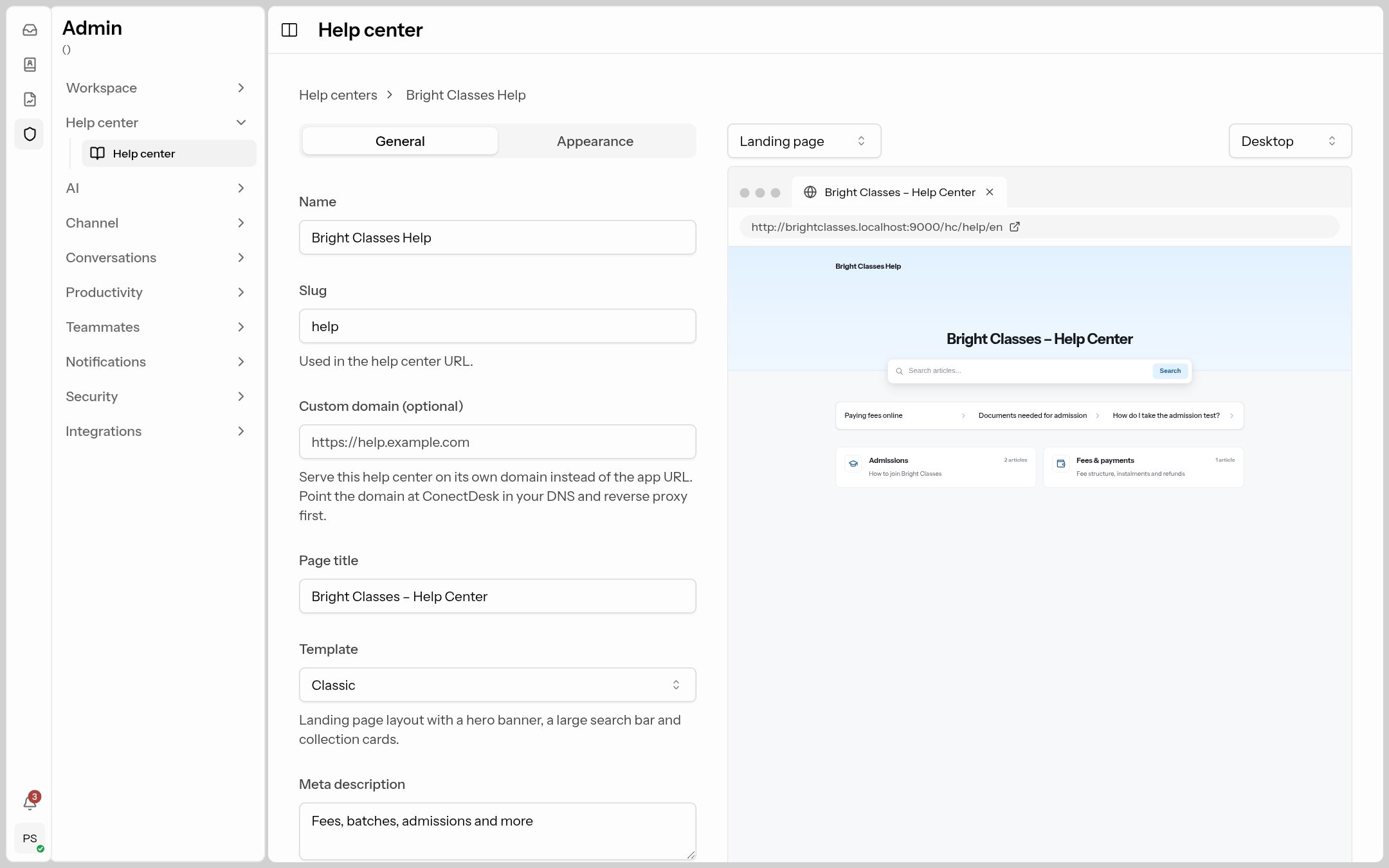 Changes show in the live preview on the right. Switch between Landing page / Article page and Desktop / Mobile.
- General: name, slug, Custom domain (e.g.
https://help.brightclasses.in, after verifying it under Domains), Meta description for Google, top Navigation links, and Supported languages. - Appearance: Brand (logo, primary colour, favicon), Header & hero (header text, tagline, background), an Announcement bar, landing-page layout, article-page options (table of contents, related articles), Footer links and social links, and Custom code (CSS/JS, e.g. analytics).
Click Save.
Write articles
Click the help center's name to open its articles tree.
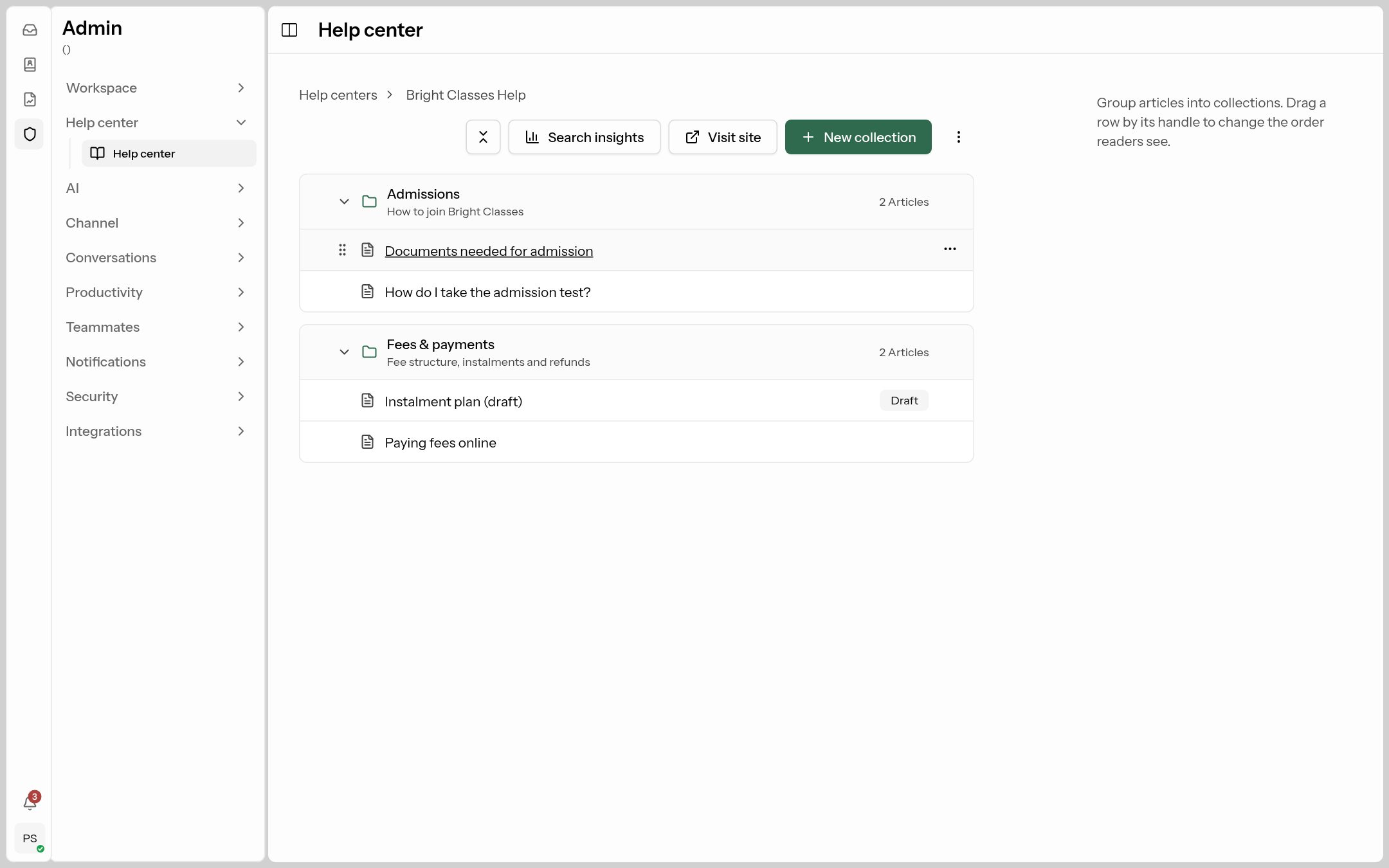 Collections are folders; articles sit inside them. Drag the handle to reorder.
- New collection — e.g. "Admissions", "Fees & payments". Give it a description and an icon, and make sure Published is on.
- In the collection's ⋮ menu, choose New article.
- Write the Title and the body (headings, lists, images, tables are all supported).
- In the right panel:
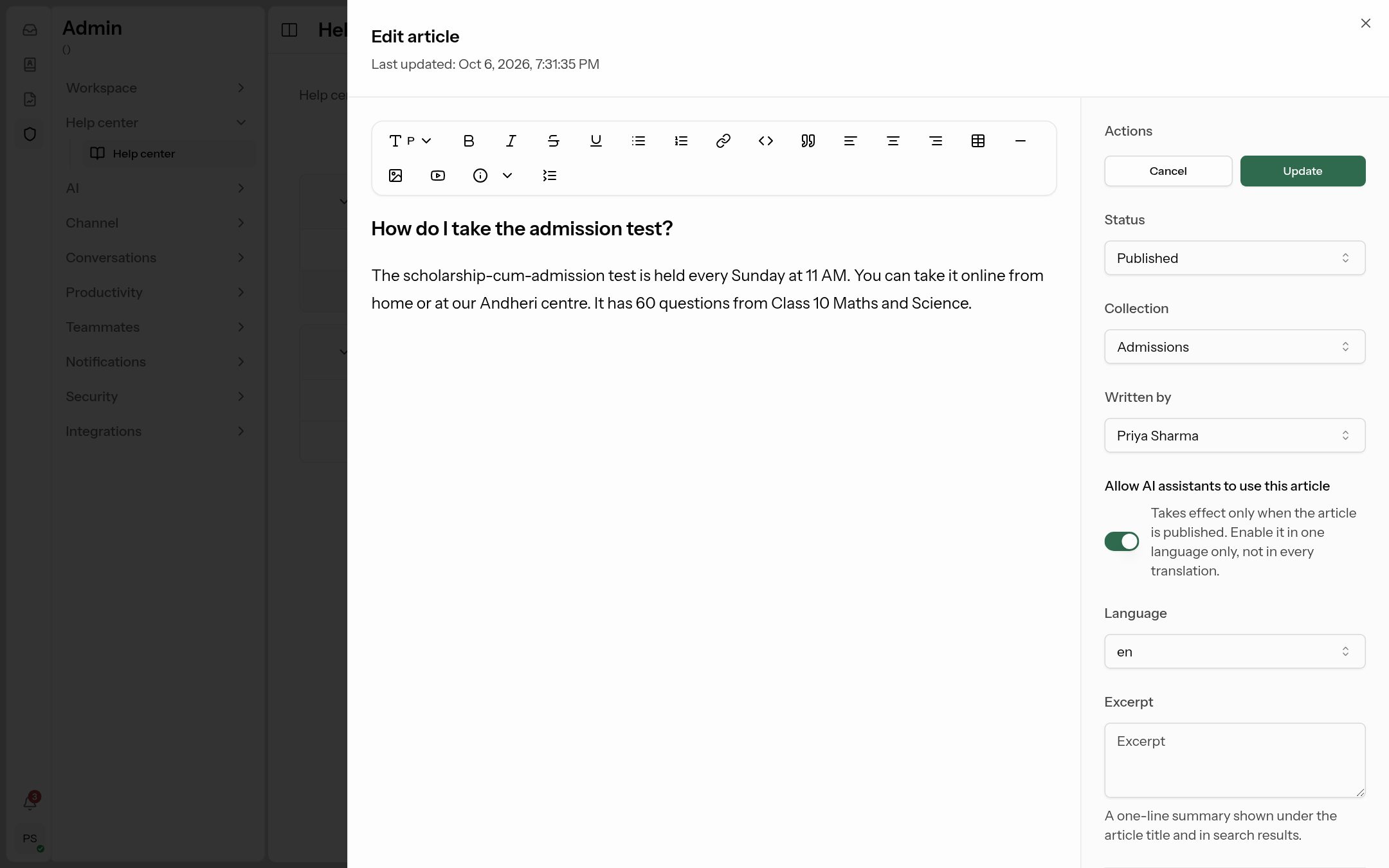
| Field | What it does |
|---|---|
| Status | Draft (only your team sees it) or Published (live). |
| Collection | Which folder it's in. |
| Written by | The author shown to readers — an agent or an AI assistant. |
| Allow AI assistants to use this article | Lets the AI answer from this article. Only works while published. |
| Language | The article's language. |
| Excerpt | A one-line summary under the title and in search results. |
| SEO & metadata | Title, description and image for Google and social sharing. |
Click Create / Update.
Search insights (top bar of the tree) shows what customers searched for and searches with no results — a ready-made list of articles (and snippets) to write next.
Use Pause site in the ⋮ menu to take the whole help center offline without deleting it.