Create your AI assistant
An AI assistant is a virtual team member that answers customers on its own — on your website chat, WhatsApp, Messenger, Instagram or Telegram — using your knowledge base. When it can't help, or the customer asks for a person, it hands the conversation to your team.
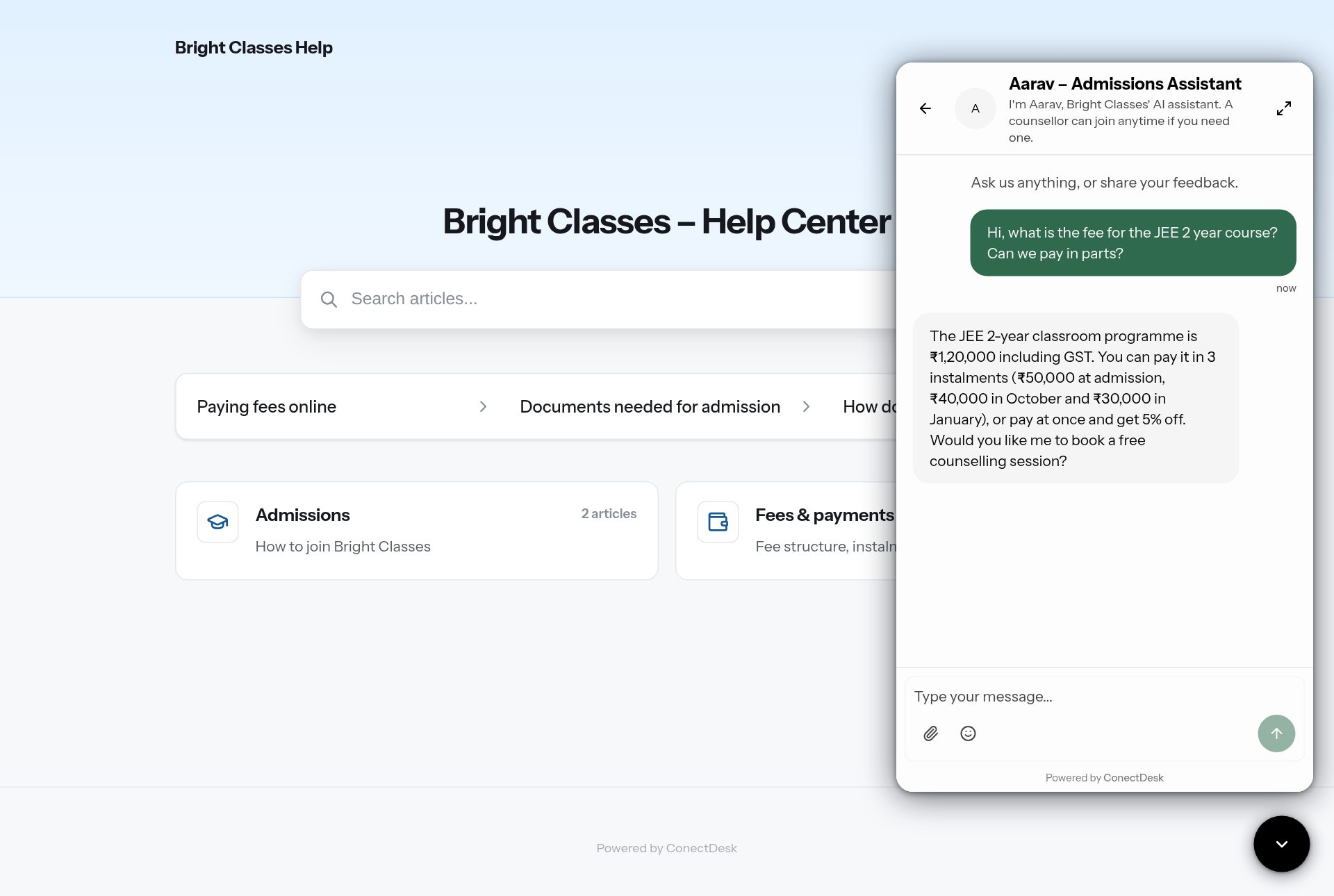 What your customer sees: the assistant's name and expectation message at the top, and an instant answer from your fee snippet.
Before you start, make sure you have:
- An AI provider connected — AI setup.
- At least a few snippets in your knowledge base — Knowledge base.
- A team to hand over to (e.g. "Admissions counsellors") — Your team.
Step 1: Open Assistants and click New assistant
Where: Admin → AI → Assistants.
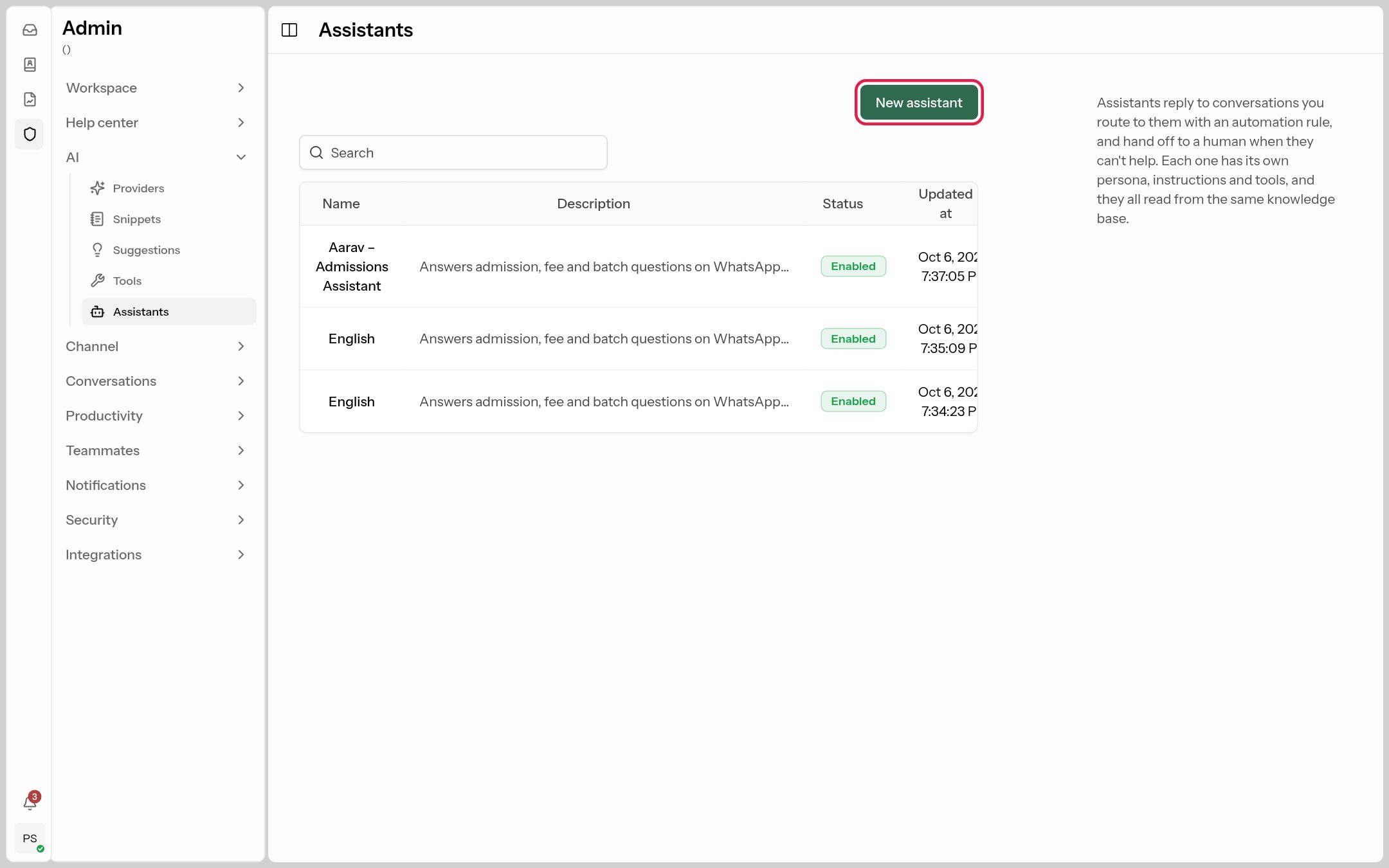 Click New assistant (outlined). Existing assistants are listed below; click one to edit it.
Step 2: Fill in the assistant form
The form has four parts. Here's every field, what it does and what to put.
Who the assistant is
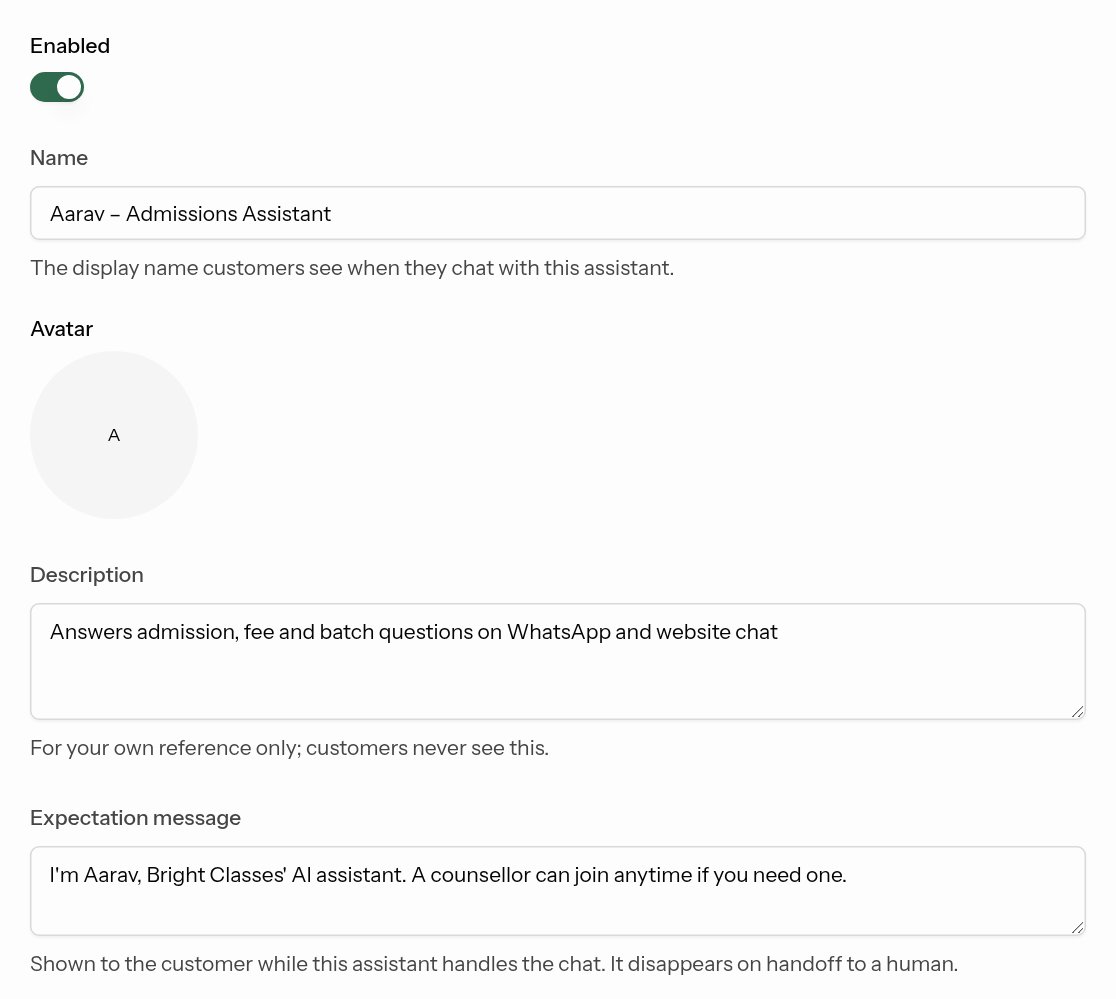
| Field | What it does | What to put |
|---|---|---|
| Enabled | Whether the assistant answers anyone. Turn off to pause it instantly; conversations then follow your normal routing. | On (turn off to pause). |
| Name | The name customers see in the chat header and next to each reply. | A friendly name that's honest about being an assistant, e.g. Aarav – Admissions Assistant. |
| Avatar | The picture next to its messages. Upload an image or leave the initial. | Your logo or a friendly icon. |
| Description | A note for your team only — customers never see it. | What it handles, e.g. "Answers admission, fee and batch questions on WhatsApp and website chat". |
| Expectation message | Shown under the assistant's name while it's handling the chat, and removed when a person takes over. Sets the customer's expectations. | e.g. I'm Aarav, Bright Classes' AI assistant. A counsellor can join anytime if you need one. |
How it talks and when it hands over
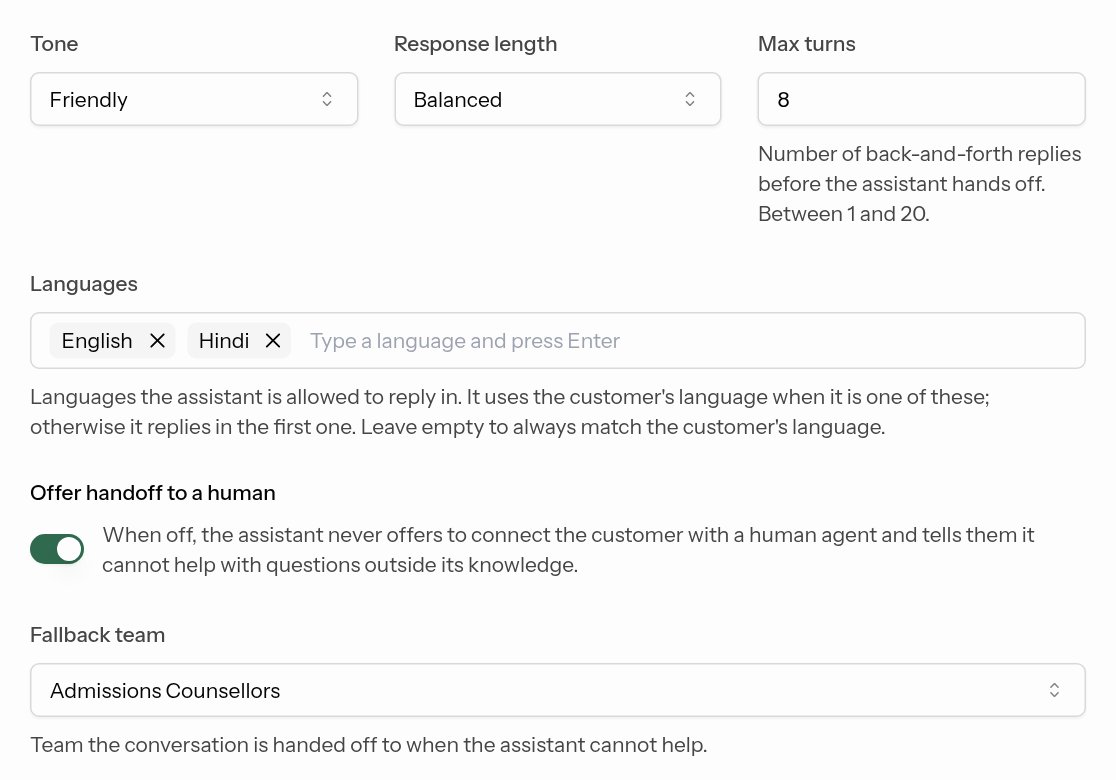
| Field | What it does | What to put |
|---|---|---|
| Tone | Friendly (default), Professional, Neutral or Casual. | Friendly for consumers and parents; Professional for B2B. |
| Response length | Concise, Balanced (default) or Detailed. | Concise for WhatsApp; Balanced for website chat. |
| Max turns | 1–20 (default 6). After this many back-and-forth replies, the assistant hands the conversation to a person. Stops endless loops. | 6–8. Lower it if you want people to step in sooner. |
| Languages | Languages it may reply in. Type one and press Enter. It replies in the customer's language if it's on the list, otherwise in the first one. Leave empty to always match the customer's language. | e.g. English, Hindi. Leave empty if you're happy with any language. |
| Offer handoff to a human | When on, it offers to connect the customer to a person when it can't help or they ask. When off, it never offers a person and just says it can't help with that. | On — almost always. |
| Fallback team | The team a conversation goes to when the assistant hands over. That team's agents see it in their team inbox (and it's auto-assigned if the team uses round robin). | Your front-line team, e.g. Admissions counsellors. If None, handed-over chats go to Unassigned. |
Instructions and guardrails
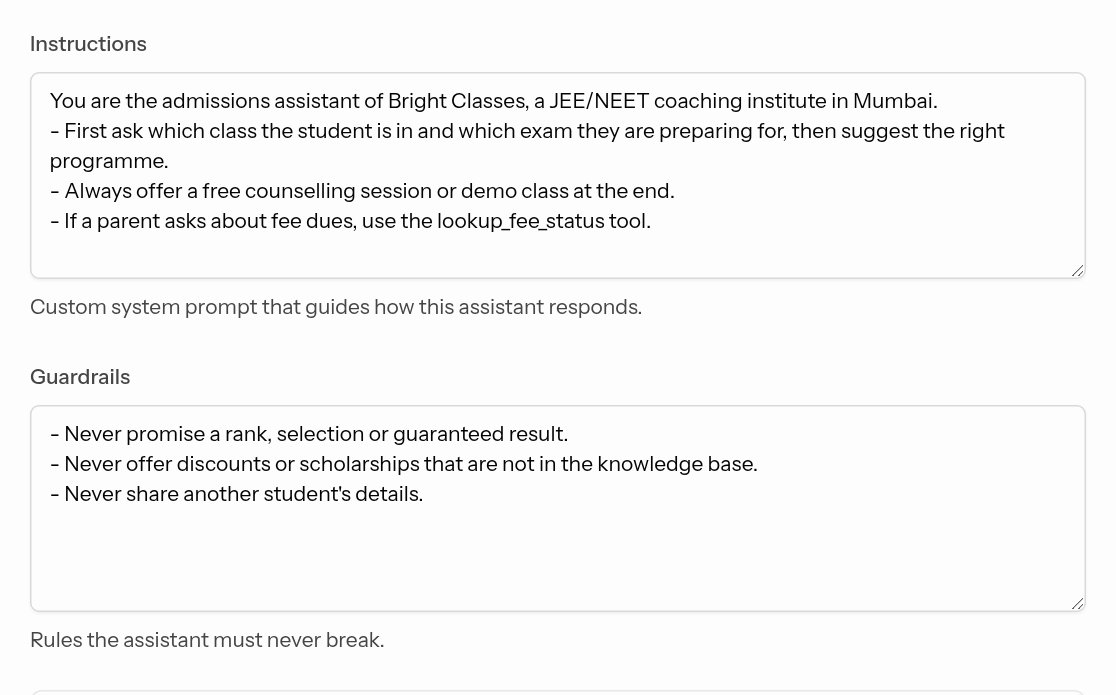
These two boxes are where you shape the assistant's behaviour in plain language.
Instructions — how it should work: its role, what to ask, what to suggest. Write them as you would brief a new staff member.
You are the admissions assistant of Bright Classes, a JEE/NEET coaching institute in Mumbai.
- First ask which class the student is in and which exam they are preparing for, then suggest the right programme.
- Always offer a free counselling session or demo class at the end.
- If a parent asks about fee dues, use the lookup_fee_status tool.
Guardrails — what it must never do, whatever the customer says.
- Never promise a rank, selection or guaranteed result.
- Never offer discounts or scholarships that are not in the knowledge base.
- Never share another student's details.
Tips:
- Put facts (prices, timings) in snippets, not in Instructions — snippets are shared by every assistant and easier to keep up to date.
- Keep each instruction to one line; bullet points work best.
- If the assistant does something you don't like in testing, add one line to Instructions or Guardrails and test again.
Jev decisions (optional)
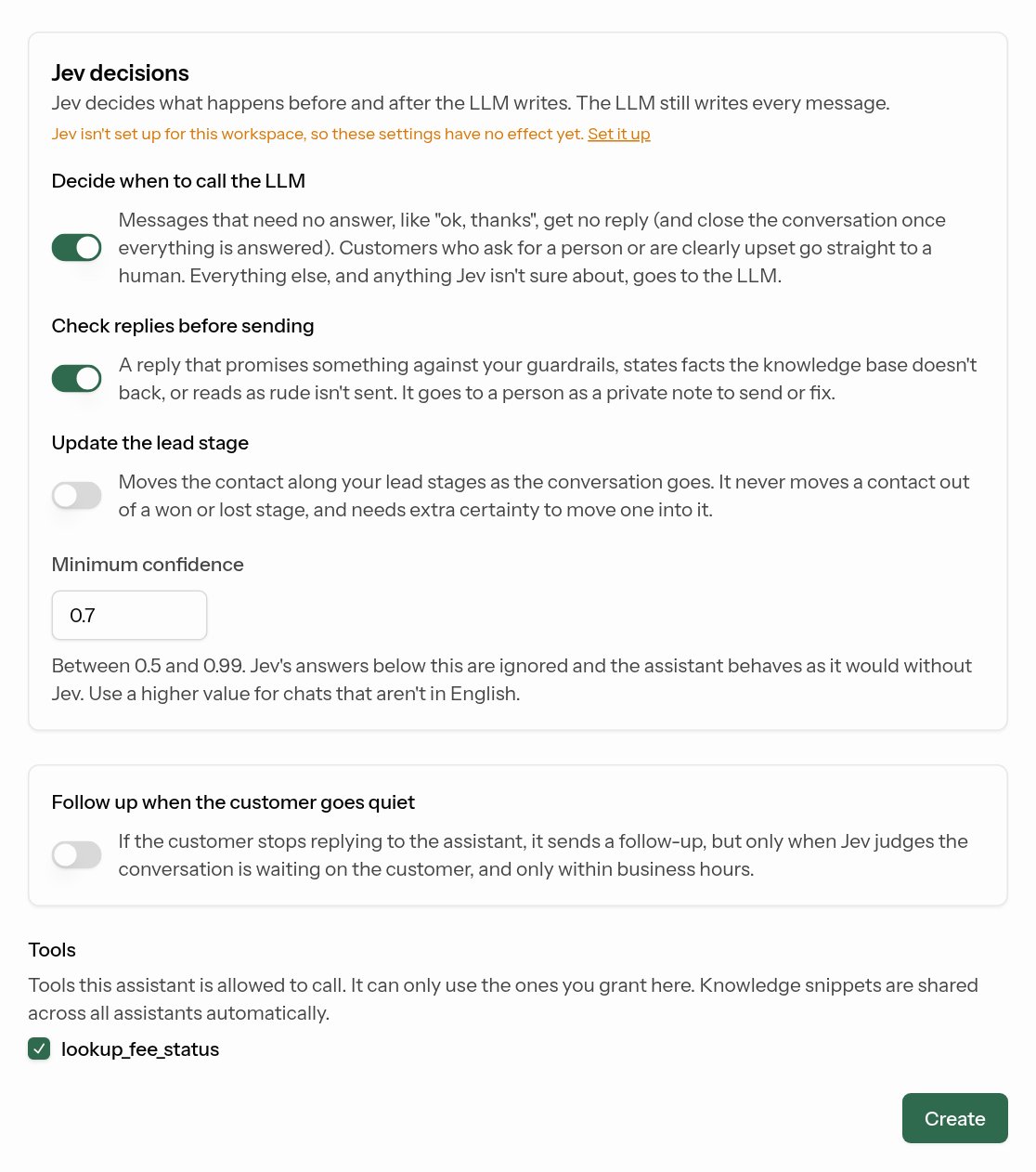
These only work if you've connected Jev under AI → Providers; otherwise you'll see "Jev isn't set up for this workspace" and can ignore them.
| Setting | What it does | Recommended |
|---|---|---|
| Decide when to call the LLM | Messages that need no answer ("ok, thanks") get no reply, and the conversation closes once everything is answered. Customers who ask for a person or are clearly upset go straight to a human. | On — saves AI requests and avoids awkward replies. |
| Check replies before sending | A drafted reply that breaks your guardrails, states facts your knowledge base doesn't support, or reads as rude is not sent; it goes to your team as a private note to fix and send. | On. |
| Update the lead stage | Moves the contact along your lead stages as the chat goes (e.g. New → Interested). Never moves anyone out of Admitted or Lost. | On for admissions/sales teams. |
| Minimum confidence | 0.5–0.99 (default 0.7). Jev decisions less certain than this are ignored. | 0.7; raise to 0.8 for chats mostly not in English. |
Follow up when the customer goes quiet
Turn on to have the assistant nudge customers who stop replying — but only when Jev judges the conversation is waiting on the customer, and only during business hours.
- Follow up after (hours): e.g.
4, 24sends one follow-up 4 hours after the assistant's last message and another 24 hours after that (up to 5). - WhatsApp templates for follow-ups: WhatsApp only allows approved templates after 24 hours. Choose an inbox under Load templates from, pick templates, fill in their values and check the preview. Without Jev, follow-ups are only sent inside the 24-hour window.
Tools
Tick the tools this assistant may call. Your knowledge base is always available to every assistant, so you don't tick anything for that.
Click Create.
Step 3: Connect it to your channels
Creating the assistant doesn't send it any conversations yet. There are two ways to give it conversations.
For chat channels: the inbox's AI assistant setting
Live Chat, WhatsApp, Messenger, Instagram and Telegram inboxes have an AI assistant setting (Admin → Channel → Inboxes → your inbox):
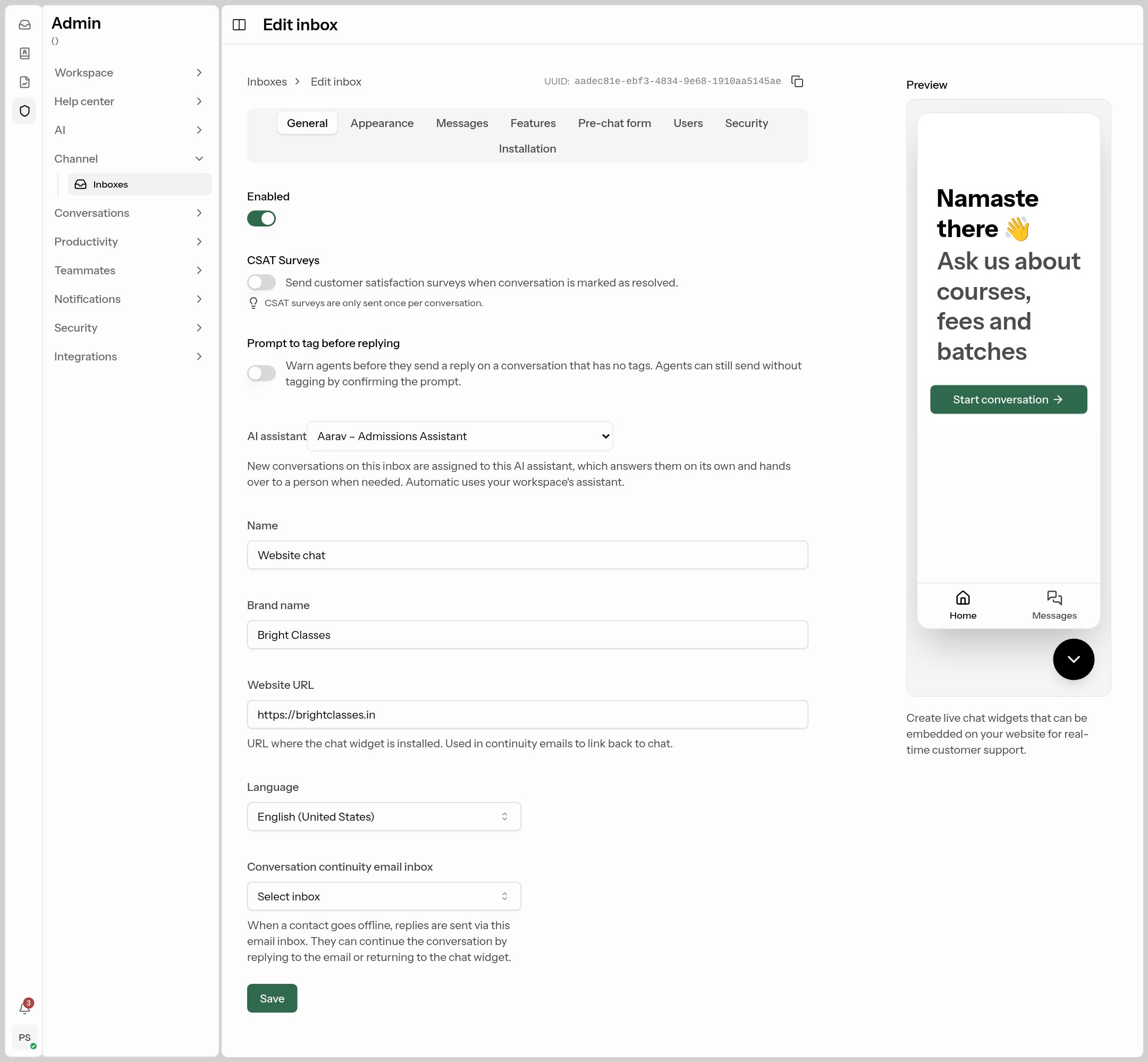 The AI assistant dropdown on the inbox's General tab.
| Option | What happens |
|---|---|
| Automatic — your workspace's AI assistant (default) | New conversations go to your first enabled assistant (the oldest one). With one assistant, this is all you need. |
| Off — new conversations follow your automations | The AI never takes chats on this inbox. |
| A specific assistant | Pick one when you have several, e.g. a Hindi assistant for WhatsApp and an English one for the website. |
So with the default settings, as soon as you create and enable your first assistant, it starts answering every new chat on your chat channels. Use Off on any inbox where you don't want that.
The assistant only takes conversations that nobody owns. If an agent is already assigned, or the assistant handed this conversation over recently, it stays with your team.
For email and other channels: use an automation
For email (or for more control, e.g. "only enquiries that mention fees"), create an automation rule: Admin → Productivity → Automations → New rule.
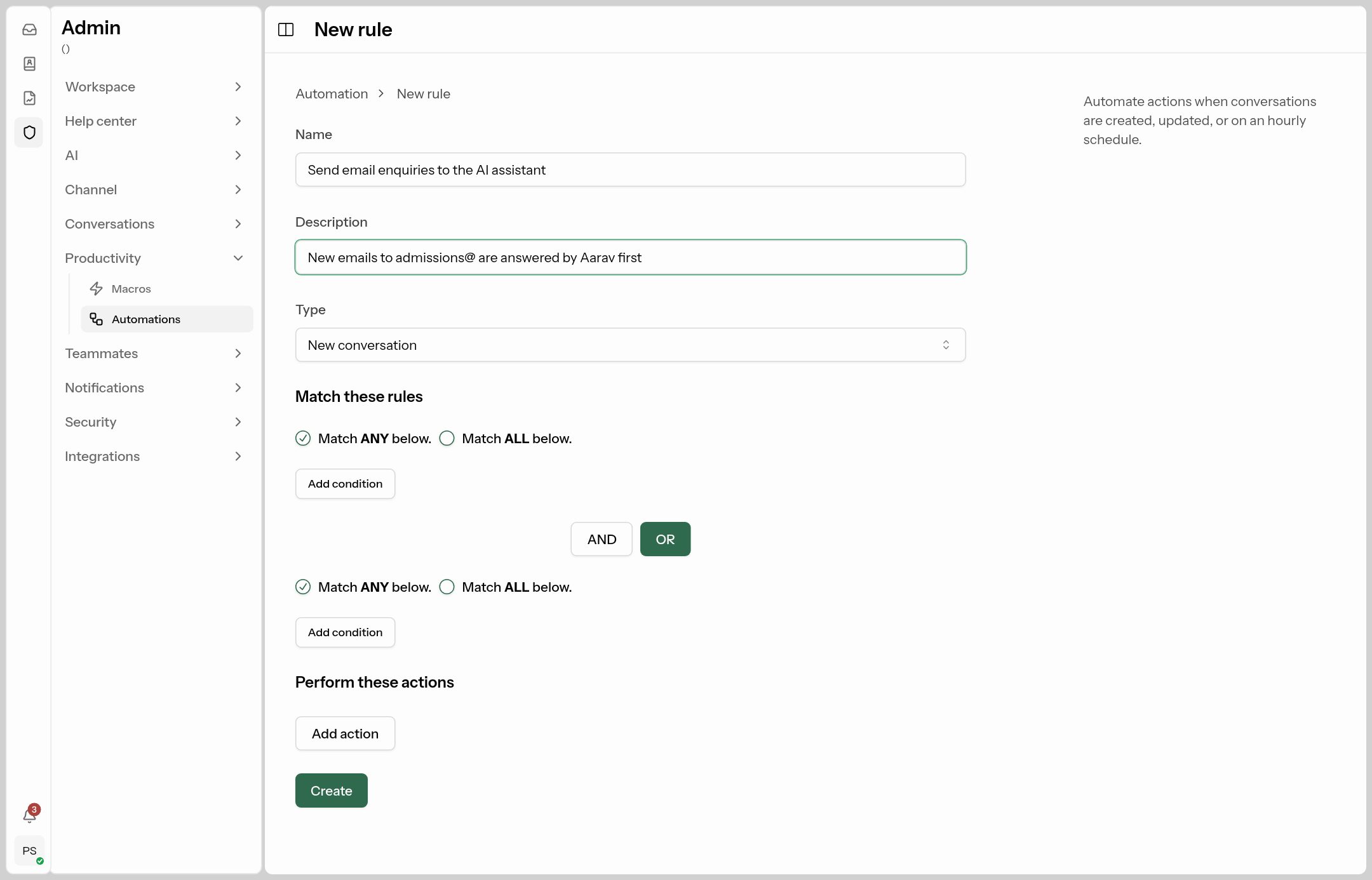
- Name:
Send email enquiries to the AI assistant. Type: New conversation. - Add condition: Inbox · equals · your email inbox.
- Add action: Assign agent · your assistant (assistants appear in the agent list).
- Click Create.
See Automations for more.
Step 4: Test before you go live
Open the assistant (Admin → AI → Assistants → click its name) and choose the Test tab.
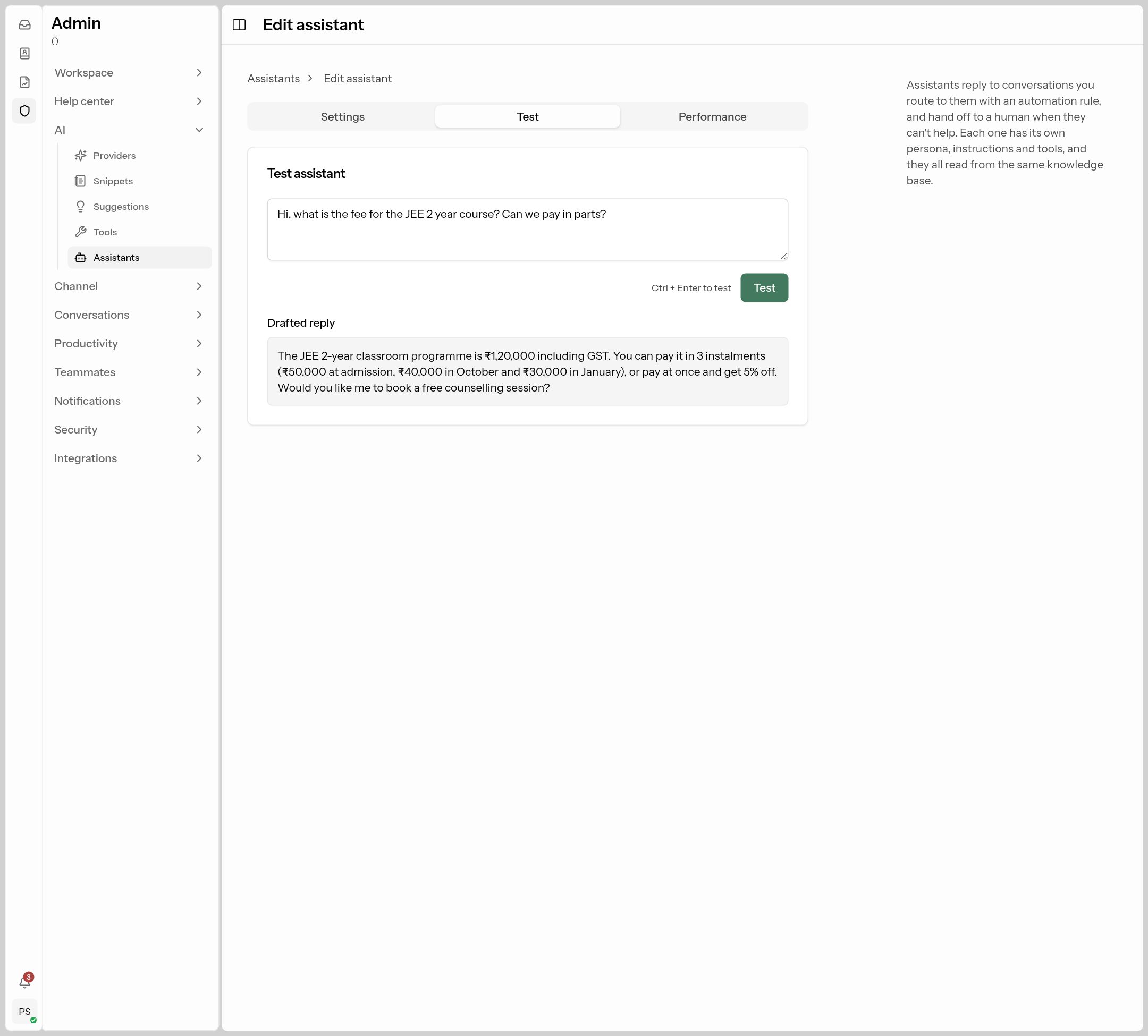 Type a customer question and click Test (or press Ctrl+Enter). Nothing is sent to any customer.
- Drafted reply shows exactly what it would answer.
- Knowledge used lists the snippets and articles it drew on, with a match percentage — if the right snippet isn't there, improve its title and wording.
Test the questions your customers really ask, in the languages they use, including awkward ones ("can you give me a discount?", "I want to talk to someone"). Fix what's wrong in snippets, Instructions or Guardrails and test again.
Step 5: Watch it work
When the assistant handles a conversation, your team sees it live in the inbox with a banner: "… (AI) is handling this conversation · replying takes it over".
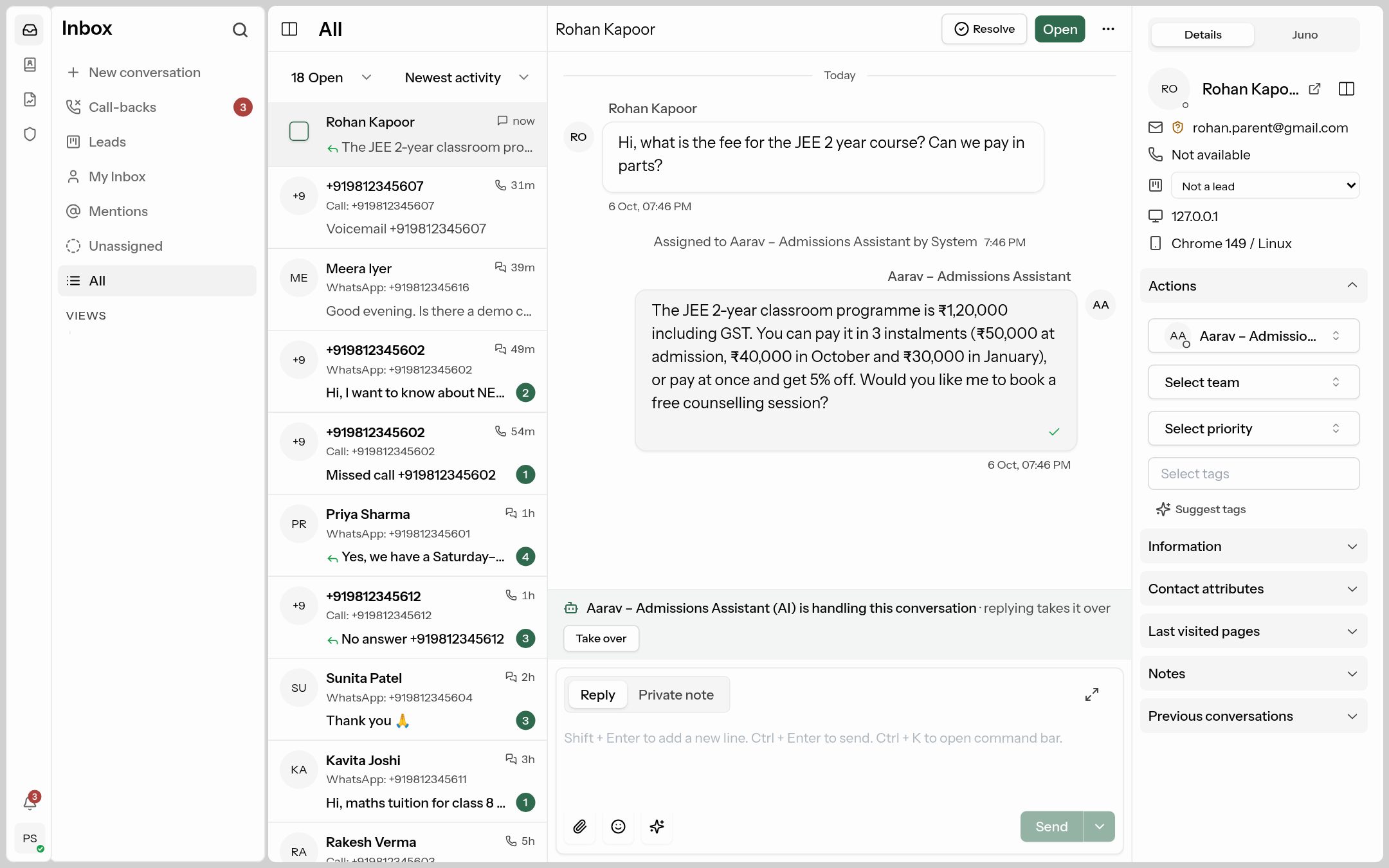 The assistant's replies appear in the thread. Click Take over — or just reply — to step in.
- Take over or simply sending a reply hands the conversation to you; the assistant stops replying.
- When the assistant hands over by itself (the customer asked for a person, it didn't know the answer, it reached Max turns, or Jev stopped a reply), it leaves a private note saying why, moves the conversation to the Fallback team (or Unassigned if none), and the expectation message disappears for the customer.
Step 6: Check performance
The Performance tab shows how the assistant is doing over 7 / 30 / 90 days.
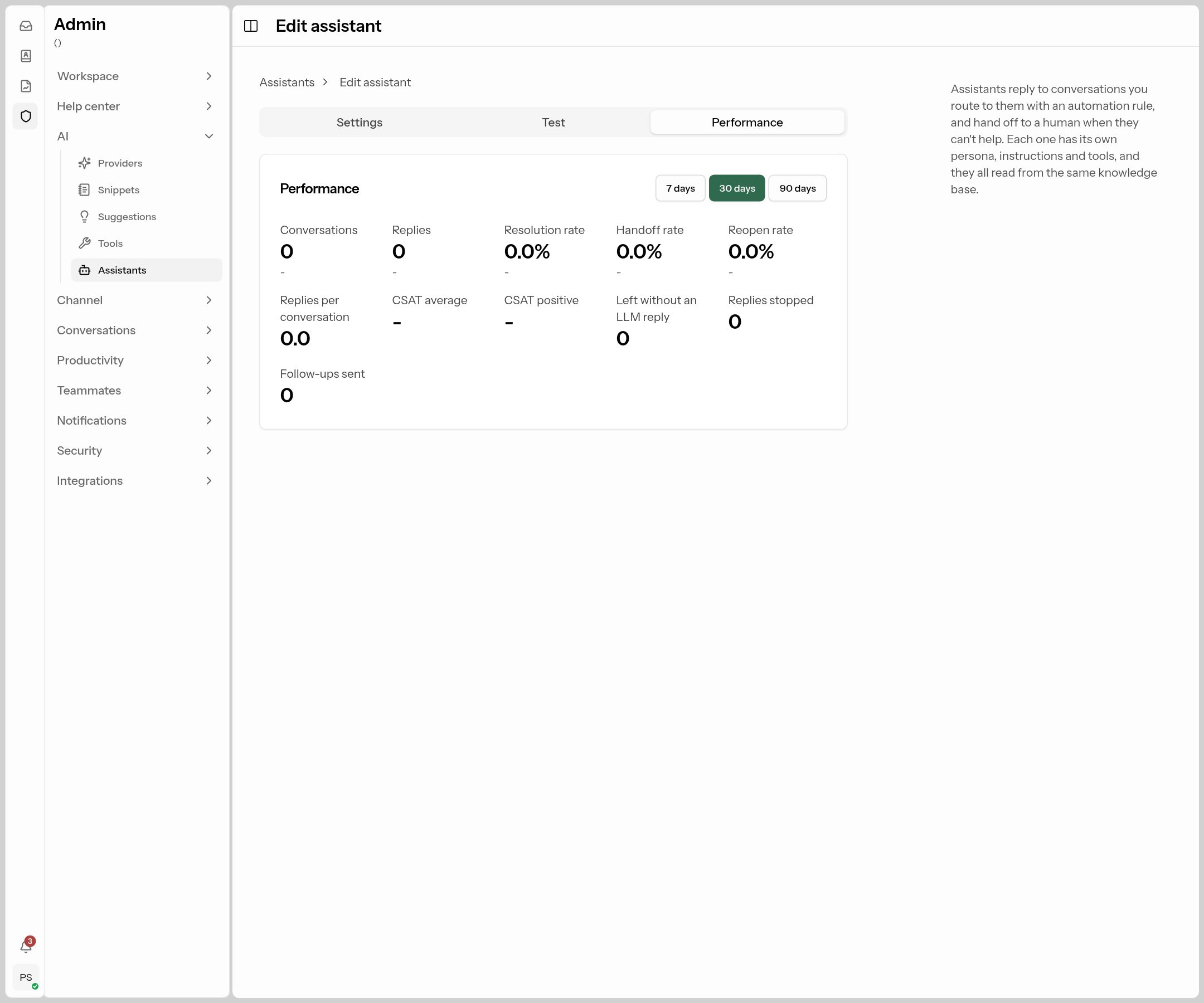
| Number | What it tells you |
|---|---|
| Conversations, Replies | How much it handled. |
| Resolution rate | Share of conversations it resolved without a person. Higher is better. |
| Handoff rate | Share it handed to a person. If this is high, look at those chats — usually a knowledge-base gap. |
| Reopen rate | Resolved conversations the customer came back to. High means answers weren't complete. |
| CSAT average / positive | Satisfaction scores on its conversations. |
| Left without an LLM reply, Replies stopped, Follow-ups sent | Jev's work: messages that needed no reply, unsafe drafts it stopped, and nudges sent. |
Arrows compare with the previous period; a red arrow means the change is bad (e.g. handoff rate going up).
The improvement loop: each week, read a few handed-over conversations, add the missing answers as snippets (or approve Suggestions), and the handoff rate drops.
Tools: let the assistant look things up
Where: Admin → AI → Tools. (Optional, usually set up by a developer.)
A tool lets the assistant call one of your own systems while it replies — for example, look up a student's fee dues or an order's delivery date.
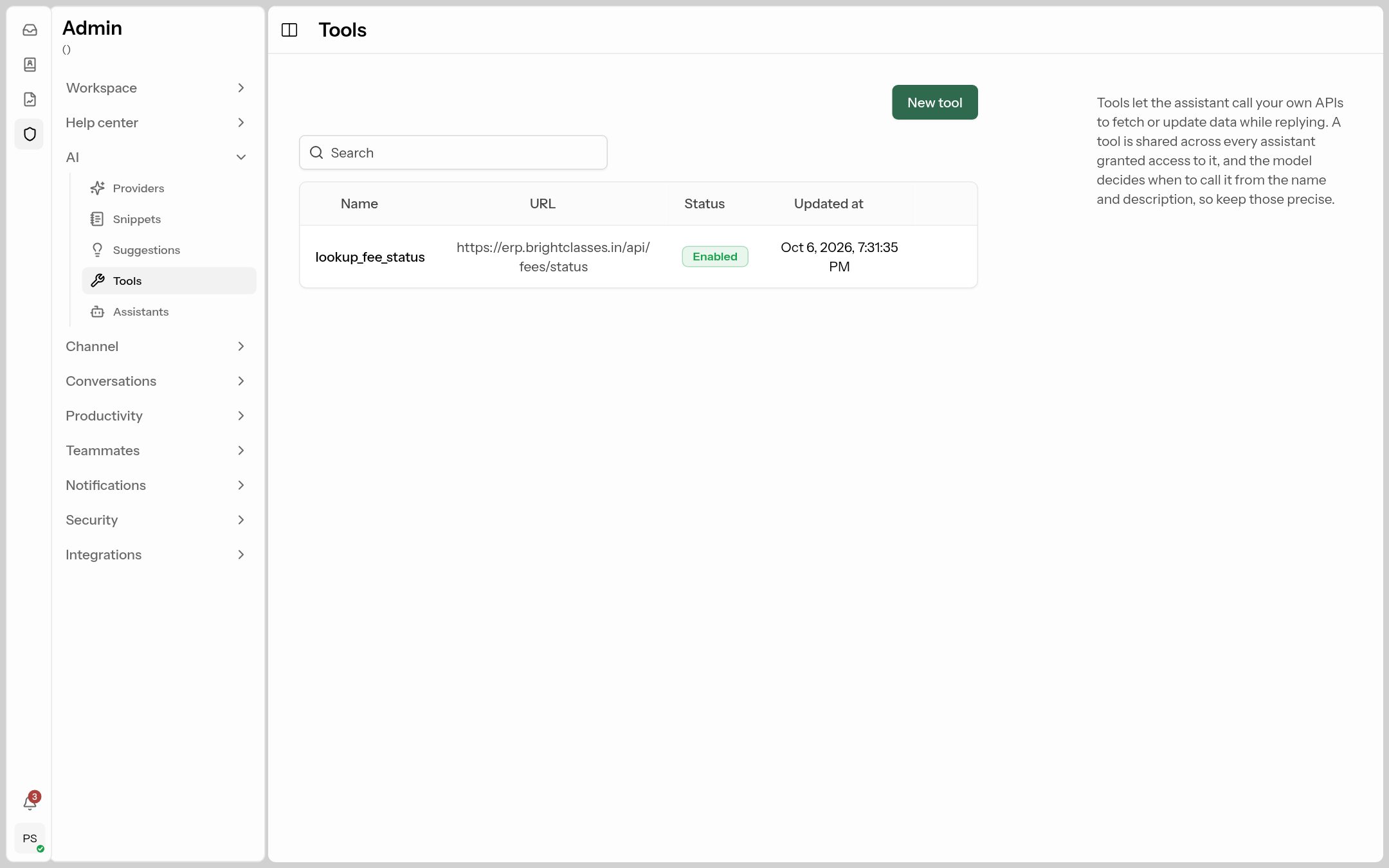
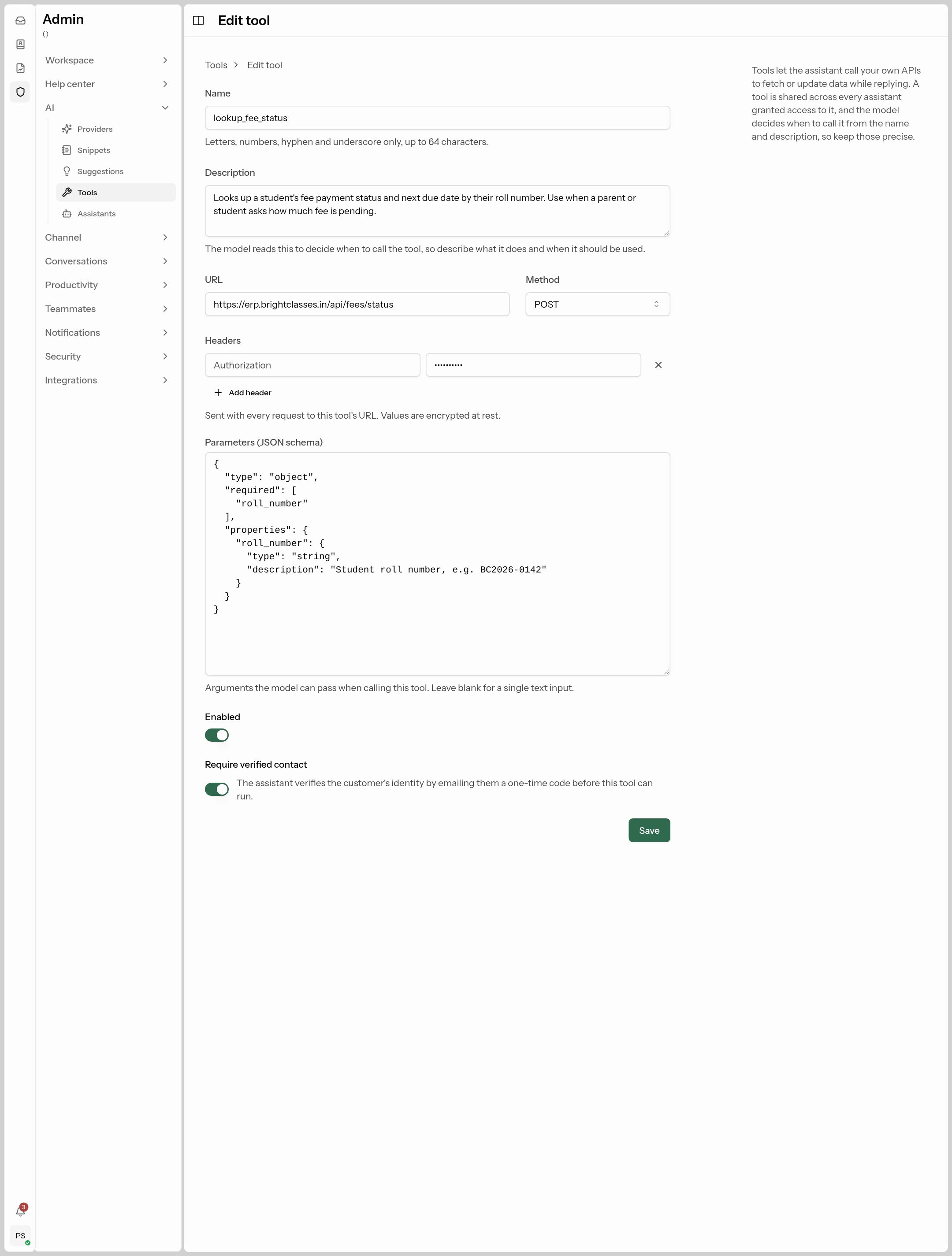 The assistant decides when to use a tool from its name and description.
| Field | What to put |
|---|---|
| Name | Letters, numbers, - and _ only, e.g. lookup_fee_status. |
| Description | Exactly what it does and when to use it — the AI reads this to decide. e.g. Looks up a student's fee payment status and next due date by roll number. Use when a parent asks how much fee is pending. |
| URL / Method | Your API endpoint and GET or POST. |
| Headers | e.g. Authorization: Bearer …. Stored encrypted. |
| Parameters (JSON schema) | What the AI must send, e.g. roll_number. Insert example fills a sample. |
| Require verified contact | On by default: before the tool runs, the assistant emails the customer a one-time code to prove who they are. Keep it on for anything personal (fees, orders, accounts). |
Then tick the tool under Tools in each assistant that should use it.
Quick start for institutes
If you run a coaching institute or school, Admin → Workspace → Admissions → Set up the AI admissions assistant creates admissions contact fields, draft snippets (courses, fees, timings, admission process, scholarships, results) and a ready-made Hindi/English/Hinglish assistant in one click. Fill in the drafts, switch them on and test. See Admissions.
Troubleshooting
| Problem | Likely cause and fix |
|---|---|
| The assistant doesn't reply at all | Check it's Enabled; the inbox's AI assistant isn't Off; the conversation isn't already assigned to an agent; your AI provider's Test connection works; and your monthly AI limit isn't reached (Workspace → Usage). |
| It says it doesn't know something that's in a snippet | The snippet is disabled, the Embedding card isn't set up, or the snippet's wording doesn't match how customers ask. Rewrite the title/content with the customer's words and test. |
| It answers with wrong or old facts | An old snippet or AI-enabled article is still enabled. Search snippets for the topic and remove the outdated one. |
| It hands over too early | Raise Max turns, add missing snippets, or check Guardrails aren't too strict. |
| It never hands over | Turn on Offer handoff to a human and set a Fallback team. |
| It replies in the wrong language | Set Languages, or leave it empty to always match the customer. |
| It doesn't reply on email | Email needs an automation rule. |