Your team
Add the people who answer customers, group them into teams, and decide what each person may do.
Agents
Where: Admin → Teammates → Agents.
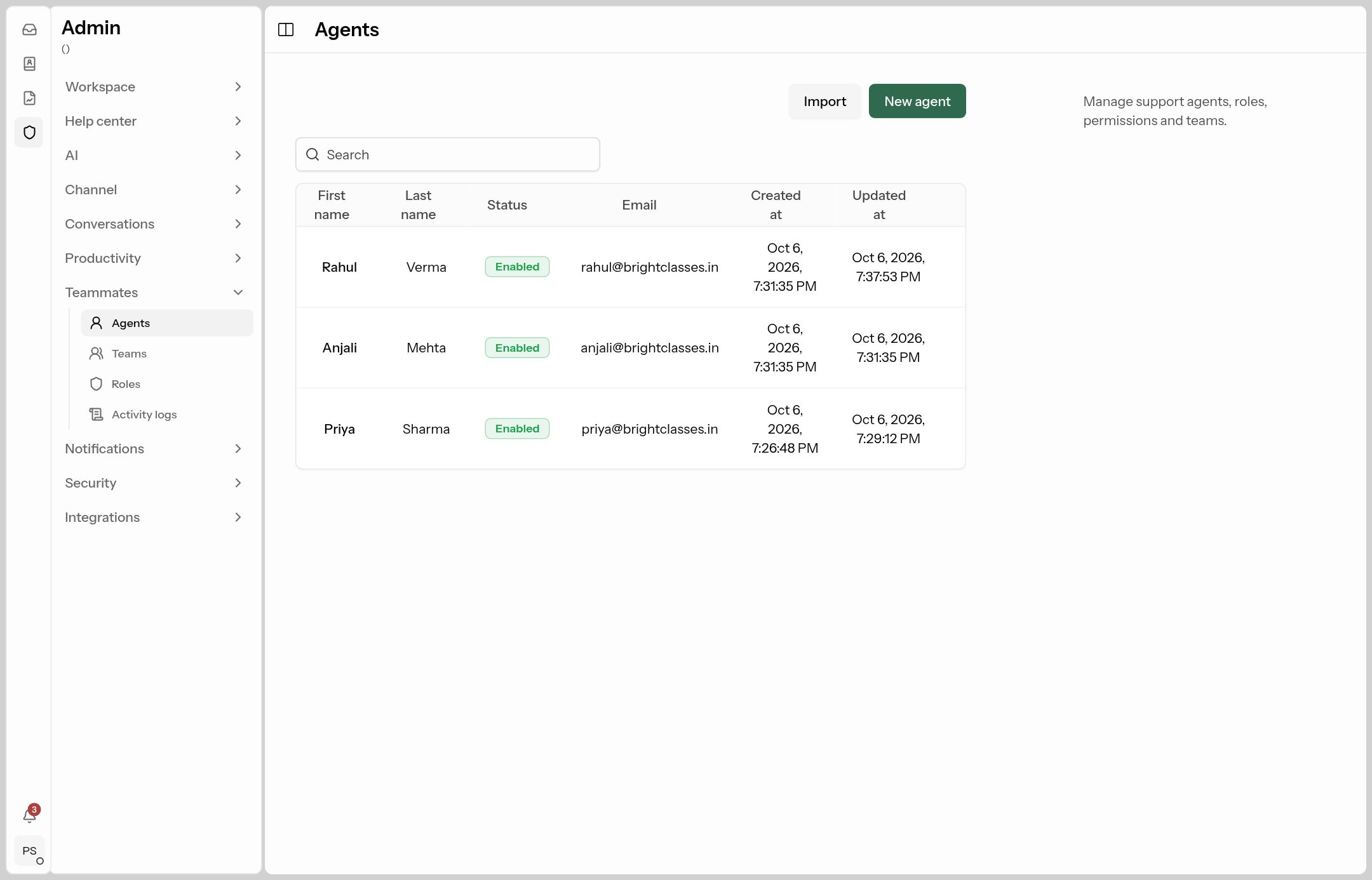
Invite an agent
Click New agent:
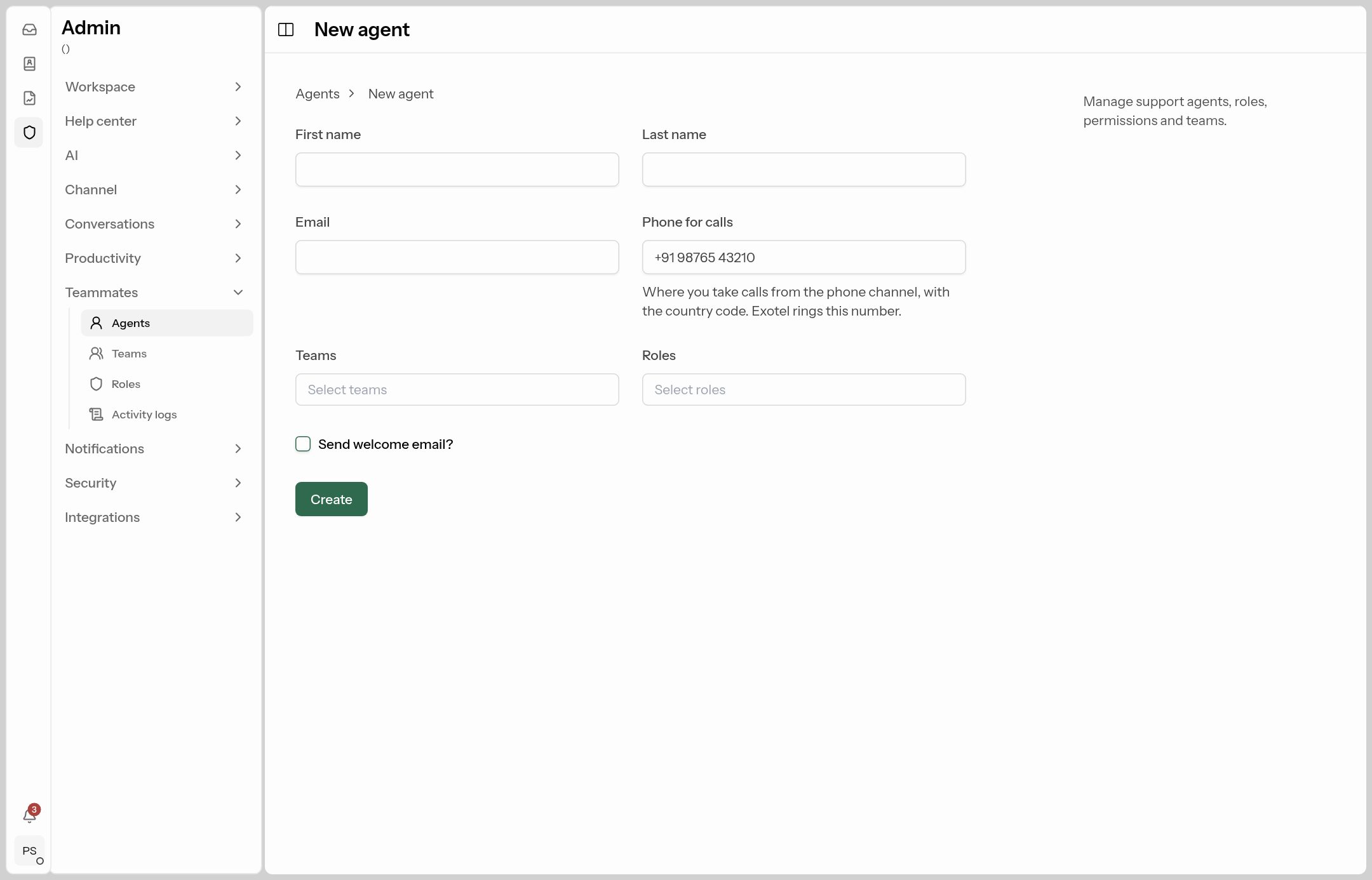
| Field | What to put |
|---|---|
| First name, Last name, Email | Their details. They log in with this email. |
| Phone for calls | With country code (+91…) if they take phone-channel calls. |
| Teams | The teams they belong to. This is where you add people to teams. |
| Roles | What they may do — usually Agent; Admin for people who manage settings. |
| Send welcome email? | Tick it: they get an email with a link to set their own password. |
Click Create. Your plan decides how many agents you can have (see Workspace → Usage).
Import adds many agents at once from a CSV with columns first_name,last_name,email,roles,teams.
Manage an agent
Click an agent's name to:
- untick Enabled to stop them logging in (keeps their history — better than deleting when someone leaves),
- change their Availability (Active / Away / Away and reassigning),
- Set password for them,
- Reset two-factor login if they lost their phone,
- generate an API key for integrations.
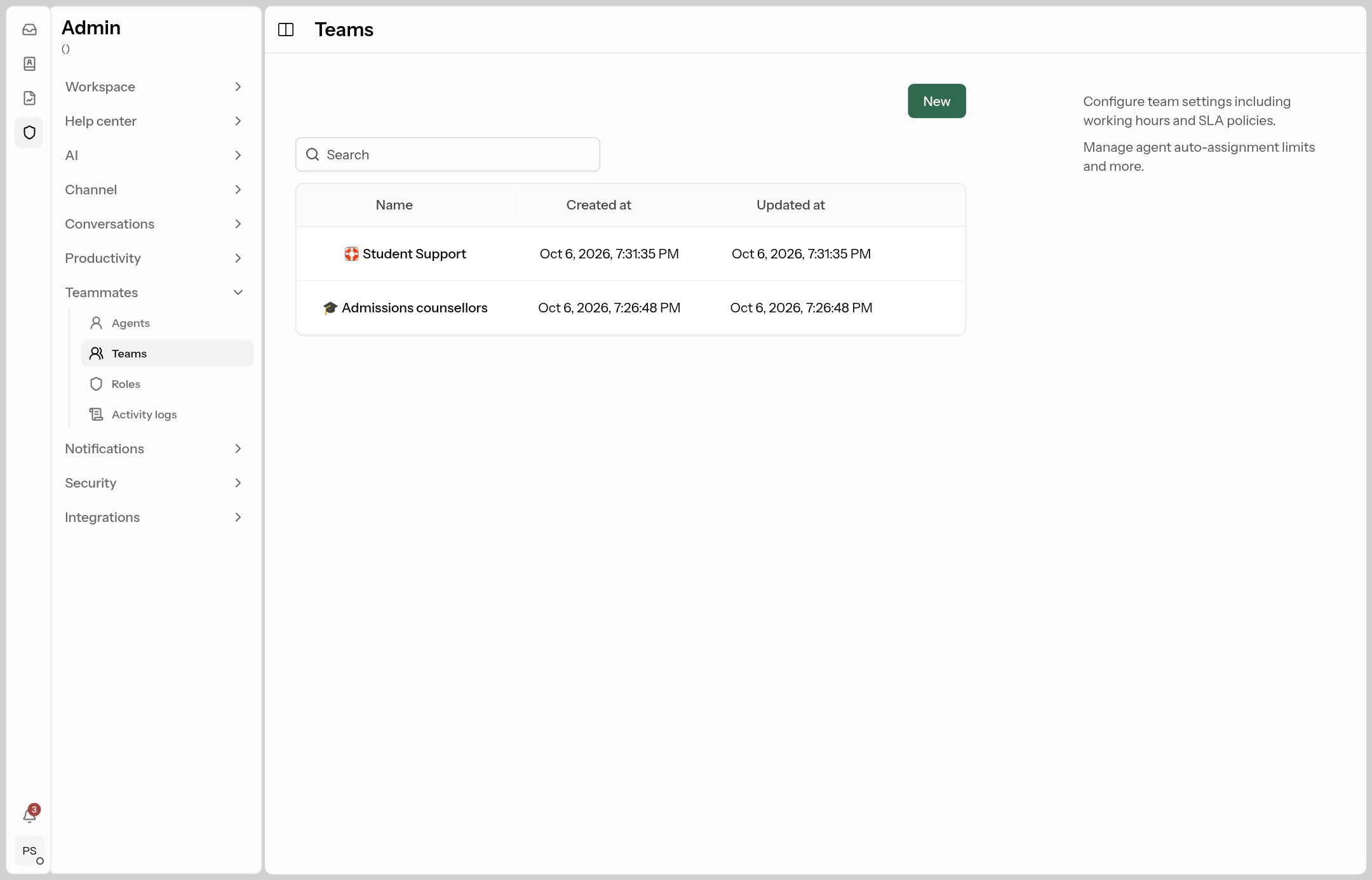
Teams
Where: Admin → Teammates → Teams.
Why: teams get their own inbox in the sidebar, can share conversations out automatically, and can have their own working hours and SLA.
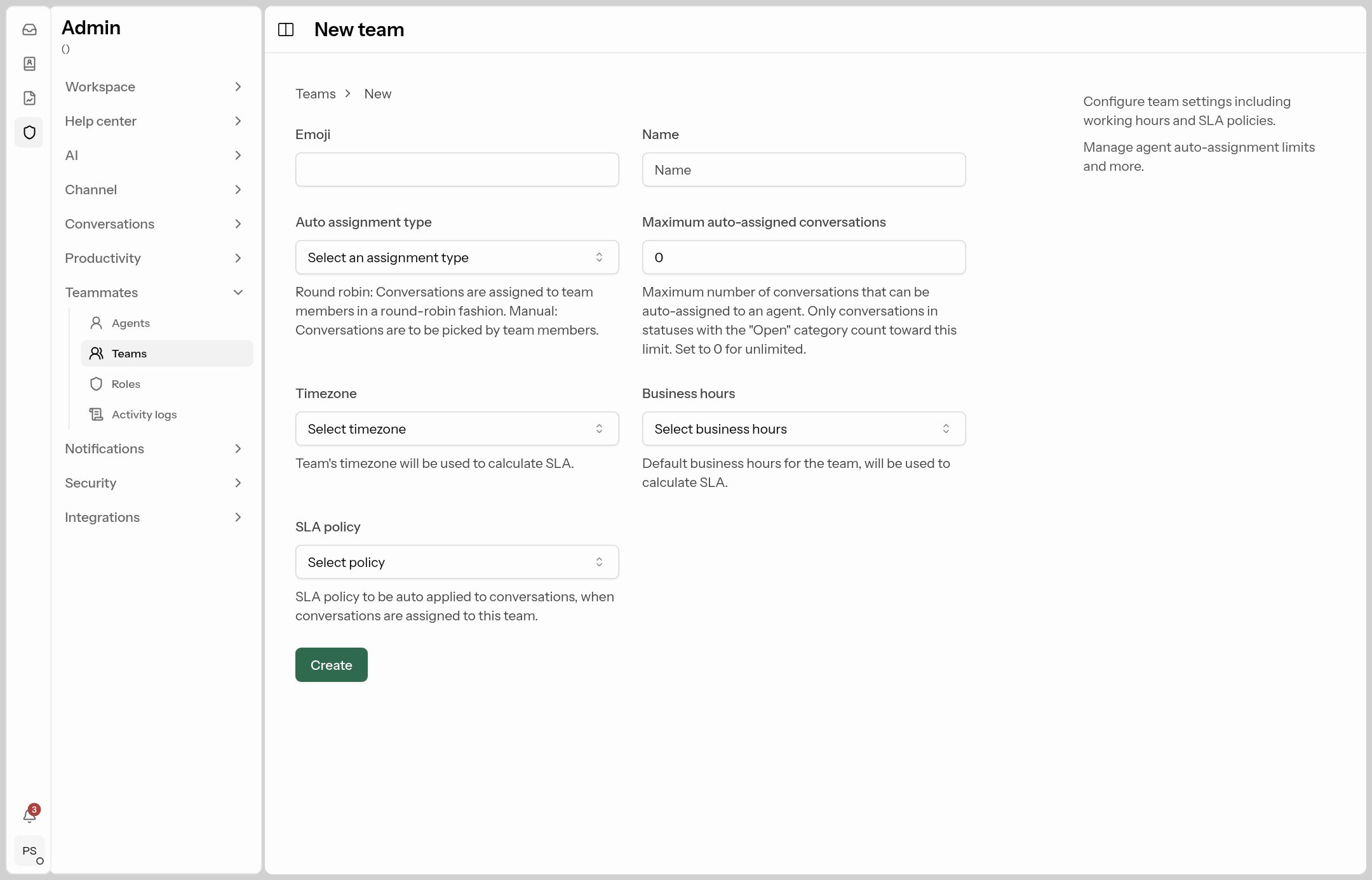
| Field | What it does | What to put |
|---|---|---|
| Emoji + Name | How the team appears. | 🎓 Admissions counsellors |
| Auto assignment type | Round robin shares new team conversations out to members in turn; Manual lets members pick them up. | Round robin for busy teams. |
| Maximum auto-assigned conversations | The most open conversations one person gets automatically. 0 = no limit. |
10–20 so nobody is overloaded. |
| Timezone | The team's clock for SLA. | Same as the workspace unless the team is elsewhere. |
| Business hours | The team's own working hours (otherwise the workspace's). | Optional. |
| SLA policy | Applied to every conversation assigned to this team. | e.g. Enquiry response. |
Add members on each agent's form, in Teams. Agents who have switched themselves to Away are skipped by round robin.
Roles: what people are allowed to do
Where: Admin → Teammates → Roles.
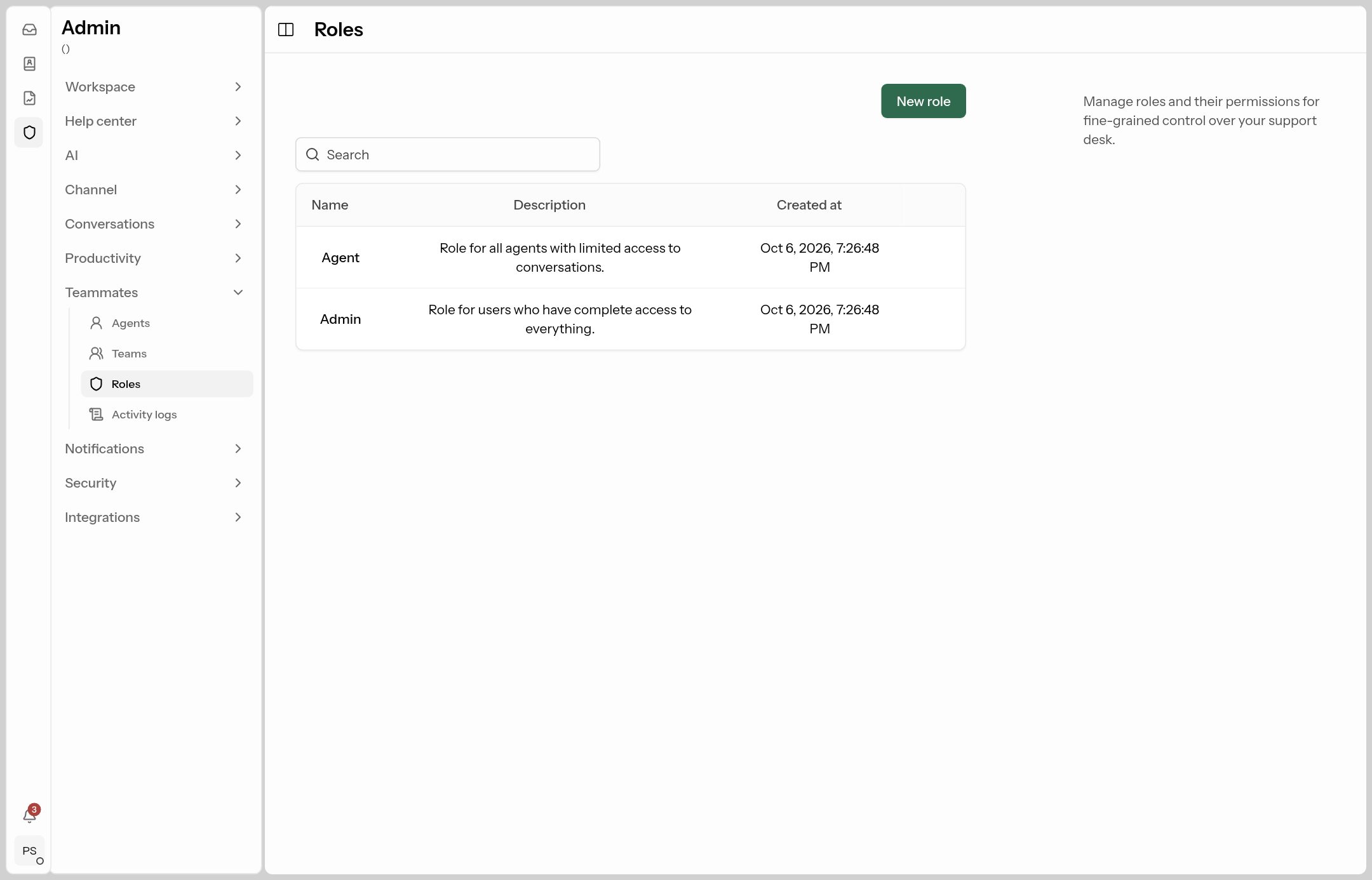
Two built-in roles: Admin (everything) and Agent (answer conversations; no settings, no contact management). To make your own, click New role, give it a name and tick its permissions:
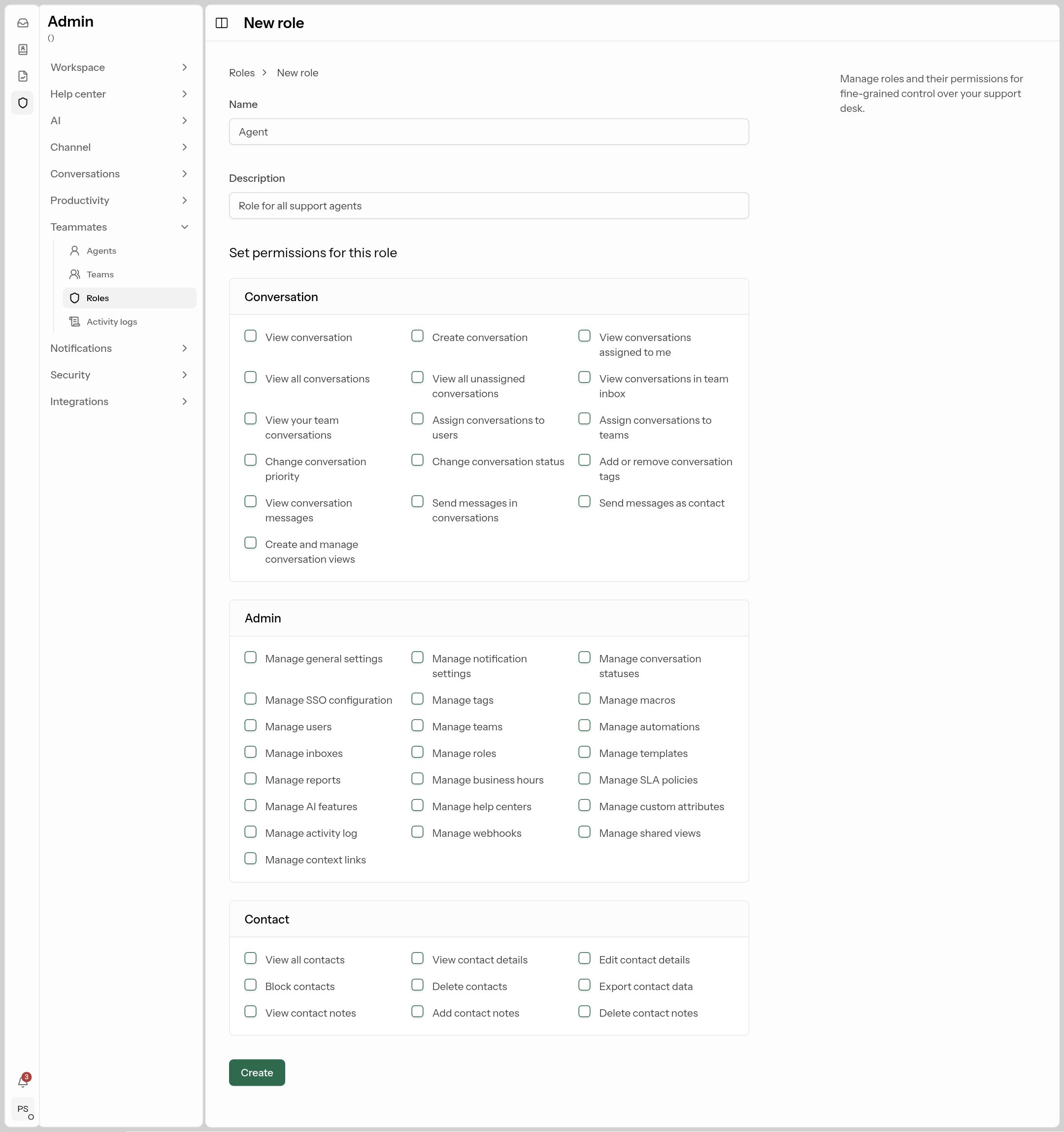
Common custom roles:
| Role | Tick |
|---|---|
| Team lead | Everything Agent has, plus View all conversations, Assign conversations to users/teams, Manage reports, Manage macros. |
| Counsellor | Agent permissions plus View all contacts, View/Edit contact details, contact notes — so they can work the Leads board. |
| AI manager | Manage AI features and Manage help centers — for whoever maintains the knowledge base. |
The permissions most people ask about:
- View all conversations vs View conversations assigned to me vs View conversations in team inbox — controls which inboxes a person sees.
- Manage AI features — the whole Admin → AI area.
- View all contacts — the Contacts section and the Leads board.
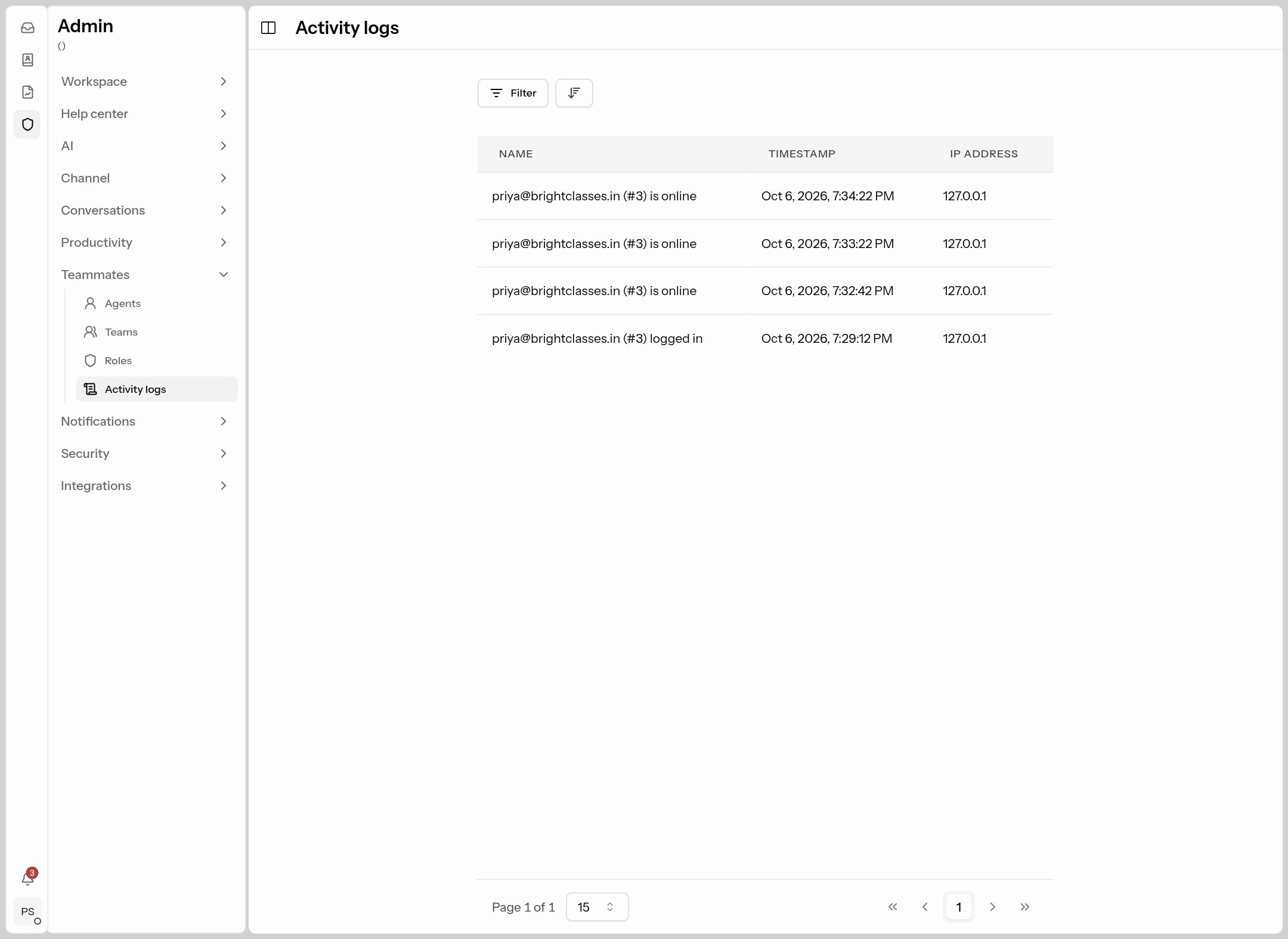
Activity logs
Where: Admin → Teammates → Activity logs. A read-only record of logins, logouts, password and role changes, data exports and deletions, with time and IP address. Use Filter to find one person's activity.
Single sign-on (SSO)
Where: Admin → Security → SSO. Lets agents log in with Google, Microsoft or another OpenID Connect provider.
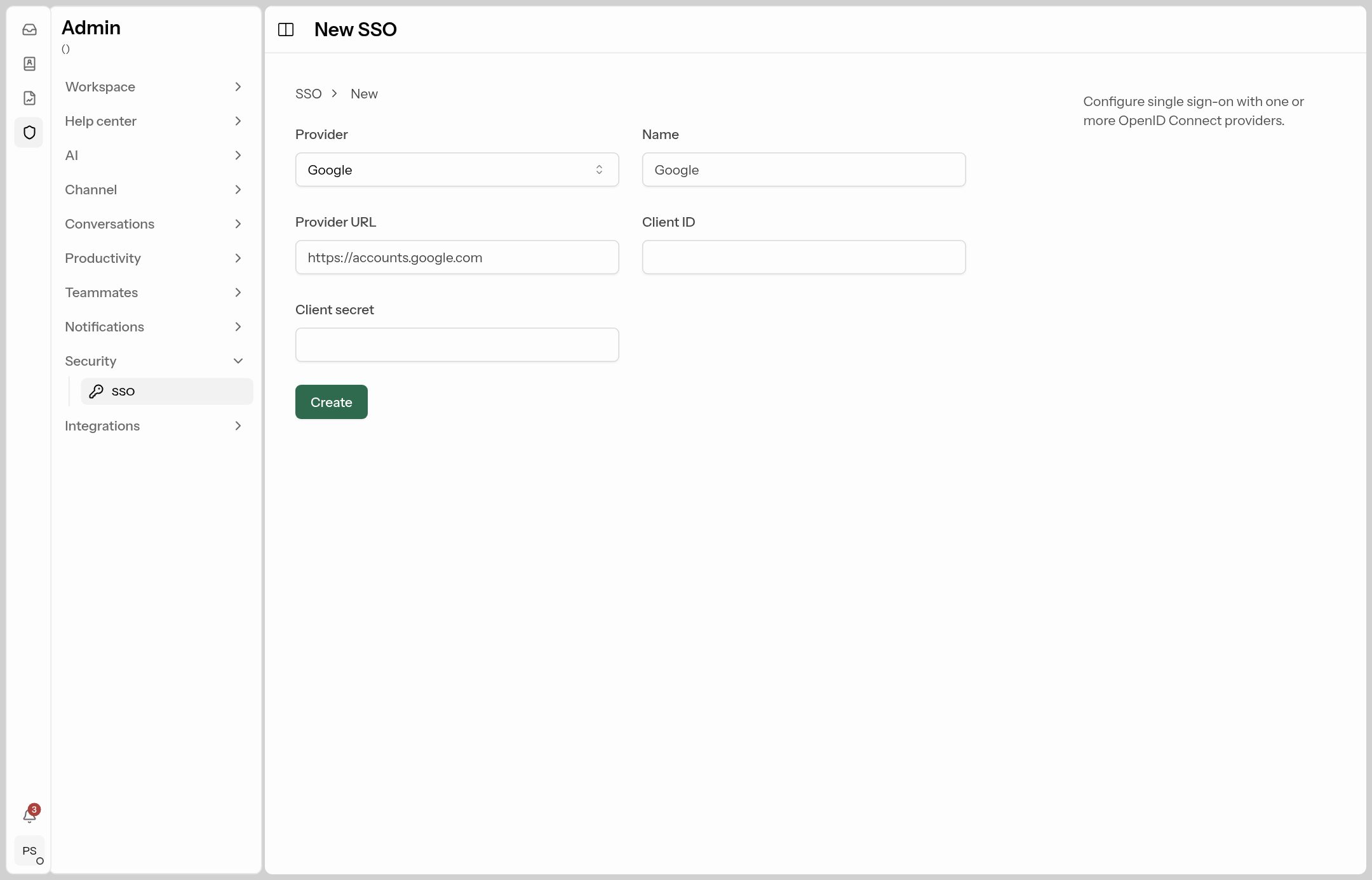
- Click New SSO, choose the Provider, and give the button a Name (e.g. "Google").
- In your identity provider, create an app and copy its Client ID and Client secret here.
- Save, open it again and copy the Callback URL into your identity provider.
- Test logging in, then optionally turn on Require single sign-on under General.