AI setup: how it fits together
ConectDesk's AI does two jobs:
- The AI assistant answers customers by itself on chat, WhatsApp and other channels, and hands the conversation to a person when it can't help.
- Juno, the copilot, helps your agents inside a conversation: summaries, draft replies, rewriting.
Both need three things, set up in this order:
| # | What | Where | Page |
|---|---|---|---|
| 1 | An AI provider — the model that writes the answers, and one that makes your knowledge searchable | Admin → AI → Providers | This page |
| 2 | A knowledge base — the facts the AI is allowed to answer from | Admin → AI → Snippets, and help-center articles | Knowledge base |
| 3 | An assistant — its name, personality, rules and which channels it answers | Admin → AI → Assistants | Create your AI assistant |
The golden rule: the assistant can only be as good as your knowledge base. It's told to answer from your snippets and articles, not to make things up. If a fact isn't written down, it will say it doesn't know and offer a person.
Every AI action (an assistant reply, a Juno answer, a summary) counts as one AI request against your plan's monthly limit. See Usage.
Step 1: Connect an AI provider
Where: Admin → AI → Providers.
What it's for: telling ConectDesk which AI model to use and giving it the key to your AI account. ConectDesk works with OpenAI, Anthropic (Claude), OpenRouter, Groq, Together AI, a local Ollama, or any "OpenAI-compatible" service.
Before you start: create an API key in your provider's dashboard. For OpenAI: sign in at platform.openai.com → API keys → Create new secret key, and add some credit to the account.
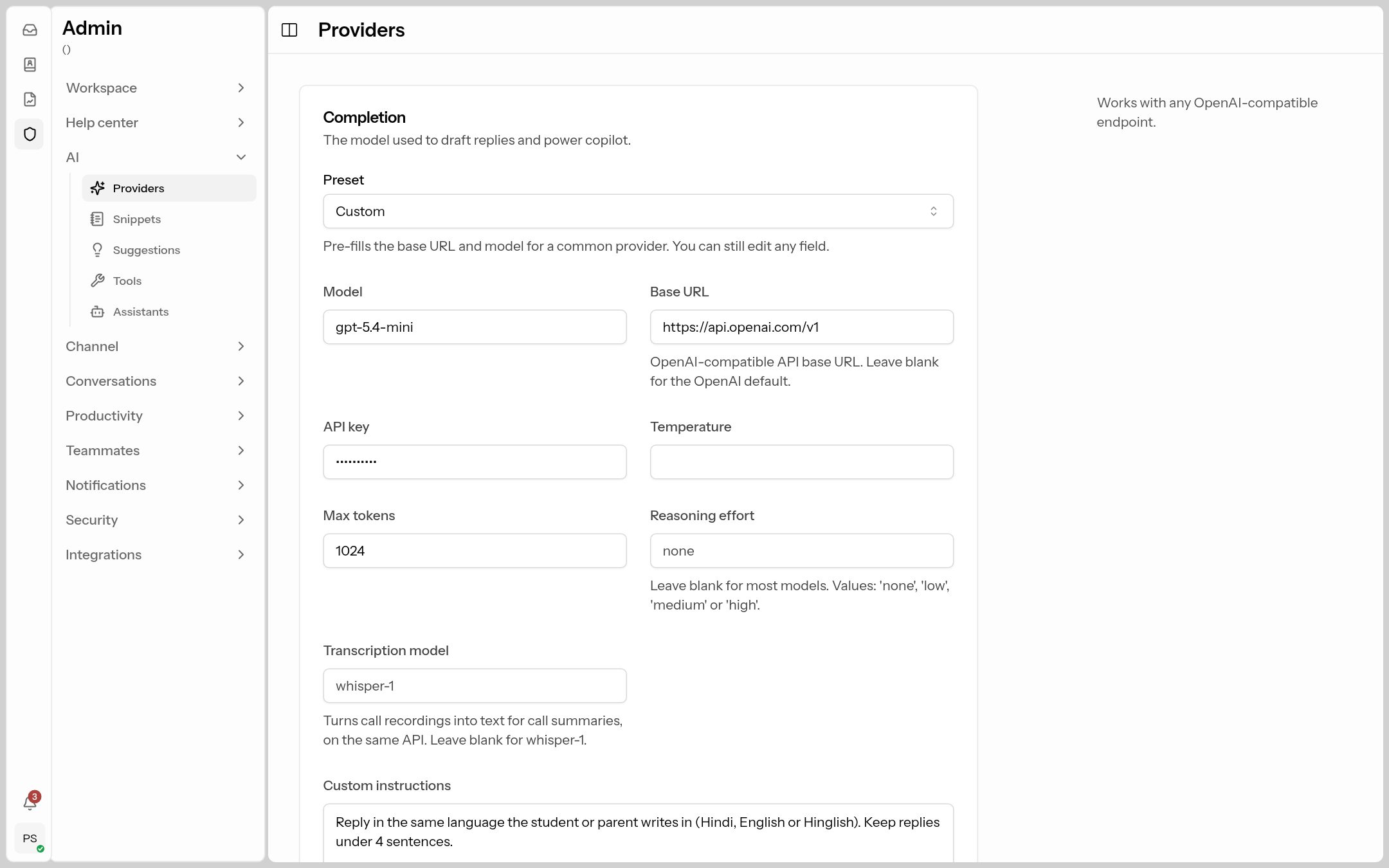 Admin → AI → Providers has three cards: Completion, Embedding and Jev.
Card 1: Completion (the model that writes)
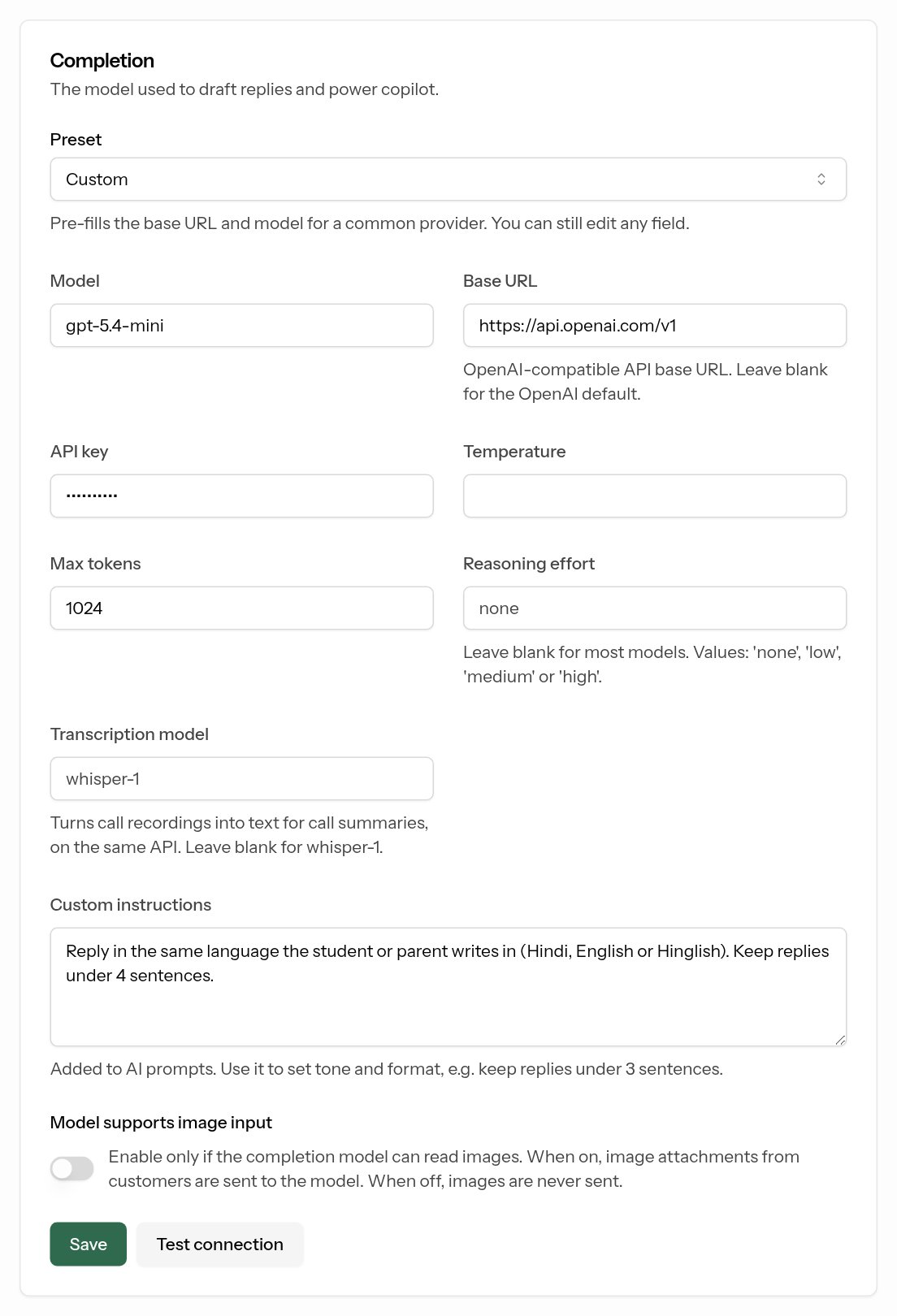 Pick a Preset, paste your API key, then Test connection and Save.
| Field | What it does | What to put |
|---|---|---|
| Preset | Fills in the Base URL and Model for a popular provider. You can still edit them. | OpenAI is the easiest start. |
| Model (required) | The exact model name to use. | The preset's default (e.g. gpt-5.4-mini) is a good balance of quality and cost. |
| Base URL | The provider's API address. Blank means OpenAI. | Filled by the preset. Only change it for your own gateway or a local Ollama. |
| API key | Your secret key from the provider. Once saved it shows as dots. Clearing the box and saving removes it. | Paste the key, e.g. sk-…. |
| Temperature | 0–2. Lower = more consistent, factual answers; higher = more creative. | Leave blank (provider default), or 0.3 for very consistent answers. |
| Max tokens | The longest answer the AI may write (about ¾ of a word per token). | 1024 is plenty. Raise it only if answers get cut off. |
| Reasoning effort | Only for "reasoning" models: none, low, medium or high. |
Leave blank unless your provider tells you to set it. |
| Transcription model | Turns call recordings into text for call summaries. | Blank (uses whisper-1). |
| Custom instructions | Added to every AI prompt (assistant and Juno). Use it for house style that applies everywhere. | e.g. Reply in the same language the customer writes in (Hindi, English or Hinglish). Keep replies under 4 sentences. |
| Model supports image input | When on, images customers send are shown to the AI. | Turn on only if your model can read images (most OpenAI and Claude models can). |
Click Test connection — it checks the key before you save ("Connection successful"). Then click Save.
Card 2: Embedding (the model that makes your knowledge searchable)
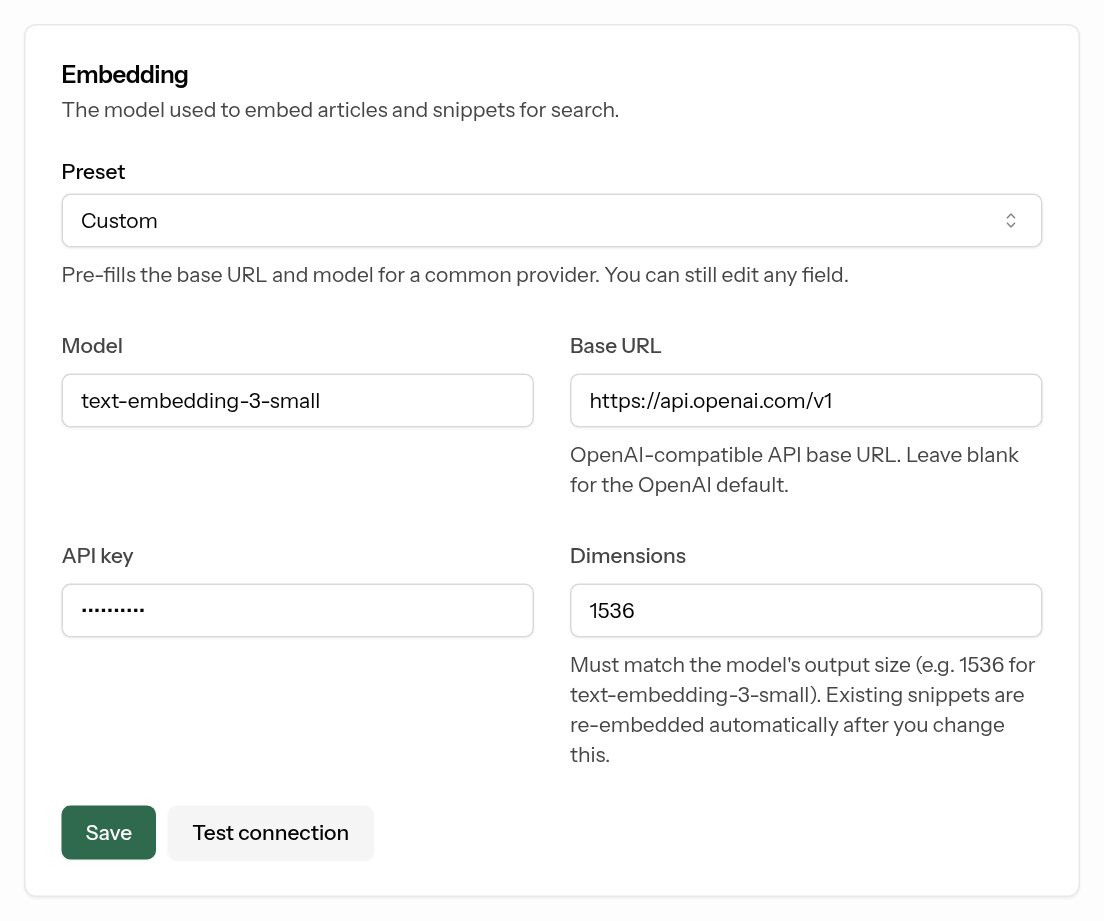
When a customer asks "what are the batch timings?", ConectDesk has to find the right snippet among all of yours. The embedding model turns each snippet and article into numbers so it can find the closest matches by meaning, not just exact words ("timings" finds "schedule").
| Field | What to put |
|---|---|
| Preset | OpenAI text-embedding-3-small (cheap and good). |
| Model, Base URL, API key | Filled by the preset; paste the same API key as above. |
| Dimensions | Must match the model: 1536 for text-embedding-3-small, 3072 for -large, 768 for Ollama's nomic-embed-text. Your snippets are re-indexed automatically if you change it. |
Test connection, then Save.
Don't skip the embedding card. Without it the assistant can't search your knowledge base, so it can't answer questions about your business.
Card 3: Jev decision layer (optional)
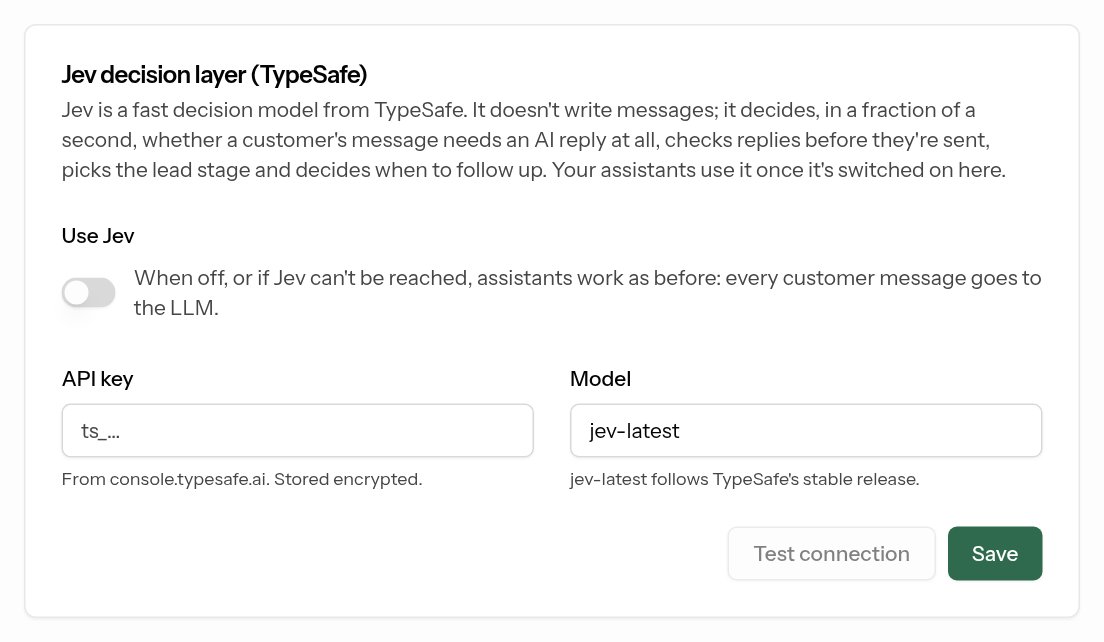
Jev (from TypeSafe) is an optional, very fast "decision" model that sits alongside your AI. It doesn't write messages. It decides, in a fraction of a second:
- whether a message even needs an AI reply ("ok thanks 👍" doesn't), and closes finished conversations,
- whether the customer is upset or asking for a person, and hands them over straight away,
- whether a drafted reply is safe to send (keeps to your rules, backed by your knowledge base, polite),
- which lead stage the contact is at, and when to follow up.
To use it, get an API key from console.typesafe.ai, paste it in API key (it starts with ts_), turn on Use Jev, Test connection and Save. If Jev is off or unreachable, assistants simply work without it. You fine-tune what Jev does per assistant — see Jev decisions.
What's next
Your AI can now write. Next, give it something to write about: build your knowledge base.