Daily work for agents
Share this page with your agents: it covers answering conversations, working with the AI assistant, using Juno, contacts and reports.
The inbox
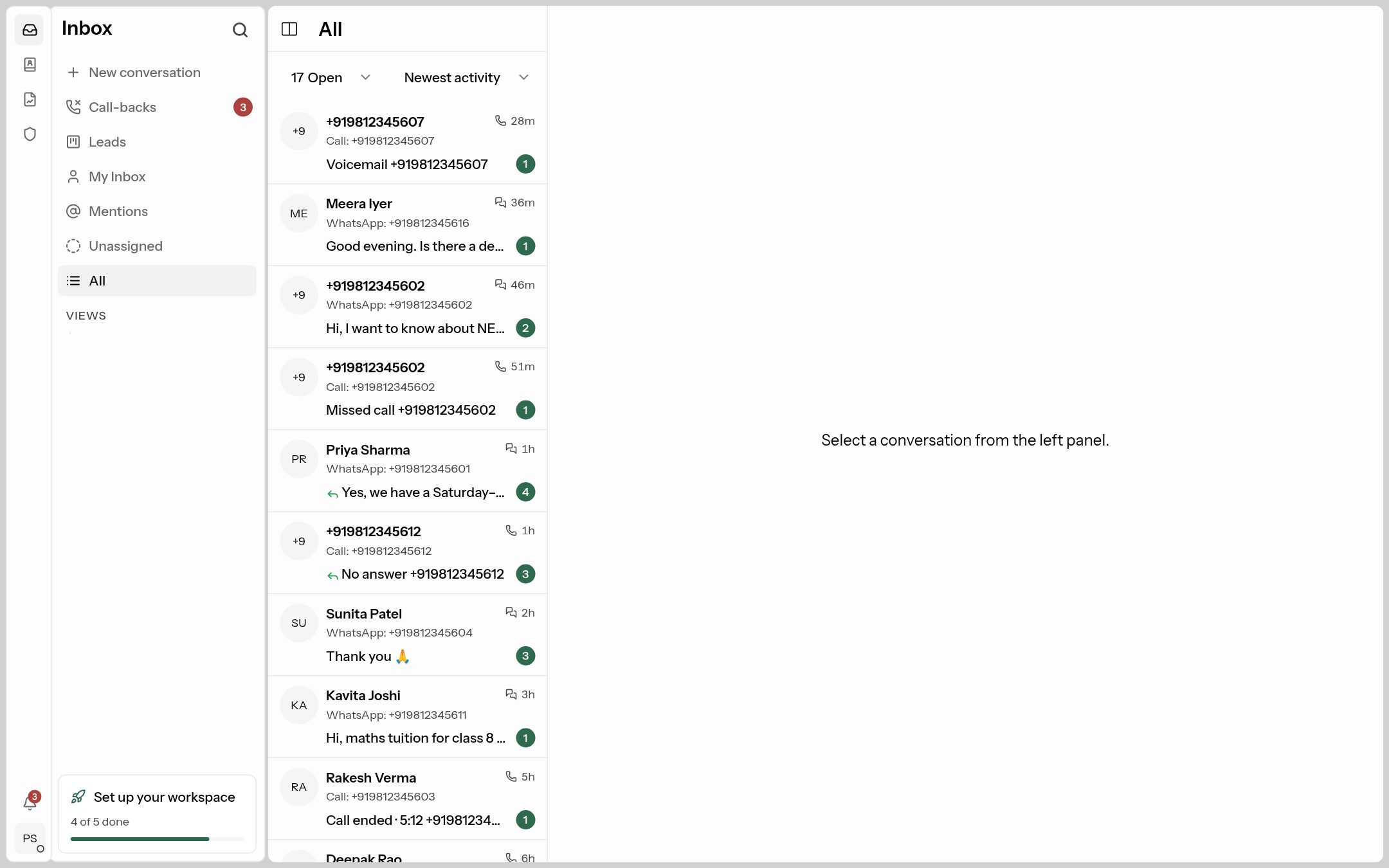
The menu on the left lists your conversation lists:
| List | What's in it |
|---|---|
| My Inbox | Conversations assigned to you. Start your day here. |
| Mentions | Conversations where a teammate @mentioned you in a private note. |
| Unassigned | Conversations nobody has picked up yet. |
| All | Everything you're allowed to see. |
| Team inboxes | Conversations assigned to your team but not yet to a person. |
| Views | Saved filters (yours, or shared by an admin). |
| Call-backs, Leads | Missed calls to return, and the admissions board. |
At the top of the list, pick the status (Open, Snoozed, Resolved…) and the sort order (newest, waiting longest, next SLA deadline…). Hover an avatar to select several conversations and assign, tag or resolve them together.
Answering a conversation
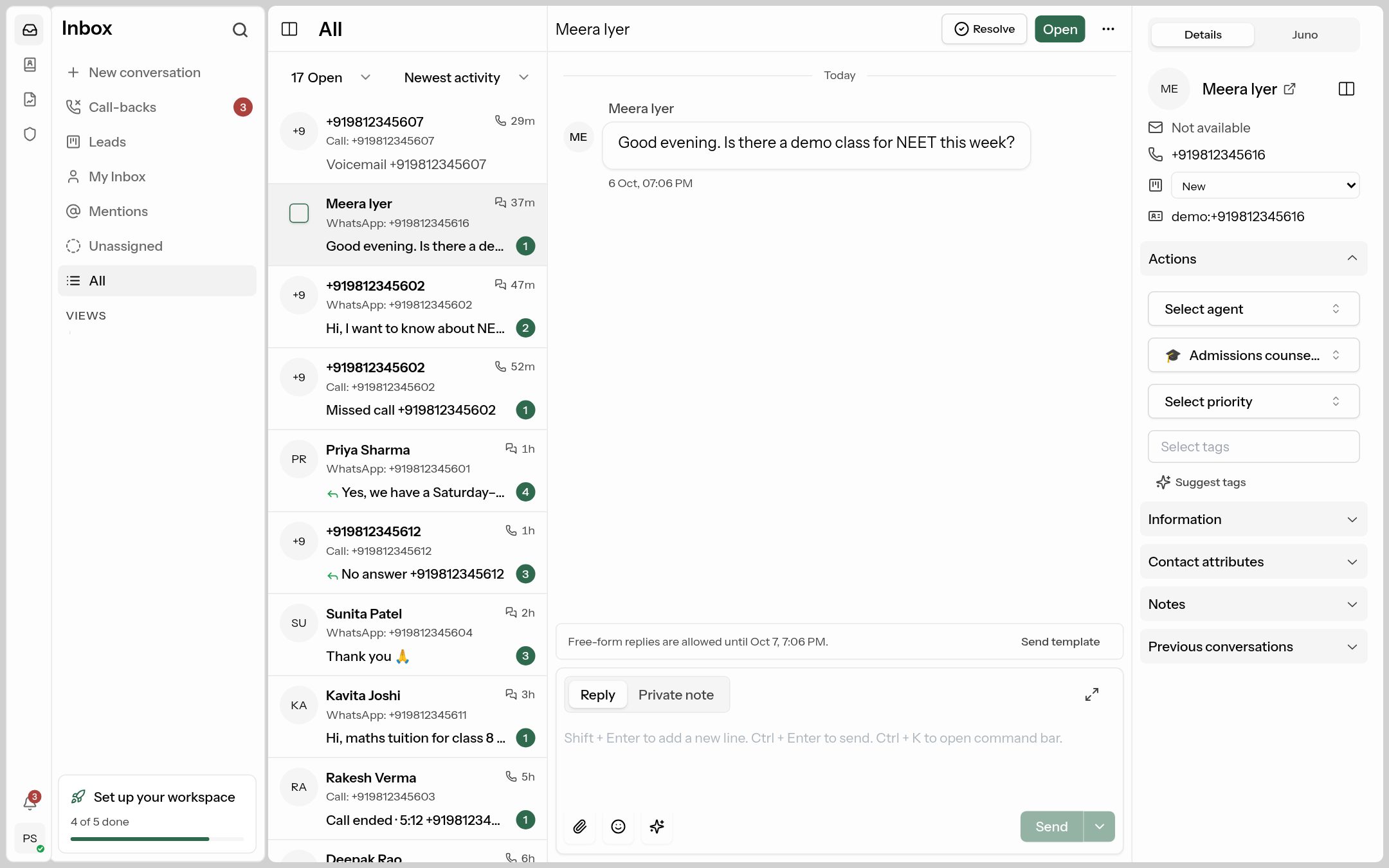
- The middle shows the thread. The reply box at the bottom has two tabs: Reply (goes to the customer) and Private note (only your team sees it; type
@to mention someone). - Press Ctrl+Enter to send, and Ctrl+K for the command bar (macros, snooze, assign, resolve…).
- The ✨ (Generate reply) button drafts a reply with AI from the conversation — anything you've typed is used as an instruction. Select text and use AI ▾ to rewrite it (e.g. more polite, shorter).
- The ▾ next to Send lets you Send and set as Resolved in one step.
- At the top: Resolve when you're done, or the status menu to snooze. The ⋮ menu has more actions, including Summarize with AI.
- The right sidebar (Details) shows the contact, assignee, team, priority and tags, contact fields, previous conversations and notes. Suggest tags lets the AI tag it for you.
WhatsApp, Messenger and Instagram: you can reply normally within 24 hours of the customer's last message. After that, the reply box asks you to send an approved template.
When the AI assistant is handling a chat
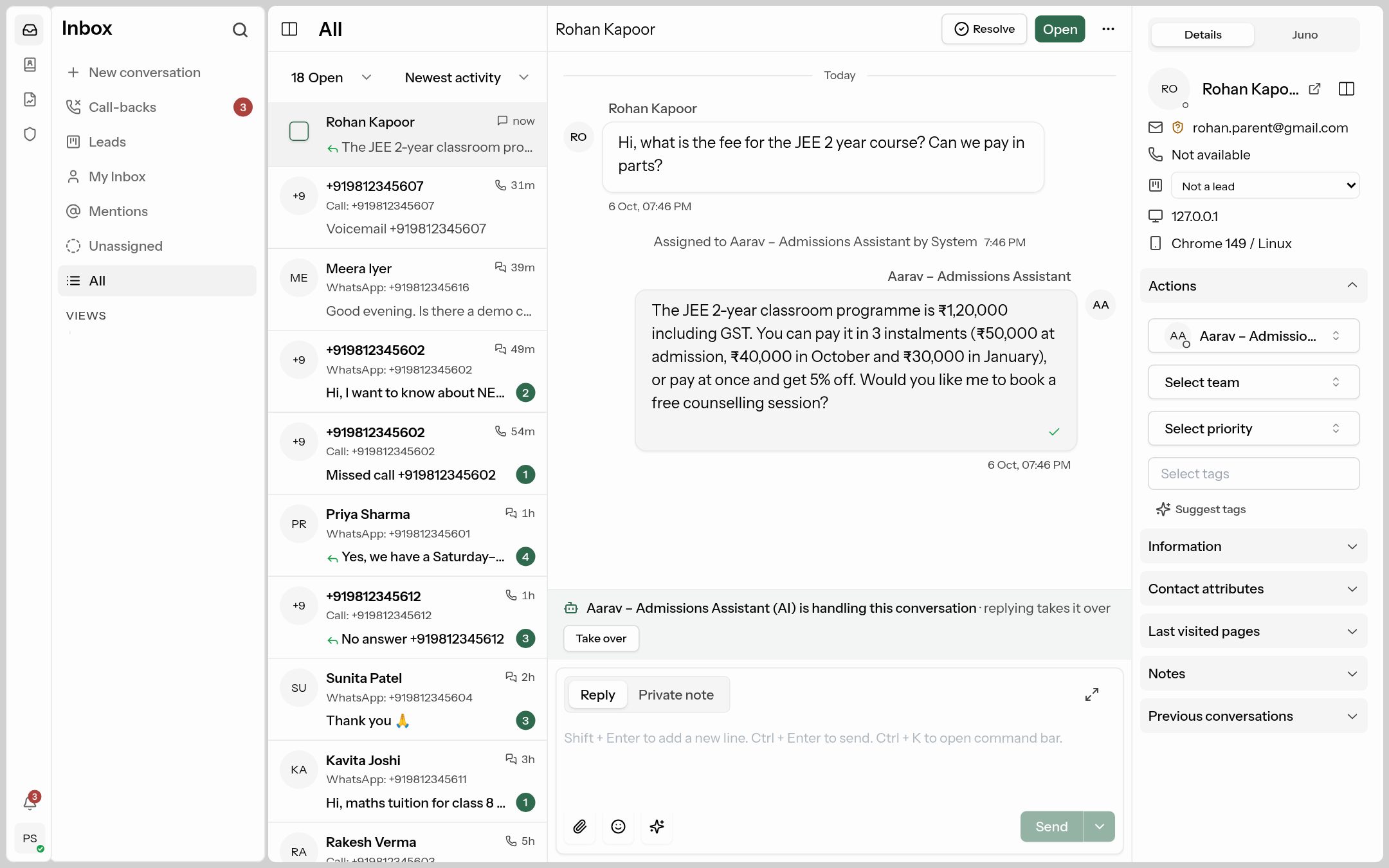
A banner above the reply box says "… (AI) is handling this conversation · replying takes it over". You can read along without doing anything. To step in, click Take over or just send a reply — the assistant stops replying.
When the assistant hands a chat over to your team, it leaves a private note explaining why. Read it before replying, so the customer doesn't have to repeat themselves.
Juno, your AI copilot
Open the Juno tab in the right sidebar of any conversation and ask anything — or use a preset such as Summarize this conversation or What is the customer asking?. Juno can search your knowledge base.
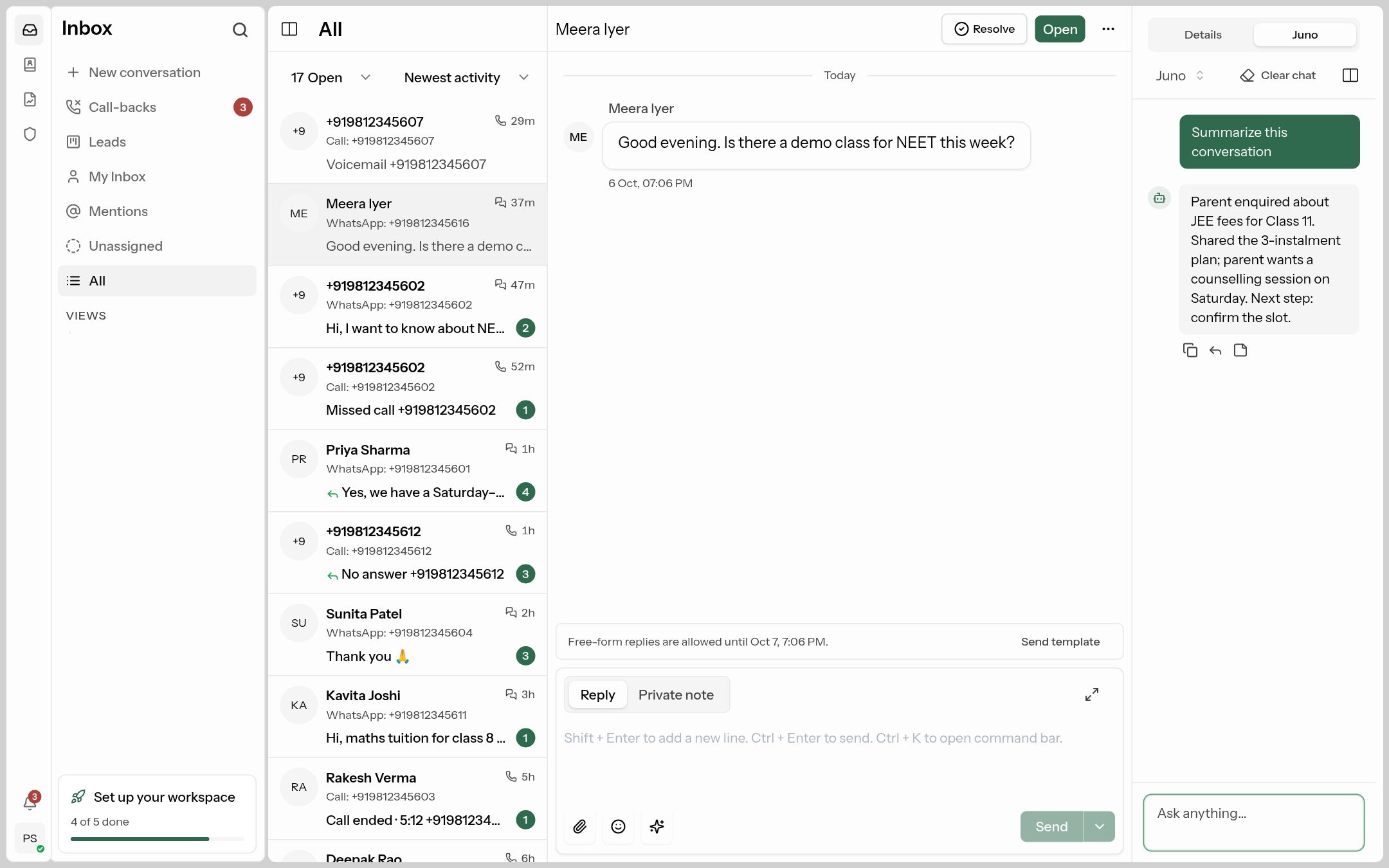 Under each answer: copy, insert into your reply, or add as a private note.
Contacts
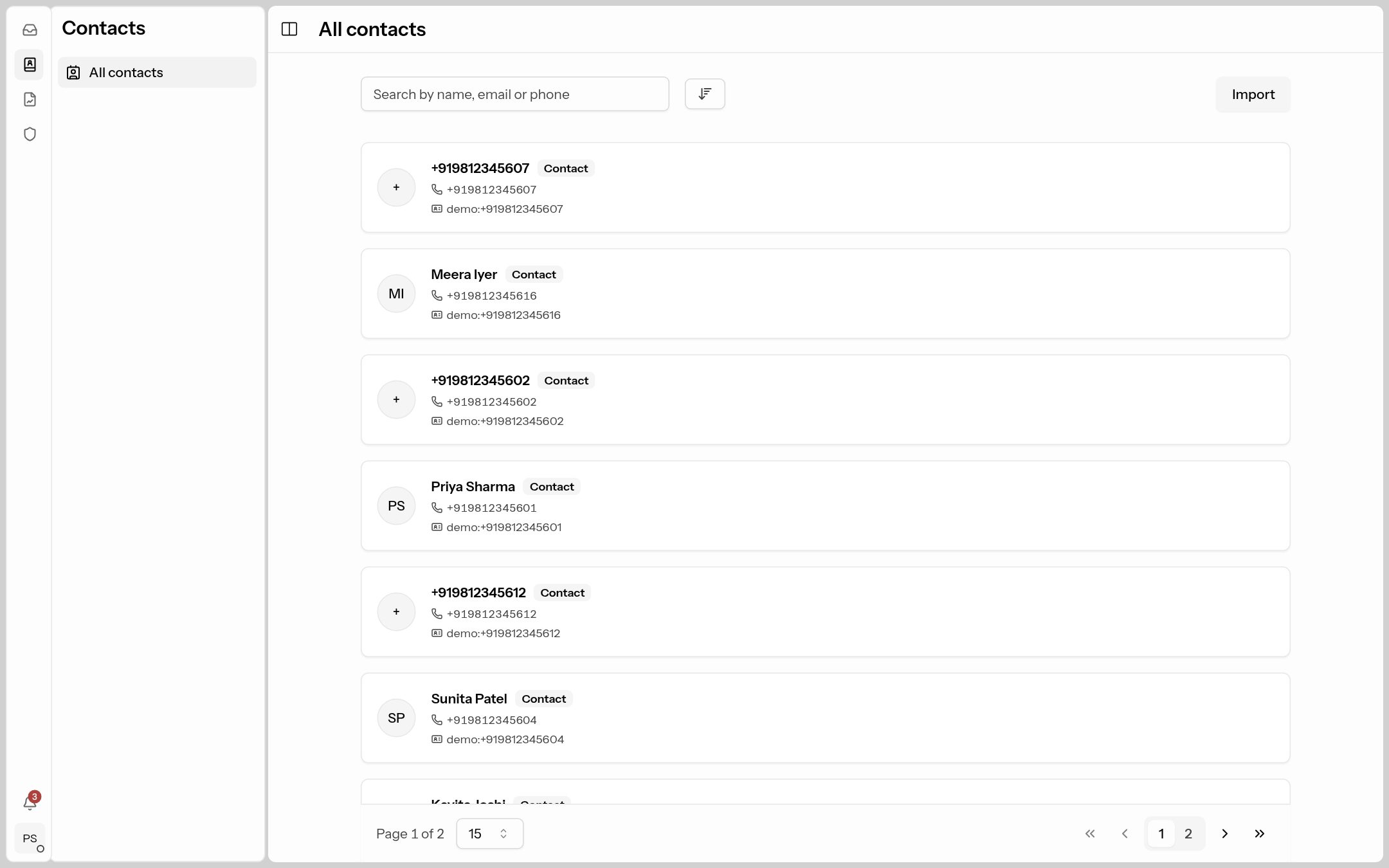
Contacts (the contact-card icon) lists every customer. Open one to see their details, conversations, notes and lead stage, edit their fields, or export / delete their data on request.
Reports
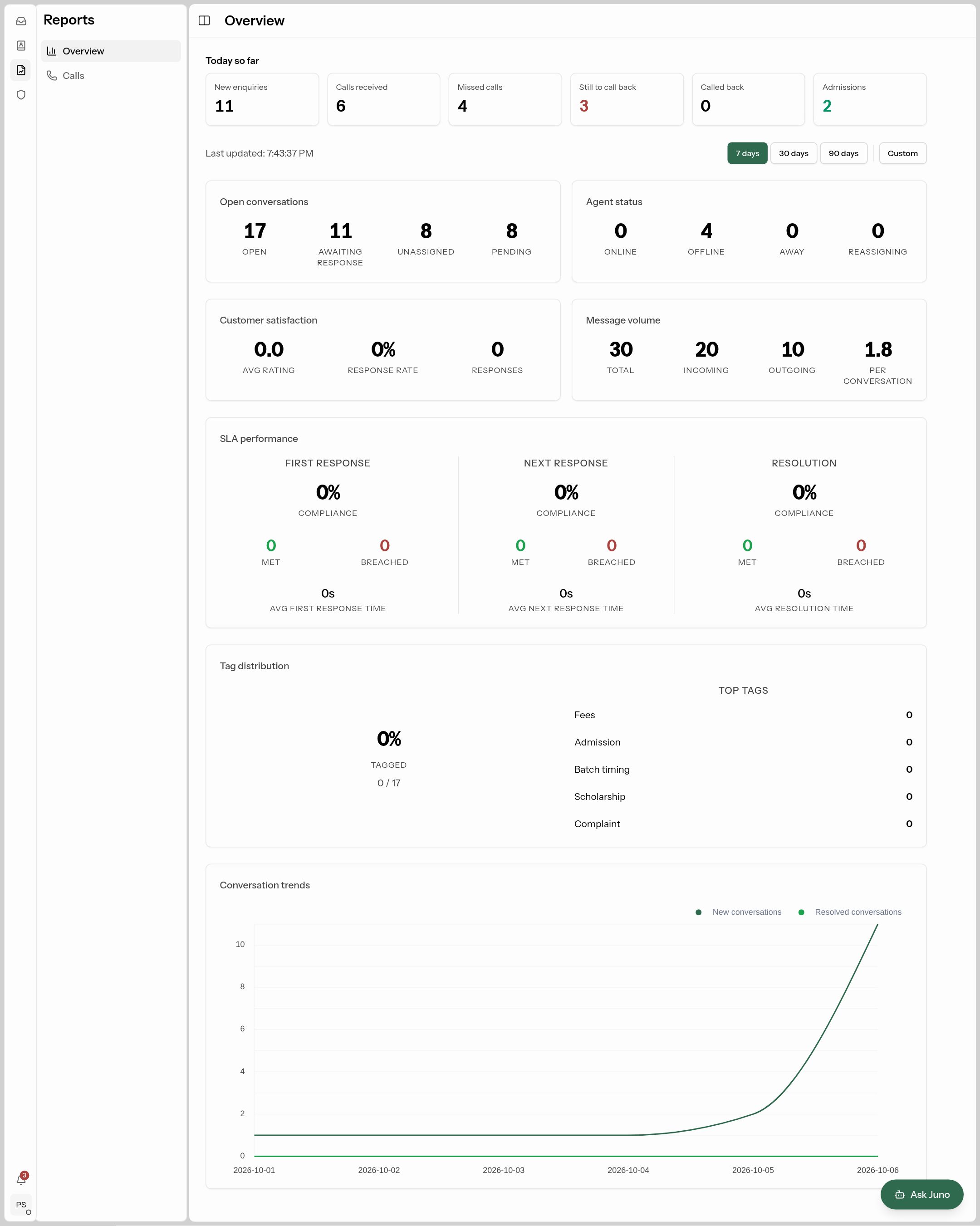
Reports (the chart icon) shows conversation volume, first-response and resolution times, SLA performance, CSAT and calls, for the period you choose. The Ask Juno button answers questions like "Which team breaches the most?".