Conversation tools
Building blocks that save your team time: canned replies (macros), tags, extra fields, custom statuses, saved views and automations.
Macros (canned replies)
Where: Admin → Productivity → Macros.
Why: the answers your team types ten times a day — fee structure, demo class invite, documents needed — become one click. A macro can also tag, assign or change status at the same time.
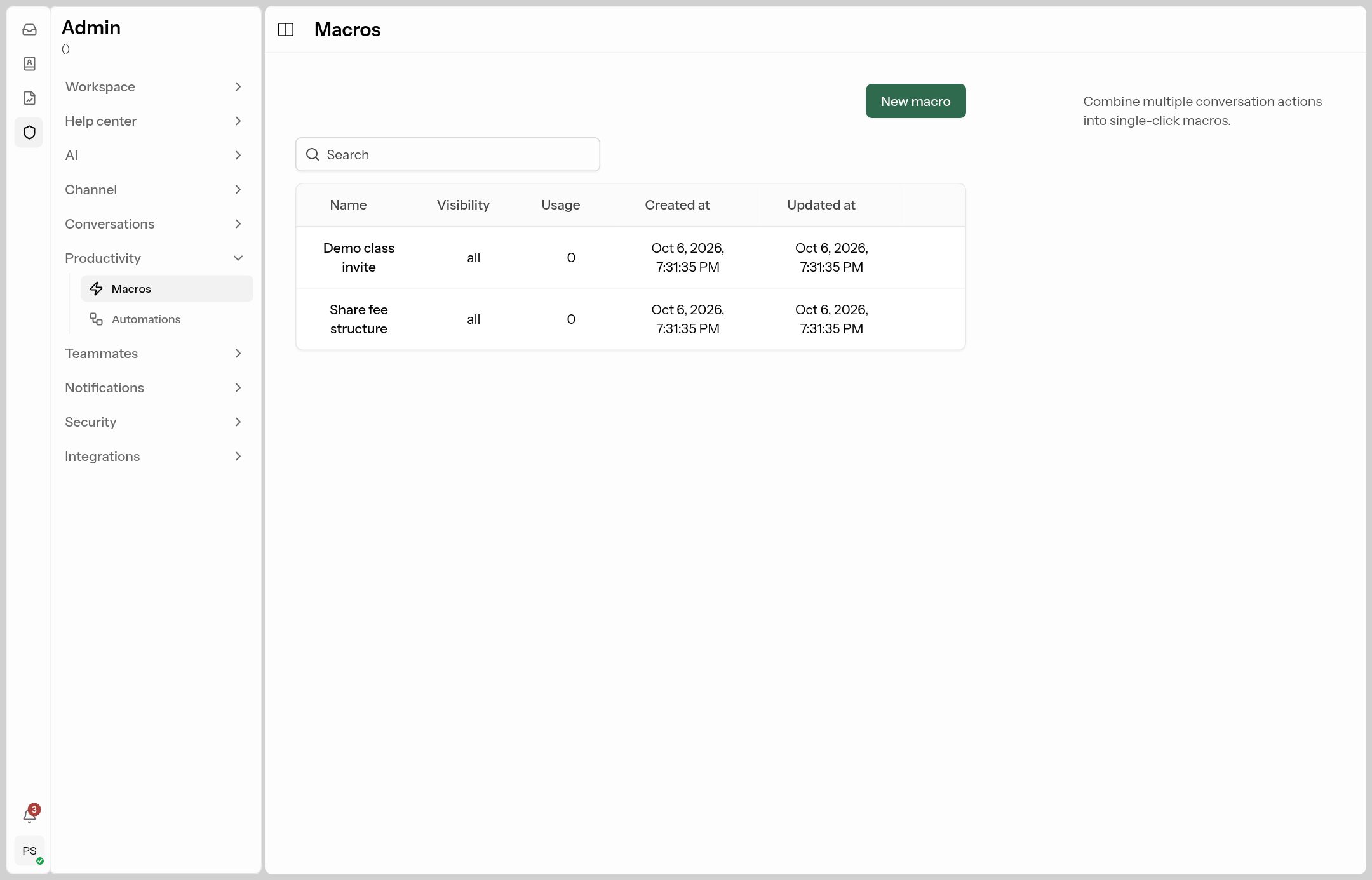
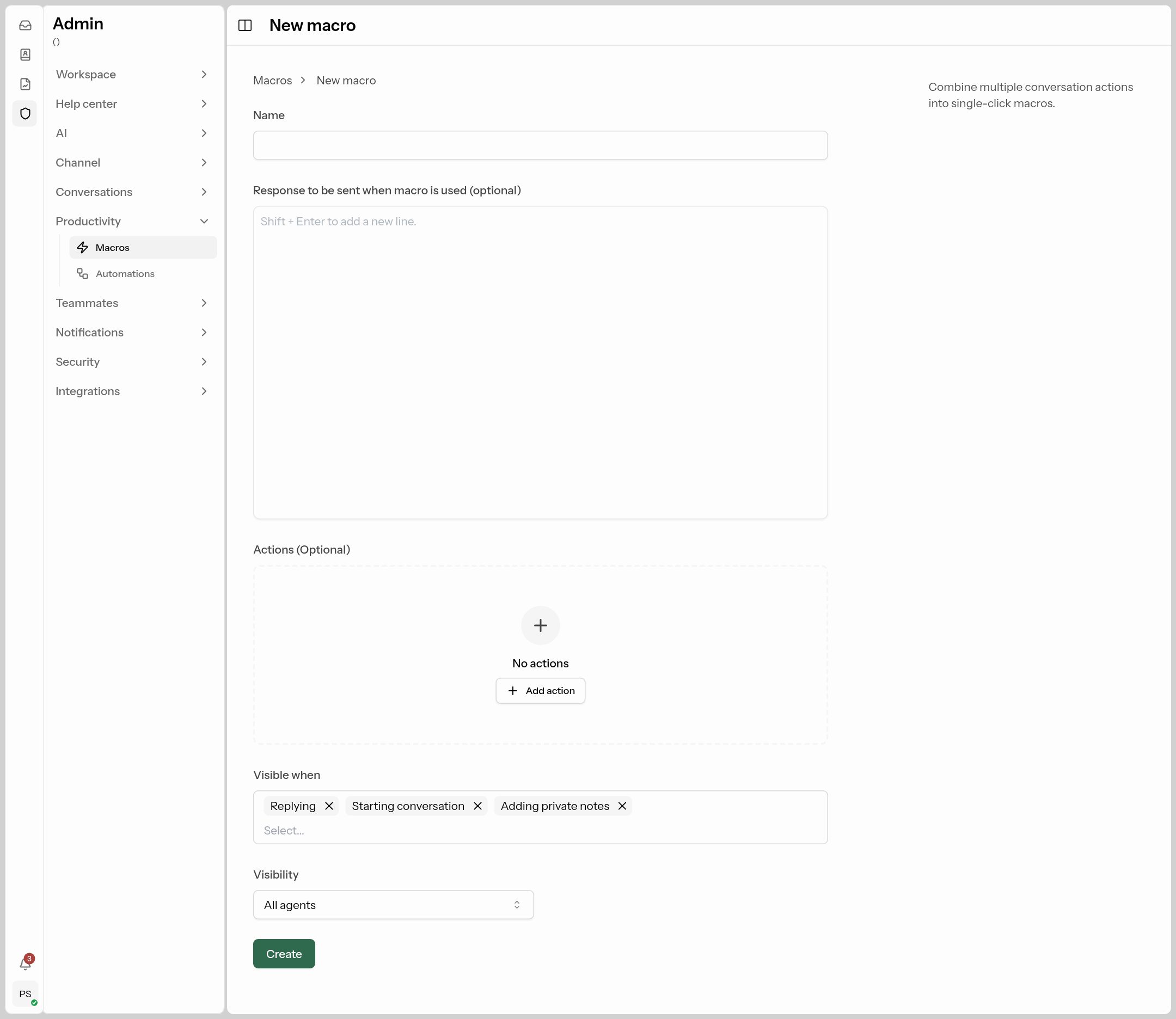
| Field | What to put |
|---|---|
| Name | What agents search for, e.g. Share fee structure. |
| Response to be sent | The reply text. It's inserted into the agent's reply box so they can tweak it before sending. |
| Actions | Optional: Add tags Fees, Assign team, Set status, Set priority… |
| Visible when | Replying, Starting conversation and/or Adding private notes. |
| Visibility | All agents, one Team, or one Agent. |
Agents use macros from the reply box or the command bar (Ctrl+K).
Tags
Where: Admin → Conversations → Tags.
Why: labels like Fees, Admission, Complaint let you filter conversations, build views and reports, and trigger automations. Juno can suggest tags for a conversation.
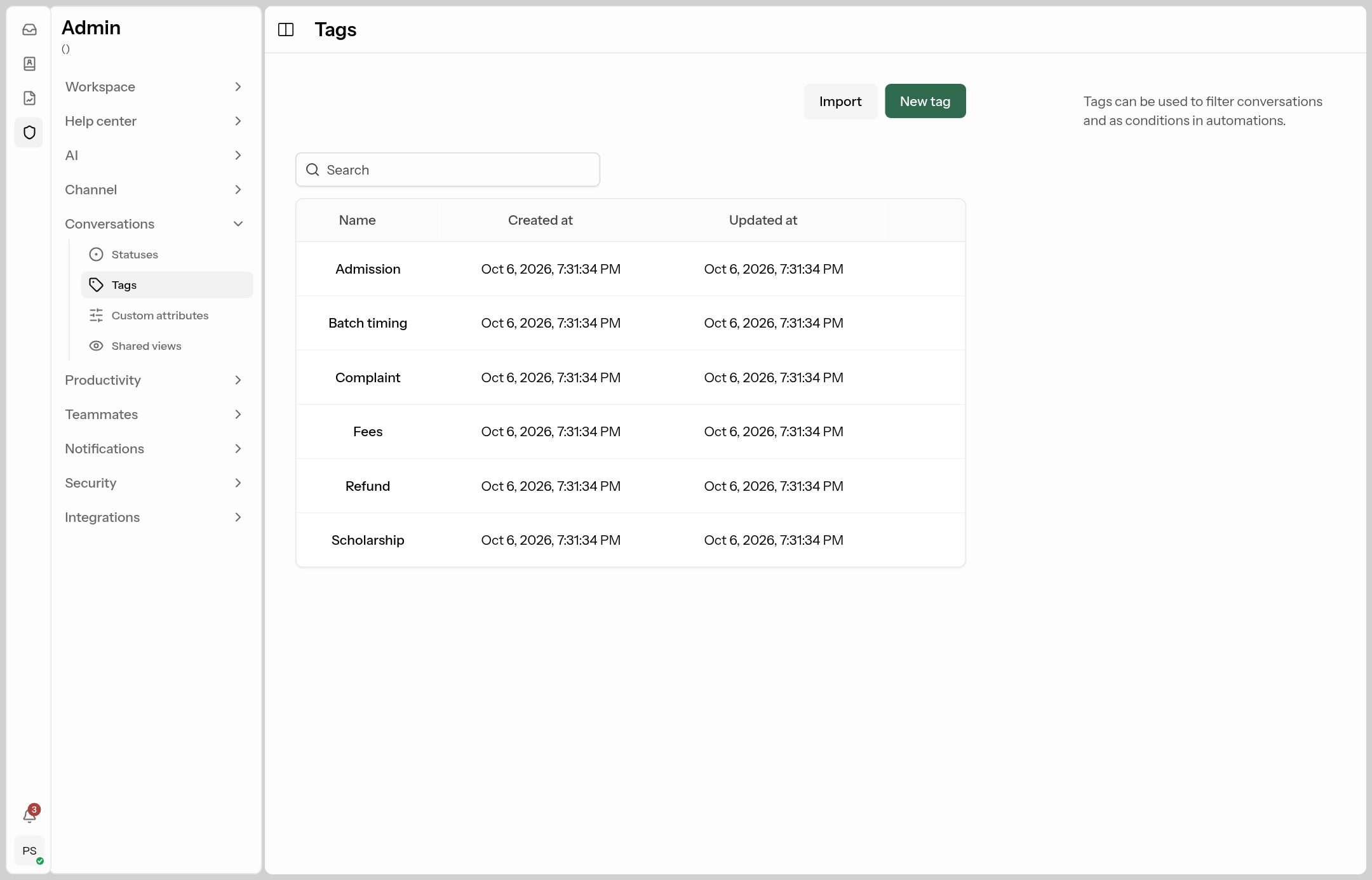
Click New tag, or Import a CSV with a single name column. Deleting a tag removes it from every conversation.
Statuses
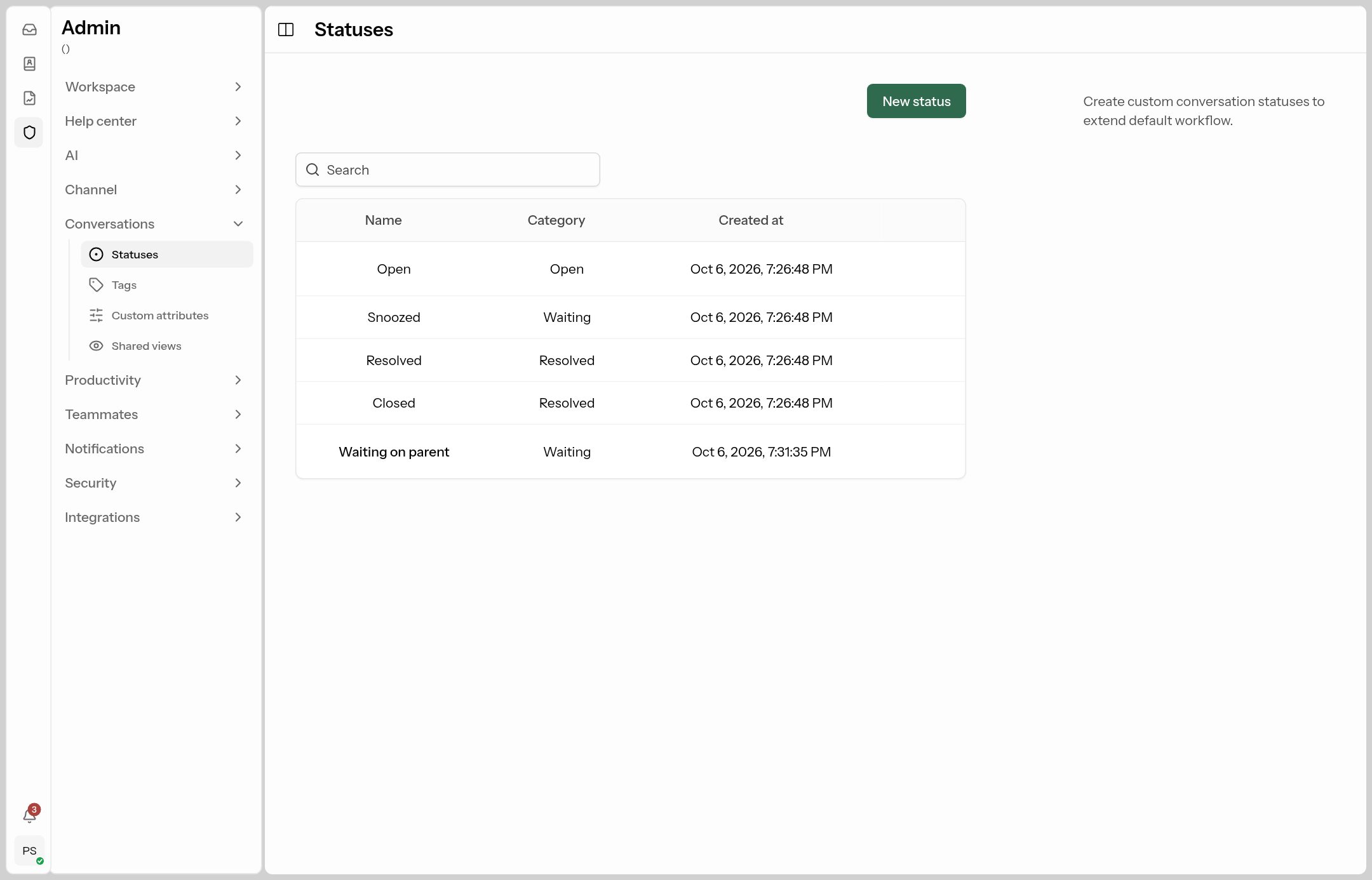
Where: Admin → Conversations → Statuses.
The built-in statuses are Open, Snoozed, Resolved and Closed. Add your own, such as Waiting on parent, and choose its Category: Open (counts as active work), Waiting, or Resolved (counts as done for CSAT and data retention).
Custom attributes
Where: Admin → Conversations → Custom attributes.
Why: store extra details on a contact or conversation — Class, Course interested in, Preferred batch, City. They can be asked in the chat widget's pre-chat form, shown in the agent's sidebar, used in automations and filters, and filled automatically by AI (see Admissions).
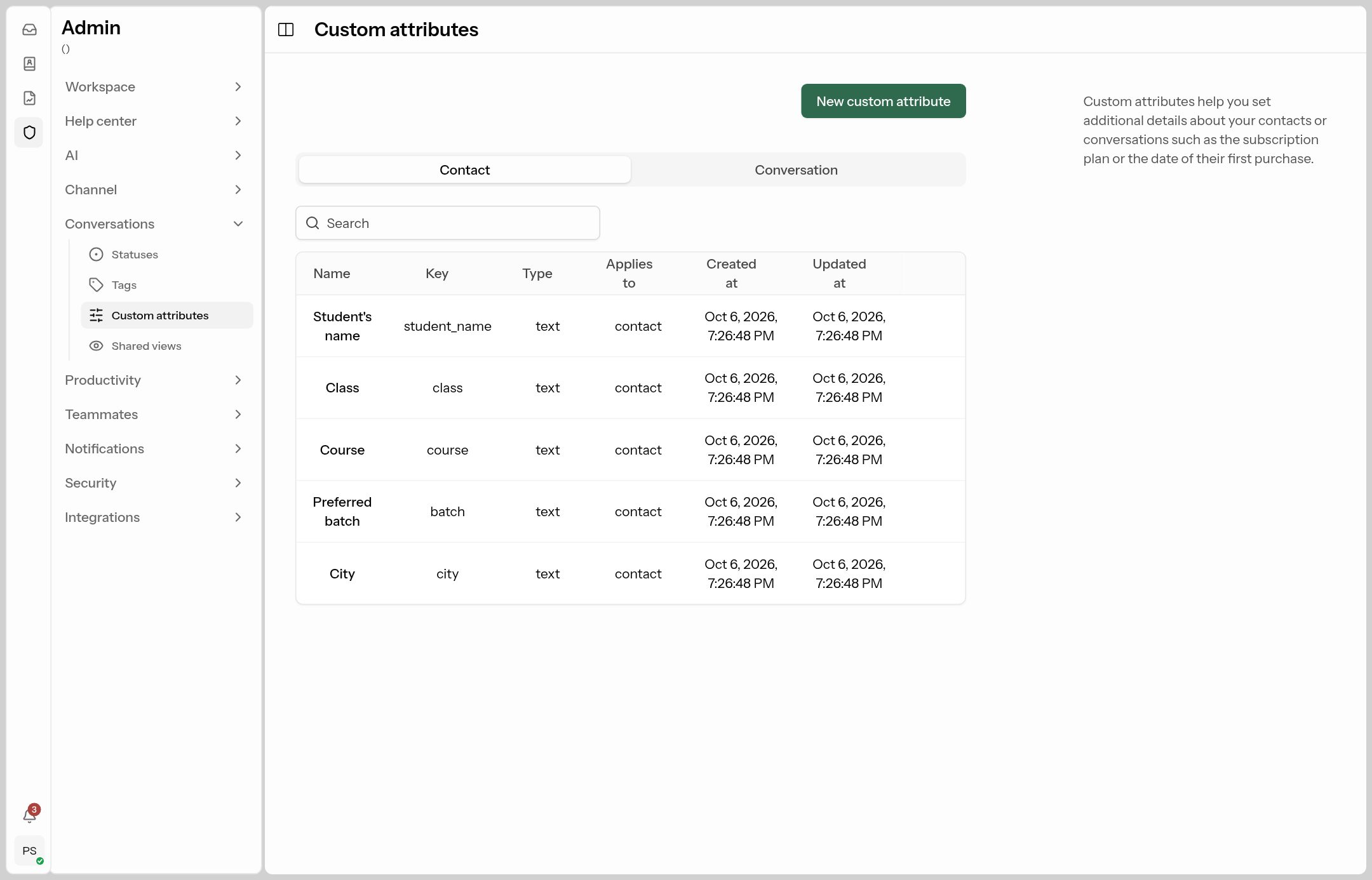
Click New custom attribute, choose Applies to (Contact or Conversation), a Name (the Key fills itself), and a Type: Text, Number, Checkbox, Date, Link or List (with its options). Type can't be changed later.
Shared views
Where: Admin → Conversations → Shared views.
Why: a saved filter that appears in everyone's (or one team's) inbox sidebar, e.g. "Unanswered WhatsApp enquiries" or "Complaints this week".
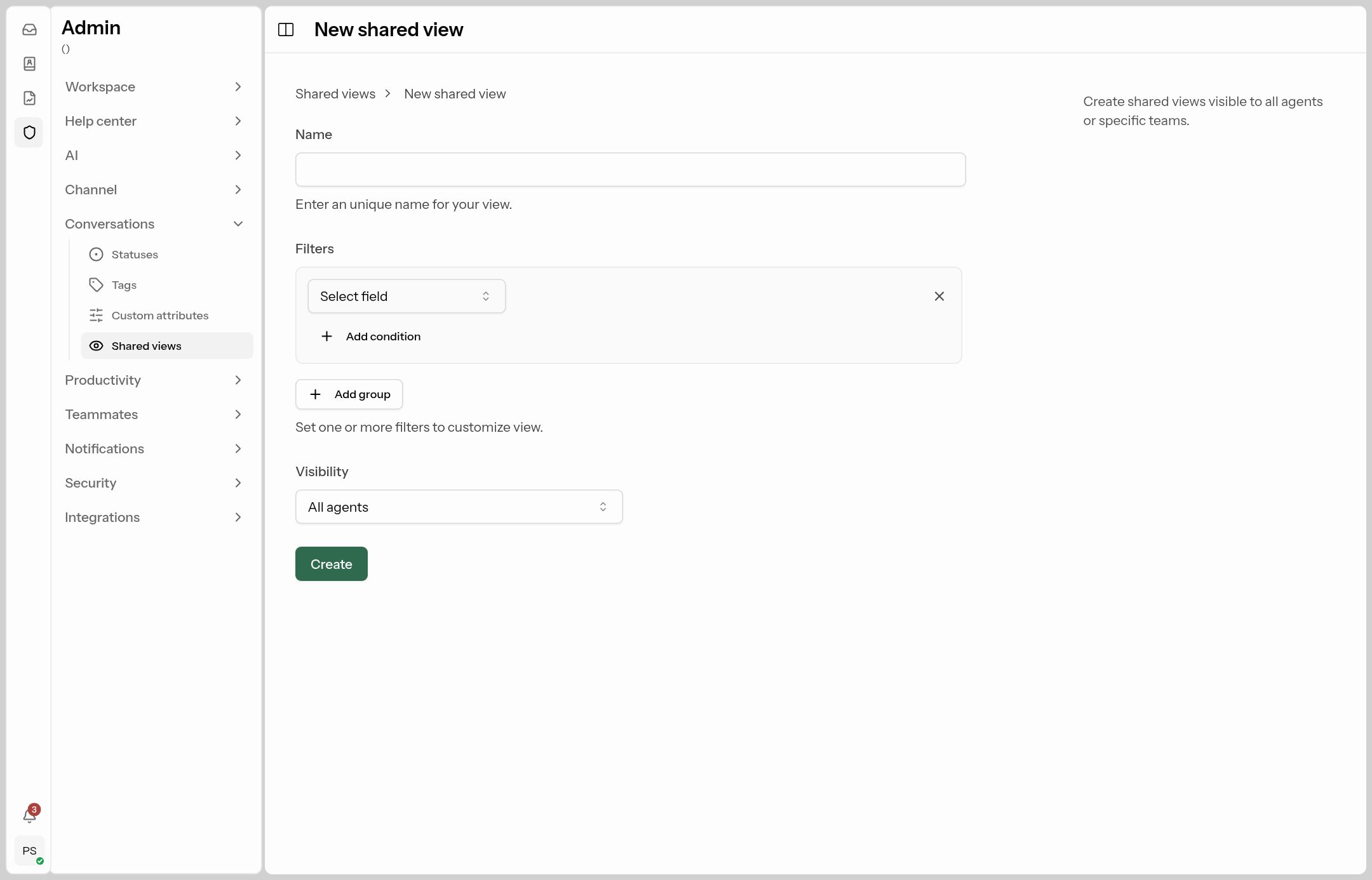
Give it a Name, add Filters (status, inbox, tags, channel, SLA, waiting since, custom attributes…) and pick Visibility (all agents or one team). Agents can also make personal views for themselves.
Automations
Where: Admin → Productivity → Automations.
Why: rules that act on conversations by themselves — route by channel, tag by keyword, escalate long-waiting chats, send the AI assistant email enquiries.
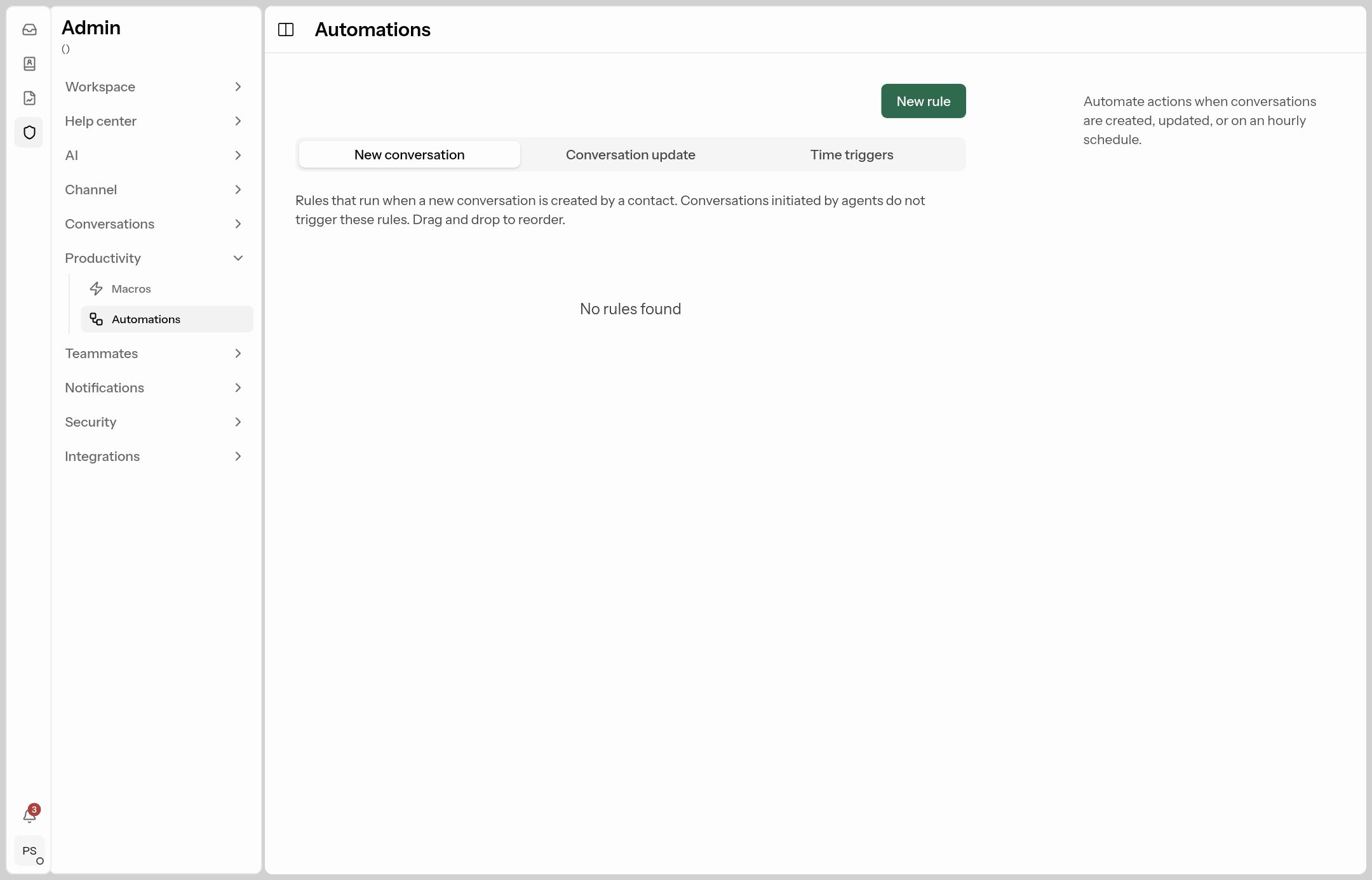
There are three tabs, one per kind of rule:
| Tab | Runs | Example |
|---|---|---|
| New conversation | When a customer starts a conversation. Drag to set the order; choose Execute all matching rules or Execute first matching rule. | Message contains "refund" → tag Refund, assign team Accounts. |
| Conversation update | When something changes (assigned, status, priority, a new message…). | Status changed to Resolved → Send CSAT. |
| Time triggers | Once an hour. | Open and Hours since last reply greater than 24 → set priority Urgent, notify the team lead. |
Click New rule:
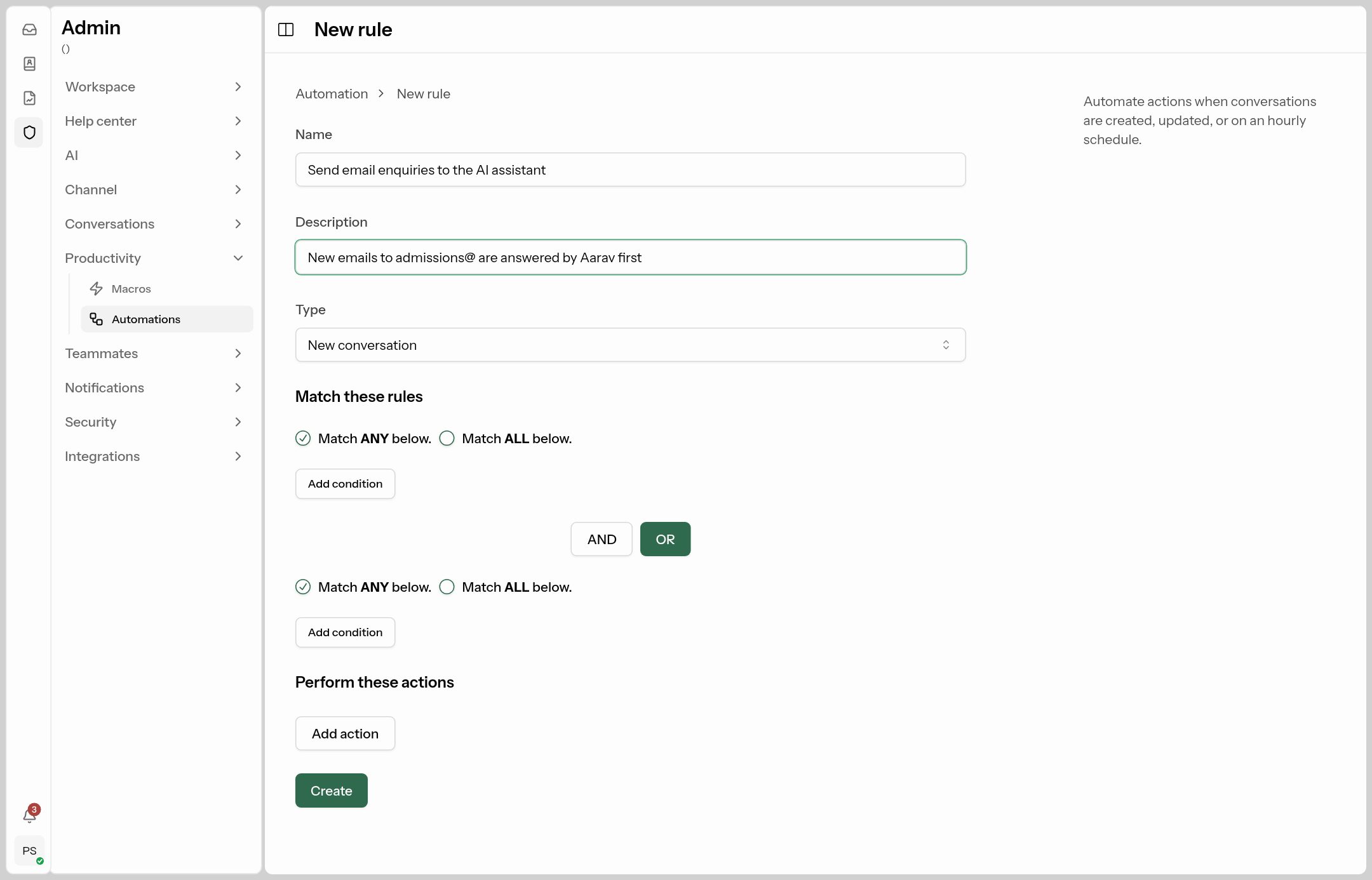
- Name and Description.
- Match these rules: Add condition — field, operator, value. E.g. Inbox equals
Admissions email; Content contains any offees, fee, cost. Two groups can be combined with AND / OR. - Perform these actions: Add action — Assign team, Assign agent (AI assistants are listed here too), Set status, Set priority, Add/Set/Remove tags, Add private note, Send reply, Send CSAT, Set SLA, Notify agents, Snooze, Trigger webhook.
- Create.
Actions are carried out by the "System" user, so you'll see "… by System" in the conversation.